
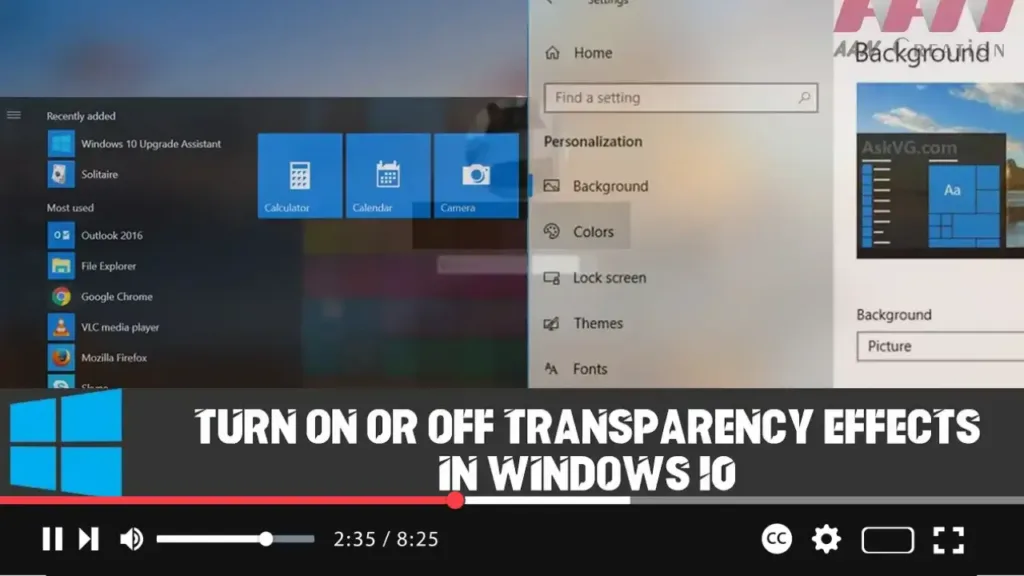

Windows 10 includes transparency effects that can be applied to the taskbar, Start menu, Action Center, and other elements of the interface. These effects add a stylish, frosted-glass look but can be disabled for better performance or personal preference.
Steps to Turn On or Off Transparency Effects in Windows 10:
Step 01:
Open Settings by pressing Windows + I or by clicking the Start menu and selecting the gear icon.
Step 02:
Click on Ease of Access.
Step 03:
In the left-hand menu, click on Display.
Step 04:
Under the Simplify and personalize Windows section on the right, locate the Show transparency in Windows toggle option. Turn it on or off depending on your preference.
Once you complete these steps, enabling transparency will apply the acrylic Fluent Design effects, while disabling them will turn off the transparent look for the taskbar, Start menu, and Action Center. Additionally, the blur effect on the sign-in screen will also be disabled when transparency effects are turned off.

Additional Information:
- Performance Impact: Disabling transparency effects can help improve performance, especially on older or lower-powered devices.
- Fluent Design: Transparency is part of Microsoft’s Fluent Design, which gives the interface a modern and dynamic appearance.
By following these steps, you can easily manage transparency effects to suit your preferences or enhance system performance.

