
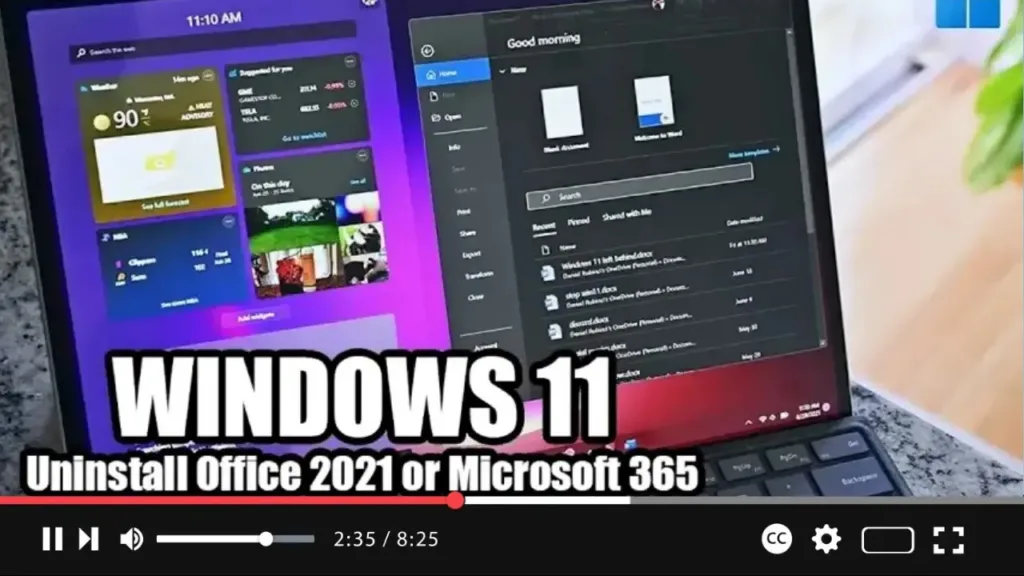

If you’re looking to uninstall Microsoft Office from your Windows 11 system, you have a few options available to you. Whether you need to troubleshoot issues, free up a license, or simply want to remove the suite of apps, here’s how you can do it using the Settings app:
Step 01: Open Apps & Features: Begin by opening the Settings app on your Windows 11 system. You can do this by clicking on the Start menu and selecting the gear icon for Settings.
Step 02: Access Installed Programs: Within the Settings app, navigate to the “Apps & features” page.
Step 03: Locate Microsoft Office: Scroll through the list of installed applications until you find the entry for Microsoft Office. This may be listed as “Microsoft Office 365” or with the specific version name such as “Office Home & Student 2021,” “Office Home & Business 2021,” or “Office Home Professional 2021.”
.webp)
Step 04: Initiate Uninstallation: Click on the entry for Microsoft Office to select it. Then, click on the menu button (usually represented by three dots) located on the right side of the entry. From the dropdown menu, select the “Uninstall” option.
Step 05: Confirm Uninstallation: A confirmation dialog will appear. Click on the “Uninstall” button to confirm and initiate the uninstallation process.
Step 06: Follow On-Screen Directions: Follow any additional on-screen instructions that may appear to complete the uninstallation process. This may include confirmation prompts or instructions specific to your version of Microsoft Office.
.webp)
Upon completing these steps, the selected version of Microsoft Office will be removed from your Windows 11 system. If you encounter any issues or require further assistance, feel free to reach out for help.
Whether you’re troubleshooting, freeing up licenses, or simply looking to switch versions, uninstalling Microsoft Office on Windows 11 is a straightforward process.

