
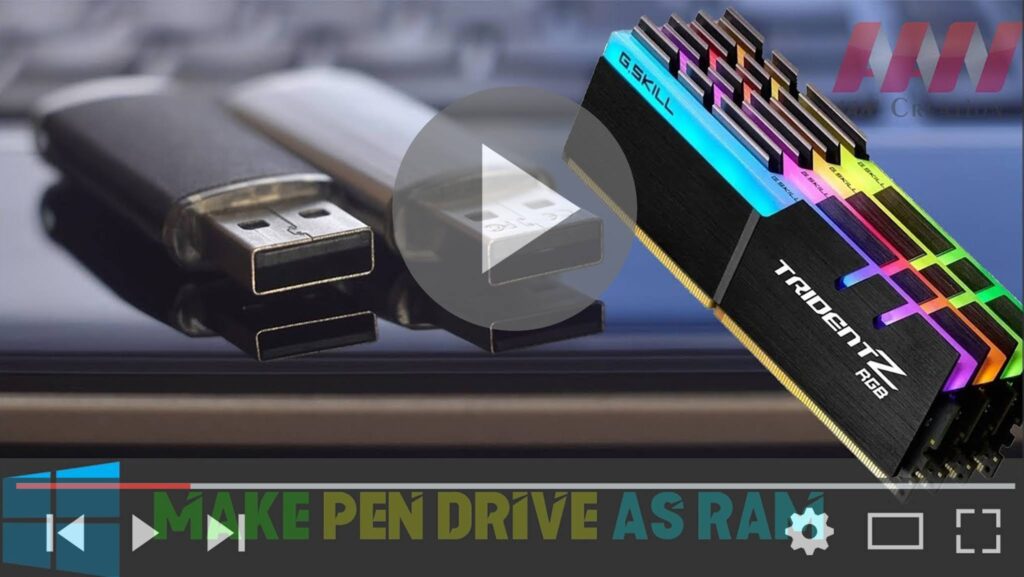

If your computer is struggling with performance due to low RAM, you can utilize a pen drive (USB flash drive) as additional memory through a feature called ReadyBoost. This can help your system manage more tasks and run smoother. Here’s how to set it up:
Step 01: Insert and Format Your Pen Drive
- Insert your pen drive into a USB port on your computer.
- Format the pen drive to ensure it’s ready for use. To do this, right-click on the pen drive in File Explorer, select Format, and follow the prompts.
Step 02: Access Pen Drive Properties
- Right-click on your pen drive again and select Properties from the context menu.
Step 03: Enable ReadyBoost
- In the Properties window, click on the ReadyBoost tab.
- Select Use this device to enable ReadyBoost.

Step 04: Allocate Space for ReadyBoost
- Choose the maximum amount of space you want to reserve for system speed by adjusting the slider. This will determine how much of your pen drive will be used as additional memory.
Step 05: Apply Changes
- Click OK and then Apply to save your settings.
Step 06: Enjoy Improved Performance
- Your pen drive is now configured to be used as RAM through ReadyBoost. You should notice improved performance in your computer’s operation.
By following these steps, you can make efficient use of your pen drive to enhance your computer’s performance, especially if it has limited physical RAM.

