
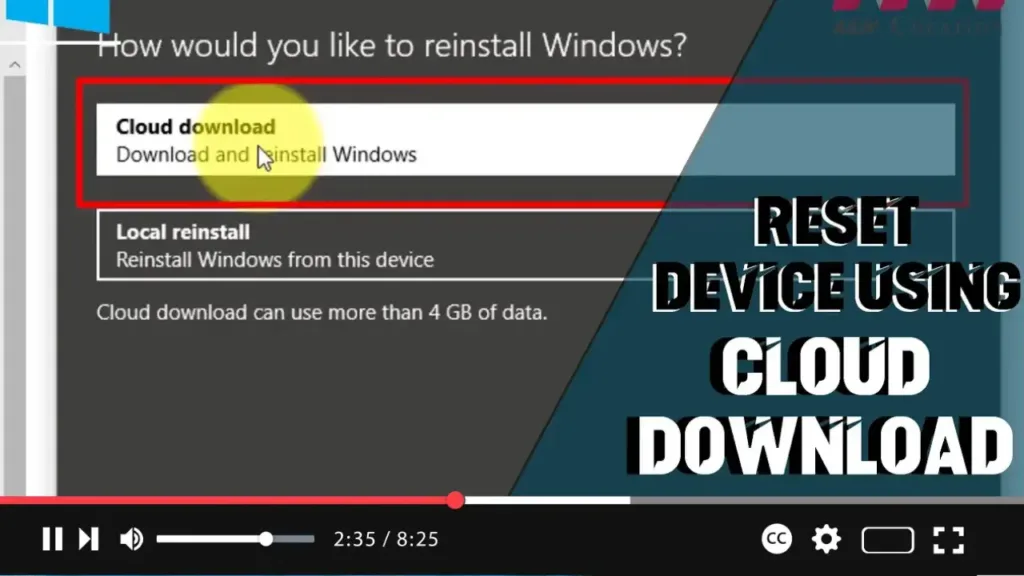

When your Windows 10 device is experiencing issues, you can use the “Reset this PC” feature to restore it to factory default settings using the manufacturer’s custom or default Windows 10 image available locally. However, if the local image is corrupted, you can use the new “Cloud Download” option introduced in Windows 10 version 2004 to download a fresh installation of Windows 10 from the cloud.
In this video, you’ll learn the steps to use the “Cloud Download” option when resetting your device to fix problems with the current installation.
Steps to Use Cloud Download to Reset Your PC
Step 01: Open Settings
- Click on the Start menu and select the “Settings” gear icon, or press
Win + Ito open the Settings app directly.
.webp)
Step 02: Click on Update & Security
- In the Settings window, click on “Update & Security.”
Step 03: Click on Recovery
- In the left-hand sidebar, click on “Recovery.”
Step 04: Click the Get started button under the “Reset this PC” section
- Under the “Reset this PC” section, click the “Get started” button.
Step 05: Choose an Option
- Click the “Keep my files” option if you want to retain your personal files.
- The “Cloud Download” option is also available for the “Remove everything” option if you want a complete reset.
Step 06: Click the Cloud Download option
- On the next screen, select the “Cloud Download” option.
Step 07: Turn on the Download Windows? toggle switch
- Ensure that the toggle switch for downloading Windows is turned on.
.webp)
Step 08: Click the Confirm button
- Confirm your choice by clicking the “Confirm” button.
Step 09: Click the Next button
- Click the “Next” button to proceed.
Step 10: Click the Next button again
- Click the “Next” button again to confirm your reset settings.
Step 11: Click the Reset button
- Finally, click the “Reset” button to start the reset process.
Conclusion
Once you complete these steps, Windows 10 will download a fresh copy of the installation from the cloud and reset your device to default settings. The process will erase and reinstall Windows 10, and the time to complete will depend on your computer’s hardware configuration and the reset options you selected. This method ensures a clean and fresh installation, potentially resolving issues with the current installation.

