
Microsoft Expression Encoder is a free tool for recording HD videos of your screen, webcam, or microphone. Although it offers a straightforward experience for screen recording, it lacks advanced editing features.
Key Features:
- Screen, Webcam, and Audio Recording: You can record everything happening on your screen, your webcam feed, or just audio input.
- Simple Interface: The Screen Capture tool is intuitive, letting you choose the device, area to record, and video quality before pressing the red button to start recording.
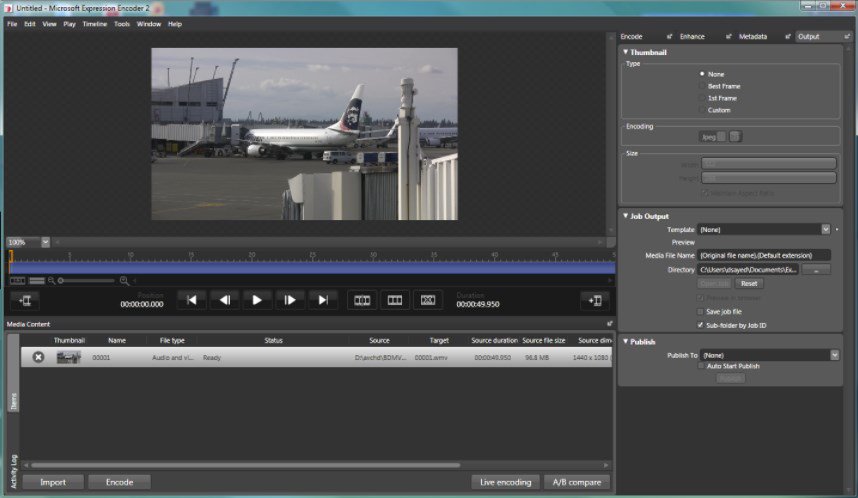
- Editing Tool: After recording, the captured video can be edited in the second part of the app, which includes basic encoding and trimming options.
How to Use:
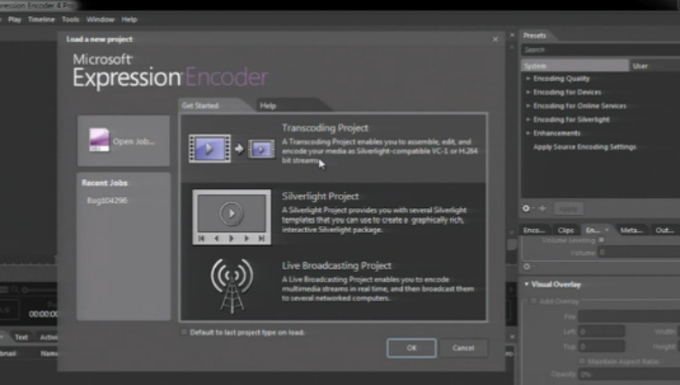
- Install Microsoft Expression Encoder: Download and install the application on your Windows 10 device.
- Launch the Screen Capture Tool: Open the screen recorder and select what you want to record—screen, webcam, or audio.
- Select the Recording Area and Quality: Choose the portion of the screen and set the video quality.
- Start Recording: Press the red button to begin recording.
- Edit Your Video: Once recorded, switch to the editing section to make adjustments like trimming and encoding.
Limitations:
- Basic Editing: The app offers limited editing tools without the ability to add effects or export in multiple formats.
- Output Options: The encoder primarily focuses on preparing video files for web formats rather than diverse multimedia formats.
Microsoft Expression Encoder is an excellent free option for quick screen recordings but may not satisfy those who require more extensive editing features.