
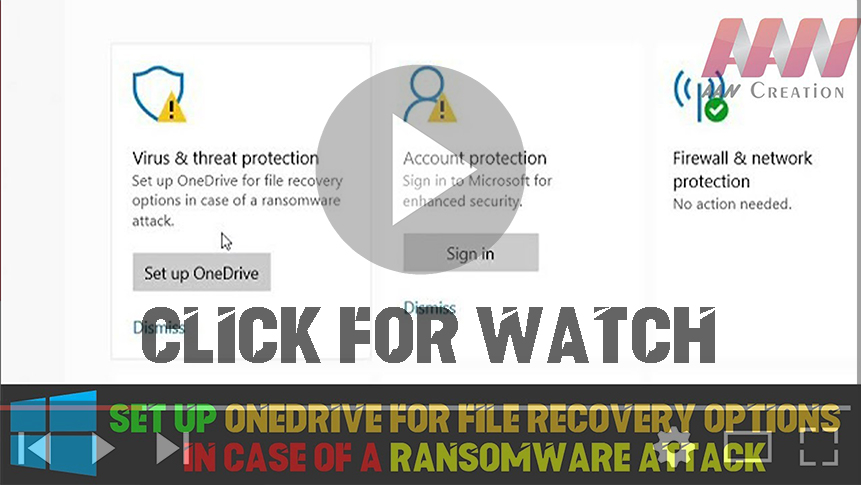

In April, Microsoft announced enhanced protection capabilities for OneDrive users, particularly targeting ransomware attacks. These improvements provide Office 365 Home and Office 365 Personal subscribers with new tools to safeguard their files and ensure a smooth recovery process in the event of a cyber incident. By integrating OneDrive’s Files Restore feature with Windows Defender Antivirus, users can efficiently manage file recovery without succumbing to ransomware demands.
Understanding Ransomware and Its Impact
Ransomware is a type of malicious software that encrypts files on your device, rendering them inaccessible until a ransom is paid. The implications of a ransomware attack can be devastating, especially for personal and business data. Therefore, establishing robust recovery options is essential.
How to Set Up OneDrive for File Recovery
Method 01: Click to Dismiss Notification
- Receive Notification: After detecting a potential ransomware attack, you might receive a notification regarding the OneDrive Files Restore feature.
- Click Dismiss: Simply click the dismiss button on the notification. This action will ensure that OneDrive remains vigilant and allows for recovery options if needed.
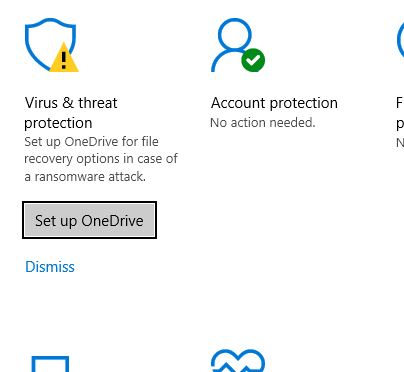
Method 02: Setting Up OneDrive for Files Restore
-
Click Set Up OneDrive: Start by clicking the “Set Up OneDrive” option available in your notification center.
-
Sign In to OneDrive: Enter your Microsoft account credentials to sign in to your OneDrive account.
-
Set the Restore File Option: Navigate to the Files Restore feature:
- Locate the “Restore your OneDrive” option on the sidebar.
- Click on it to access the restoration options.
-
Start the Restoration Process:
- After removing the ransomware from your device, initiate the OneDrive Files Restore process by clicking on the notification.
- The Files Restore interface will open, pre-selecting the date and time of the attack. This setting allows you to restore your files to their status before the breach.
-
Select Files to Restore: Choose which files or folders you want to restore. You can either restore everything or select specific items, ensuring that only unaffected data is recovered.
-
Complete Restoration: Follow the on-screen prompts to complete the restoration process. OneDrive will restore your files, and you can then verify their integrity

Tips for Enhanced Protection Against Ransomware
- Regular Backups: Regularly back up your important files to OneDrive and other external storage devices to minimize data loss.
- Enable Two-Factor Authentication: This adds an extra layer of security to your OneDrive account, making it harder for cybercriminals to access your files.
- Keep Software Updated: Regularly update your operating system and applications to protect against vulnerabilities that ransomware can exploit.
- Use Antivirus Software: Keep Windows Defender Antivirus updated to detect and eliminate malware threats proactively.
Conclusion
Setting up OneDrive for file recovery options is a proactive measure to safeguard against ransomware attacks. By utilizing the Files Restore feature, you can efficiently recover your files in the event of a cyber incident, allowing you to focus on what matters most—your data and peace of mind. Make sure to follow the outlined steps and adopt additional security practices to enhance your overall protection.

