
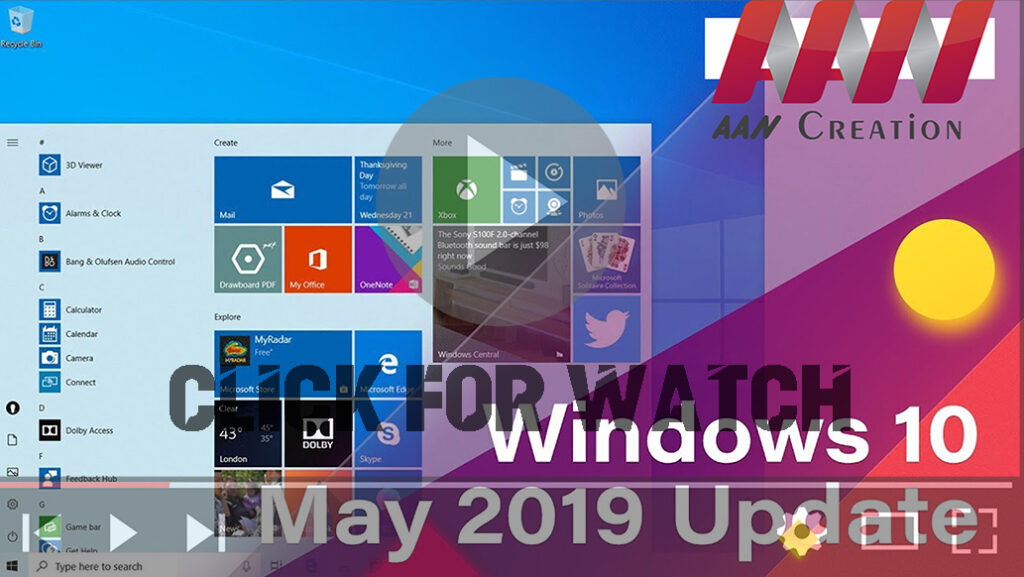

Windows 10 version 1903, May 2019 Update, an official with the 10 best
new features, including Light mode, Windows Sandbox, Reserved Storage,
Recommended Troubleshooting, automatic Active hours, disabled Windows
updates for Windows 10 Home users, quick access to symbols, Windows
Search, mouse pointer color & sizes, quick brightness control.
new features, including Light mode, Windows Sandbox, Reserved Storage,
Recommended Troubleshooting, automatic Active hours, disabled Windows
updates for Windows 10 Home users, quick access to symbols, Windows
Search, mouse pointer color & sizes, quick brightness control.
Important: Windows 10 1903 version (May 2019 Update) is expected to
release in late May. In this article, I will show the best
features.
release in late May. In this article, I will show the best
features.
Download the Windows assistant:

Windows Autopilot
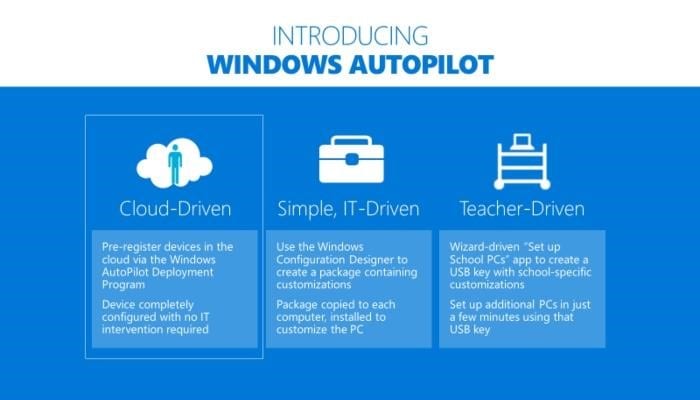
Autopilot is a collection of technologies used to set-up &
pre-customize new devices, getting them ready for productive use. The
following Windows Autopilot features are available in Windows 10, version
1903 & later:
pre-customize new devices, getting them ready for productive use. The
following Windows Autopilot features are available in Windows 10, version
1903 & later:
Windows Autopilot for white glove deployment is the latest version of
Windows. “White glove” deployment enables partners or IT staff to
pre-provision devices so they are fully configured & business ready
for your users.
Windows. “White glove” deployment enables partners or IT staff to
pre-provision devices so they are fully configured & business ready
for your users.
The Intune enrollment status page (ESP) now tracks Intune Management
Extensions.
Extensions.
Cortana voiceover & speech recognition during OOBE is disabled by
default for all Windows 10 Pro Education, & Enterprise SKUs.
default for all Windows 10 Pro Education, & Enterprise SKUs.
Windows Autopilot is self-updating during OOBE. Starting with the Windows
10 version 1903 Autopilot functional & critical updates will begin
downloading automatically during OOBE. Windows Autopilot will set the
diagnostics data level to Full on Windows 10 version 1903 & later
during OOBE.
10 version 1903 Autopilot functional & critical updates will begin
downloading automatically during OOBE. Windows Autopilot will set the
diagnostics data level to Full on Windows 10 version 1903 & later
during OOBE.
SetupDiag version 1.4.1 is available.
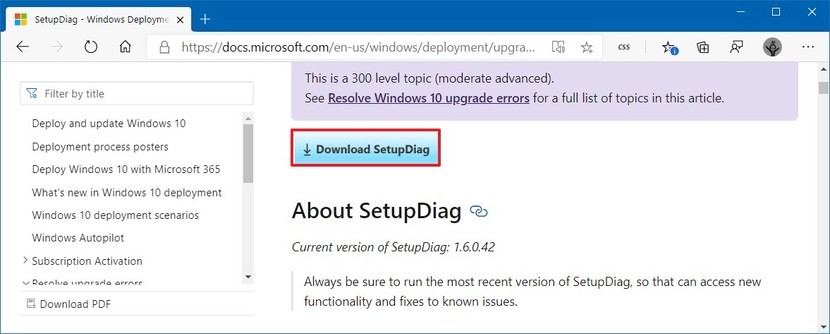
SetupDiag is a CMD tool that can help diagnose why a Windows 10 update
failed. SetupDiag works by searching Windows Setup log files. When
searching for log files, SetupDiag uses a set of rules to match known
troubles. In the new version of SetupDiag, there are 53 rules contained in
the rules.xml file, which is extracted when SetupDiag is run. The
rules.xml file will be updated as the latest versions of SetupDiag are
made available.
failed. SetupDiag works by searching Windows Setup log files. When
searching for log files, SetupDiag uses a set of rules to match known
troubles. In the new version of SetupDiag, there are 53 rules contained in
the rules.xml file, which is extracted when SetupDiag is run. The
rules.xml file will be updated as the latest versions of SetupDiag are
made available.
Servicing

(adsbygoogle = window.adsbygoogle || []).push({});
Delivery Optimization: Improved Peer Efficiency for enterprises &
educational institutions with complex networks is enabled by new
policies. This now supports Office 365 ProPlus updates, & Intune
content, with System Center Configuration Manager content coming
soon!
educational institutions with complex networks is enabled by new
policies. This now supports Office 365 ProPlus updates, & Intune
content, with System Center Configuration Manager content coming
soon!
Automatic Restart Sign-on Windows will automatically login as the user
& lock their device in order to complete the update, ensuring that
when the user returns and unlocks the device, the update will be
completed.
& lock their device in order to complete the update, ensuring that
when the user returns and unlocks the device, the update will be
completed.
Windows Update for Business There will now be a single, common start date
for phased deployments (no more SAC-T designation). In addition, there
will be a new notification & reboot scheduling experience for end-users,
the ability to enforce update installation and reboot deadlines, and the
ability to provide end-user control over reboots for a specific time
period.
for phased deployments (no more SAC-T designation). In addition, there
will be a new notification & reboot scheduling experience for end-users,
the ability to enforce update installation and reboot deadlines, and the
ability to provide end-user control over reboots for a specific time
period.
Update rollback improvements: You can now automatically recover from
startup failures by removing updates if the startup failure was introduced
after the installation of the recent driver or quality updates. When a
device is unable to start up correctly after the recent installation of
the Quality of driver updates, Windows will now automatically uninstall
the updates to get the device back up and running normally.
startup failures by removing updates if the startup failure was introduced
after the installation of the recent driver or quality updates. When a
device is unable to start up correctly after the recent installation of
the Quality of driver updates, Windows will now automatically uninstall
the updates to get the device back up and running normally.
Pause updates: We have extended the ability to pause updates for both
features & monthly updates. This extension ability is for all editions
of Windows 10, including Windows 10 Home. You can pause both features
& monthly updates for up to 35 days (seven days at a time, up to five
times). Once the 35-day pause period is reached, you will need to update
your windows before pausing again.
features & monthly updates. This extension ability is for all editions
of Windows 10, including Windows 10 Home. You can pause both features
& monthly updates for up to 35 days (seven days at a time, up to five
times). Once the 35-day pause period is reached, you will need to update
your windows before pausing again.
Improved update notifications: When there’s an update requiring you to
restart the device, you will see a colored dot on the Power button in the
Start menu and on the Windows icon in your taskbar.
restart the device, you will see a colored dot on the Power button in the
Start menu and on the Windows icon in your taskbar.
Intelligent active hours: To further enhance active hours, users will now
have the feature to let Windows Update intelligently adjust active hours
based on their device-specific usage patterns. You must enable the
intelligent active hour feature for the system to predict
device-specific usage patterns.
have the feature to let Windows Update intelligently adjust active hours
based on their device-specific usage patterns. You must enable the
intelligent active hour feature for the system to predict
device-specific usage patterns.
New Light Theme
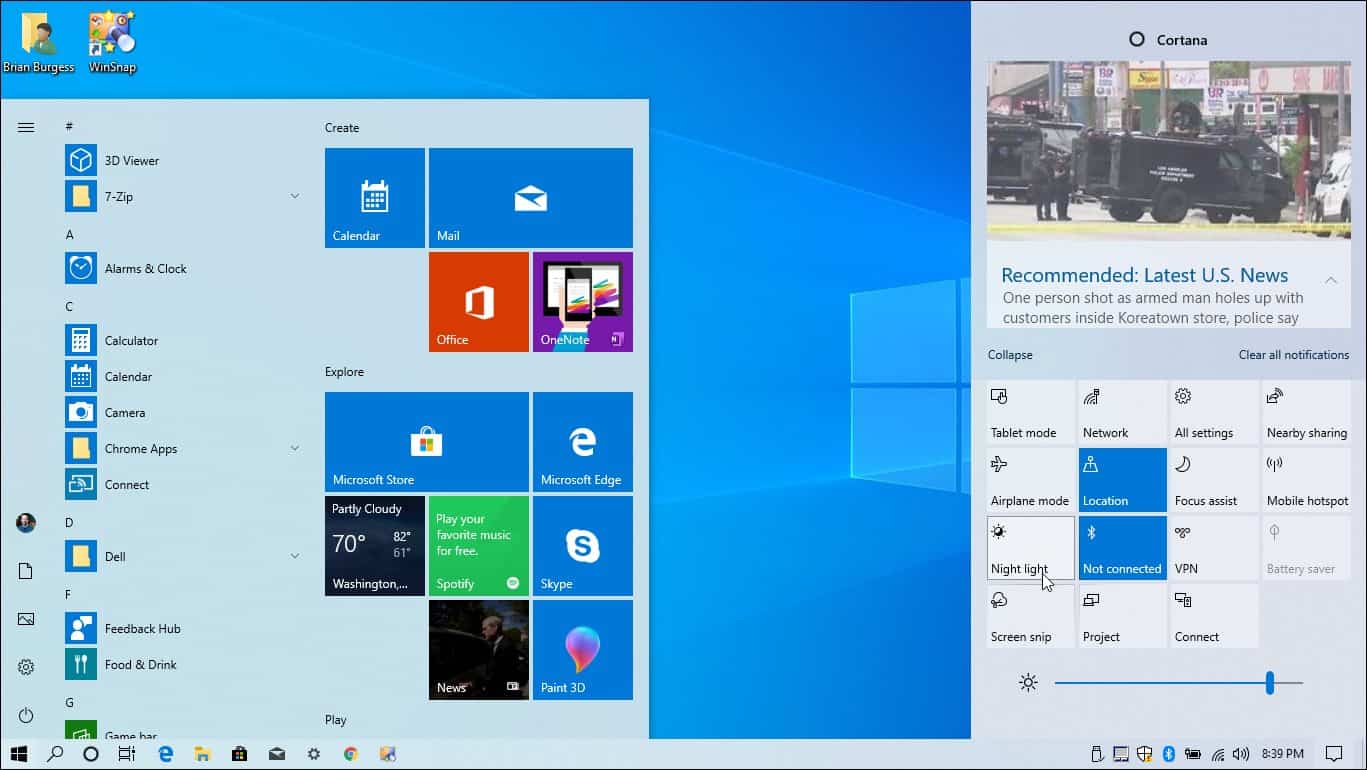
One of the most visual new features you’ll find is a new “Light Theme”
that gives Windows a clean & well, light look & feel.
that gives Windows a clean & well, light look & feel.
The Best New and Notable Features in Windows 10 1903 Version.
However, turning on the new theme is not exactly where you’d think
it’s.
it’s.
To enable it, head to
*Settings – Personalization
*Colors and choose “Light” from the dropdown menu under the “Choose your
color” option.
color” option.
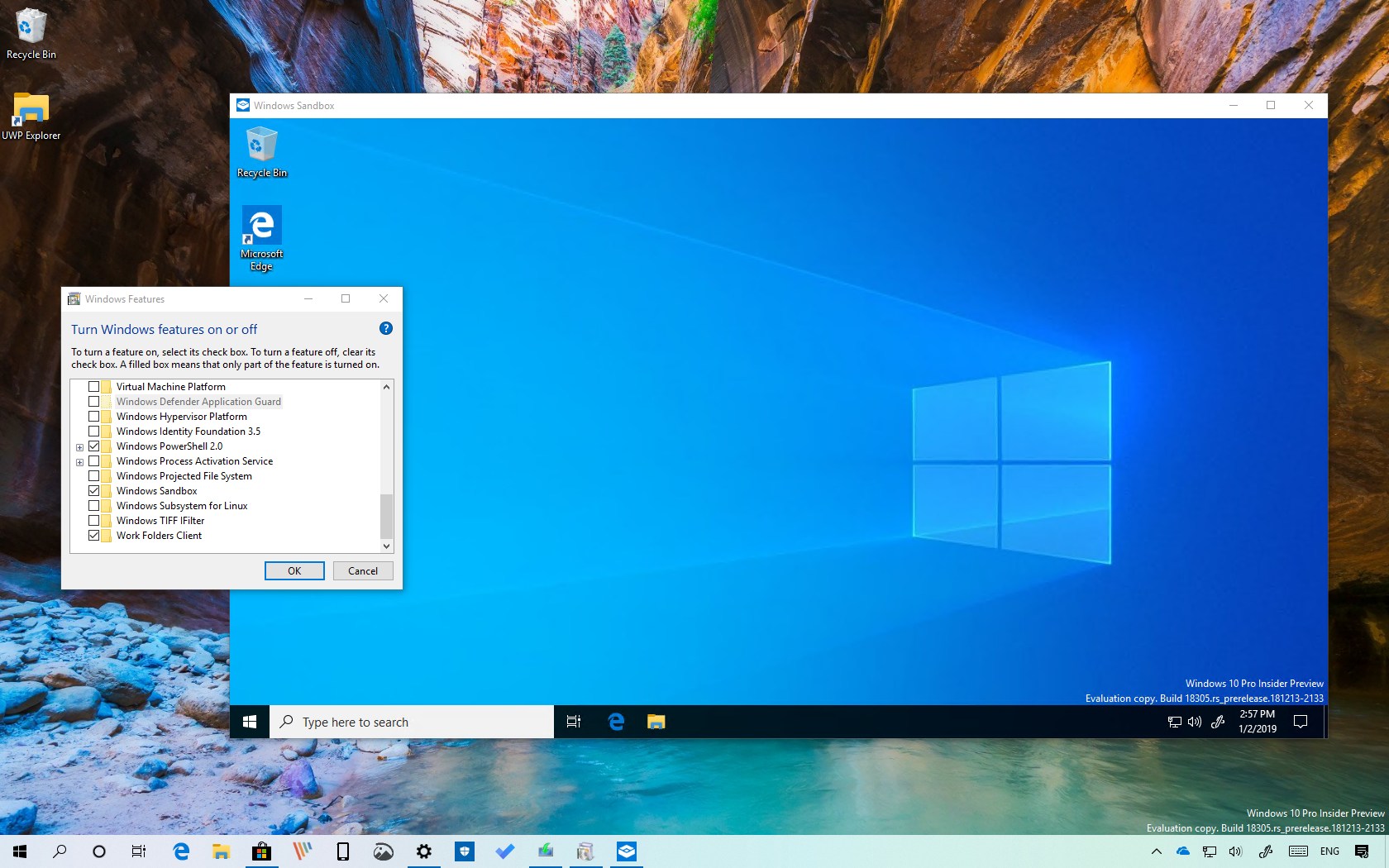
Windows Sandbox
* Cortana and Search are Separate
* Enhanced Search Mode
* Pause Updates for Windows 10 Home
* Brightness Control from Action Center
(adsbygoogle = window.adsbygoogle || []).push({});

