
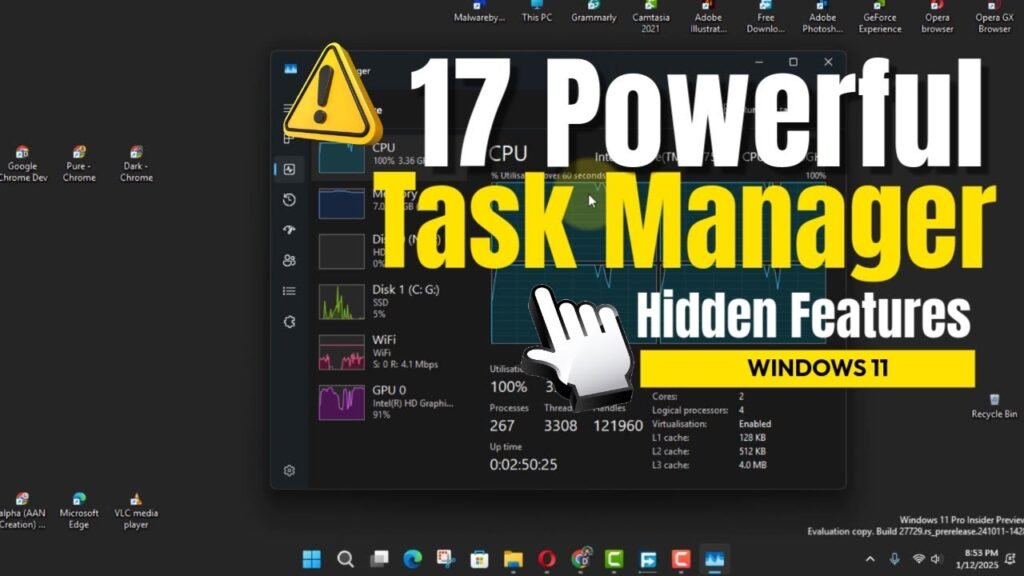

Most people open Task Manager only to close a frozen app. In Windows 11 it can do much more: find what’s slowing your PC, control startup apps and even run commands as administrator. Here are the most useful features.
Open Task Manager quickly
- Press Ctrl + Shift + Esc.
- Or right-click the taskbar or the Start button and choose Task Manager.
Everyday tips
- Search processes: type in the search box at the top to find an app by name, publisher or process ID.
- Sort by usage: on the Processes page, click the CPU, Memory or Disk column header to see what’s using the most.
- End task: select a frozen app and click End task at the top.
- Efficiency mode: right-click a busy background app and choose Efficiency mode. Windows lowers its priority to keep your PC responsive.
- Restart File Explorer: if the taskbar or desktop freezes, find Windows Explorer, right-click it and choose Restart.
- Open file location: right-click a process and choose Open file location to see where an unknown program lives.
- Search online: right-click a process and choose Search online to find out what it is.
Control startup and performance
- Startup apps: open Startup apps in the left menu, right-click an app and choose Disable to stop it opening at sign-in.
- Add columns: right-click any column header to add columns such as GPU, GPU engine or Command line.
- Check uptime: on Performance > CPU, the Up time value shows how long since the last restart.
- Check RAM details: Performance > Memory shows speed, slots used and form factor.
- Copy system info: on any Performance page, right-click and choose Copy to paste the details into a message or forum.
- App history: see how much CPU time and network data Store apps have used.
Power-user tips
- Run new task: click Run new task, type a command such as
cmd, and tick Create this task with administrative privileges to open it as admin. - Set priority: on the Details page, right-click a process and choose Set priority. Avoid using Realtime, as it can make Windows unstable.
- Services: the Services page lets you start, stop or restart Windows services.
- Settings: click Settings at the bottom left to choose the Default start page, change the Real time update speed or turn on Always on top.
Frequently asked questions
Is it safe to end any process?
No. Ending Windows processes such as System or Desktop Window Manager can crash or freeze your PC. Stick to apps you recognise.
Why is a process using 100% disk or CPU?
Often it’s Windows Update, an antivirus scan or indexing, and it settles down after a while. If one app stays high for a long time, update or reinstall it.

