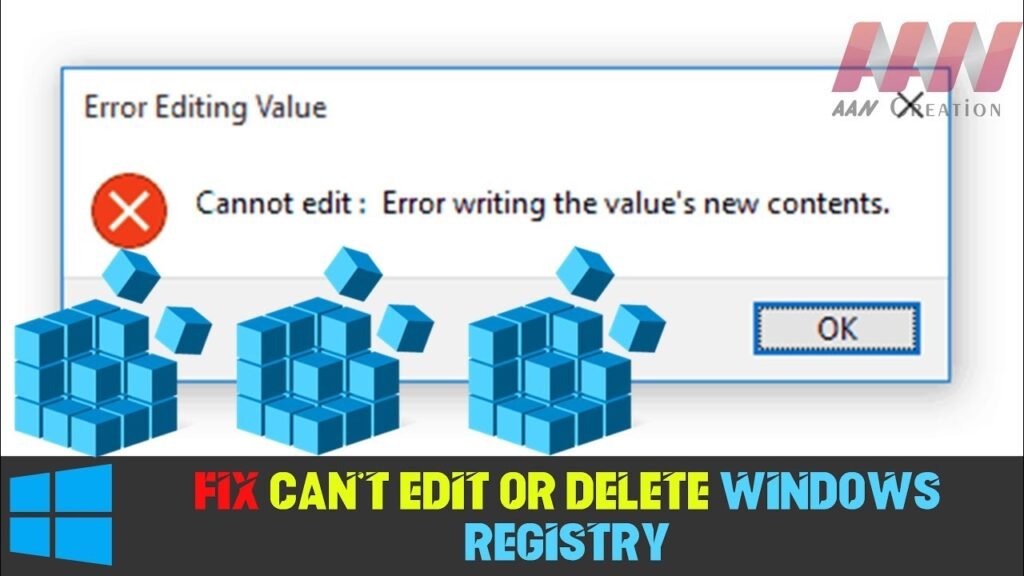

Registry Editor sometimes refuses to change a value with errors like “Cannot edit: Error writing the value’s new contents” or “Cannot delete: Error while deleting key”. This usually means your account doesn’t have permission for that key. Windows protects many keys on purpose, so think twice before changing them.
Before you start: back up
- Create a restore point: search for Create a restore point in the Start menu, select your system drive and click Create.
- In Registry Editor, right-click the key you want to change and choose Export. Save the .reg file. Double-clicking it later restores the key.
Step 1: Run Registry Editor as administrator
Search for regedit in the Start menu, right-click Registry Editor and choose Run as administrator. Many errors go away with this alone.
Step 2: Give your account permission
- Right-click the key in the left pane and choose Permissions.
- Select Administrators or your user name in the list.
- Tick Allow next to Full Control and click Apply.
If the boxes are greyed out or you get “Access denied”, you need to take ownership first.
Step 3: Take ownership of the key
- In the Permissions window, click Advanced.
- Next to Owner at the top, click Change.
- Type your user name (or
Administrators), click Check Names, then OK. - Tick Replace owner on subcontainers and objects and click Apply and OK.
- Back in Permissions, give your account Full Control as in Step 2.
You can now edit or delete the key. When finished, consider setting the owner back to what it was, especially for keys owned by TrustedInstaller. To do that, enter NT SERVICE\TrustedInstaller as the owner name.
If Registry Editor won’t open at all
A message saying “Registry editing has been disabled by your administrator” means a policy blocks it. On Windows Pro:
- Press Windows + R, type
gpedit.mscand press Enter. - Go to User Configuration > Administrative Templates > System.
- Double-click Prevent access to registry editing tools, set it to Not Configured and click OK.
On a work or school PC, contact your IT team instead.
Frequently asked questions
Is it safe to take ownership of registry keys?
For keys an app or guide you trust tells you to change, yes, with a backup. Changing protected system keys at random can break Windows features.
Why does a key come back after I delete it?
The app or Windows service that uses it recreates it. Uninstall or turn off that app instead.