
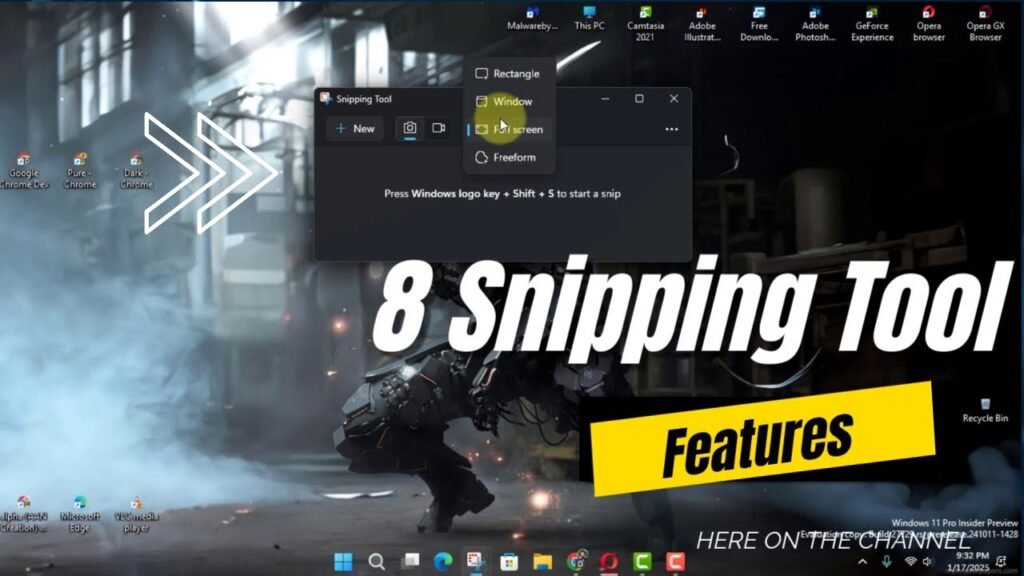

Most people use the Snipping Tool just to grab a rectangle of the screen. The Windows 11 version has grown into a small but powerful capture app. Here are eight features that can save you time. If you don’t see one of them, update the Snipping Tool from the Microsoft Store.
1. Four snip modes
Press Windows + Shift + S and choose from the toolbar: Rectangle, Window (one click captures a whole app window), Full screen or Freeform (draw any shape).
2. Delay timer
Need to capture a menu that closes when you click away? Open the Snipping Tool app, set the delay drop-down to 3, 5 or 10 seconds, click New, then open the menu before the timer runs out.
3. Screen recording
Switch to the video camera icon to record part of your screen as an MP4, with optional microphone and system sound. The shortcut is Windows + Shift + R.
4. Copy text from images
Click Text actions after taking a screenshot. Windows recognises the text so you can select and copy it, or click Copy all text.
5. Quick redact
Inside Text actions, Quick redact blacks out email addresses and phone numbers in one click. You can also select any text, right-click and choose Redact text.
6. Markup tools
Use the ballpoint pen and highlighter to mark things up, the ruler for straight lines, the eraser to remove marks and the crop tool to trim the image. Pen colours and thickness can be changed by clicking the tool again.
7. Automatic saving
Screenshots are saved automatically to Pictures > Screenshots, and recordings to Videos > Screen Recordings. You can change this in the app’s Settings from the three-dot menu.
8. Print Screen key shortcut
In Settings > Accessibility > Keyboard, you can make the Print Screen key open the Snipping Tool overlay, so screenshots are one key press away.
Bonus tips
- Press Ctrl + O in the app to open an existing image and use the same markup and text tools on it.
- Use the Share button to send a snip straight to email, Teams or a nearby device.
- Click the three-dot menu and choose Open with to continue editing in Paint or Photos.
Frequently asked questions
Is the Snipping Tool the same as Snip & Sketch?
In Windows 11, Microsoft merged them. The Snipping Tool now includes all the Snip & Sketch features and more.
Can I stop screenshots from saving automatically?
Yes. Open the Snipping Tool’s Settings and turn off the option to automatically save screenshots.

