
If you use an extension many times a day, such as a password manager, a note tool or a screenshot extension, clicking its icon every time adds up. Google Chrome lets you assign keyboard shortcuts to extensions, so you can open them or trigger their actions without the mouse.
Add a shortcut to an extension
- In the address bar, type
chrome://extensions/shortcutsand press Enter. - Or click the Extensions icon (puzzle piece) in the toolbar, choose Manage extensions, then click Keyboard shortcuts in the left menu.
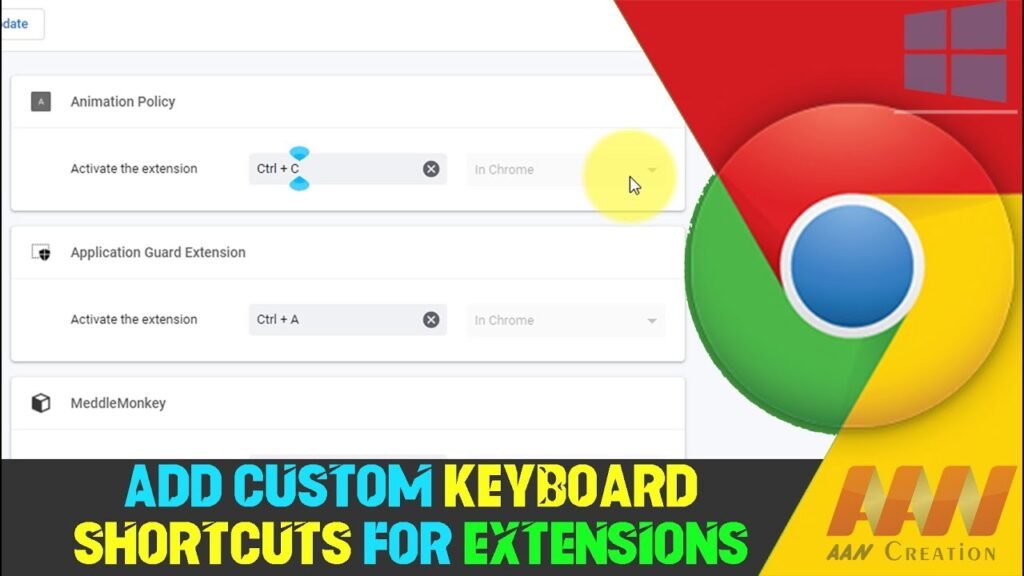
- Find the extension in the list. Each one shows the actions it supports, such as Activate the extension.
- Click the pencil icon or the empty shortcut box next to the action.
- Press the key combination you want, for example Ctrl + Shift + 1.
The shortcut is saved straight away. Try it on any web page.
Choose where the shortcut works
Next to each shortcut there’s a drop-down with two options:
- In Chrome: the shortcut works only when a Chrome window is active. This is the safest choice.
- Global: the shortcut works even when you’re in another app. Only some extension actions support this.
Rules for shortcuts
- Shortcuts must include Ctrl or Alt, often together with Shift, plus a letter or number.
- Chrome won’t accept combinations it already uses, such as Ctrl + T for a new tab.
- Avoid combinations used by Windows or other apps you run.
Change or remove a shortcut
- Go back to
chrome://extensions/shortcuts. - Click the pencil icon next to the shortcut and press a new combination.
- To remove it, click in the box and delete the shortcut, or click the remove button if one is shown.
Tips
- Pin your most used extensions to the toolbar: click the puzzle icon and then the pin next to the extension.
- Use a pattern you’ll remember, like Ctrl + Shift + 1, 2 and 3 for your top three extensions.
- The same page works in Microsoft Edge at
edge://extensions/shortcuts.
Frequently asked questions
Why does my extension have no shortcut option?
Only extensions that declare commands appear with actions. Most extensions at least support Activate the extension, which opens their pop-up.
Do shortcuts sync to my other computers?
No. Extension shortcuts are stored on each computer, so set them up on every PC you use.