
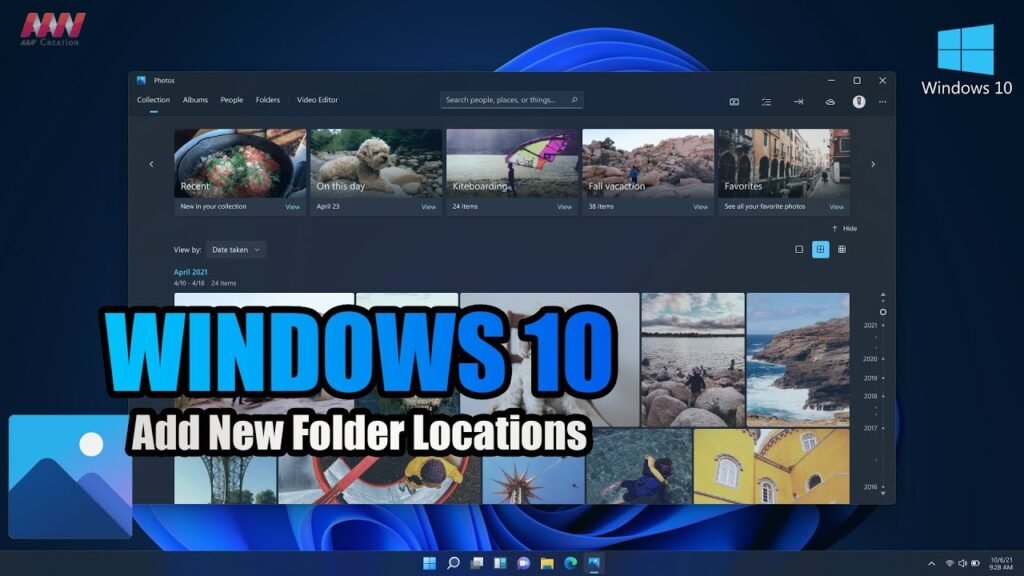

By default, the Windows Photos app shows pictures from your Pictures folder and OneDrive. If you keep photos on another drive, a USB disk or a different folder, they won’t appear. You can add any folder so Photos includes it in your gallery.
Add a folder in the Windows 11 Photos app
- Open the Start menu and launch Photos.
- In the left pane, click Folders.
- Click Add a folder.
- Browse to the folder that holds your photos and click Select folder.
The pictures in that folder, and in its subfolders, now appear in the Gallery and in the Folders view.
Remove a folder
In the Folders view, right-click the folder and choose Remove folder. This only removes it from the Photos app. The folder and your pictures stay on your PC.
On Windows 10
The newer Photos app is also available on Windows 10 through the Microsoft Store, so the steps are the same. In the older version of Photos, go to See more (three dots) > Settings > Sources > Add a folder.
Tips
- If you add a folder on a USB or external drive, connect the drive before opening Photos, or the pictures won’t show.
- Large folders can take a few minutes to appear while Photos scans them.
- To stop OneDrive photos showing, open the gear icon (Settings) in Photos and turn off or sign out of OneDrive there.
- Keep the Photos app updated from the Microsoft Store for the newest features.
Frequently asked questions
Why don’t my new photos appear in the Photos app?
The folder may not be added, or Photos is still scanning it. Add the folder under Folders and wait a moment. Restarting the app can also help.
Does adding a folder copy my photos?
No. Photos only shows the pictures where they already are. Nothing is moved or copied.
Can Photos show pictures from a network drive?
Photos works best with folders on your own PC or a connected drive. Network locations may not appear or may load slowly. Copying the photos to a local folder is the most reliable option.

