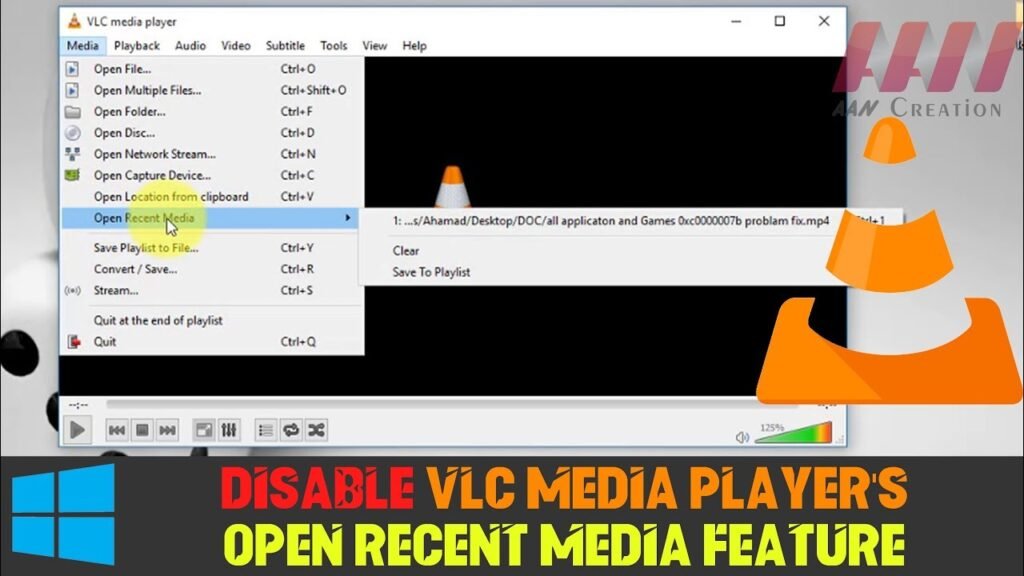

VLC keeps a list of the files you opened under Media > Open Recent Media. It also remembers where you stopped a video. That’s handy, but on a shared PC you may not want others to see what you’ve been watching. You can clear the list and stop VLC from saving it.
Clear the recent media list
- Open VLC media player.
- Click Media > Open Recent Media.
- Click Clear at the bottom of the list.
Stop VLC from saving recent items
- Click Tools > Preferences (or press Ctrl + P).
- Make sure Simple is selected at the bottom-left, then open the Interface tab.
- Find the Privacy / Network Interaction section.
- Untick Save recently played items.
- Click Save and restart VLC.
Stop VLC from resuming where you left off
In the same Interface tab, find Continue playback? and set it to Never. Videos will now start from the beginning every time.
Clear recent files in Windows too
Windows also shows recent files in the taskbar jump list and in File Explorer. To stop this, go to Settings > Personalization > Start and turn off Show recommended files in Start, recent files in File Explorer, and items in Jump Lists (the exact wording may differ slightly by version).
Tips
- If VLC acts strangely after changing settings, use Tools > Preferences > Reset Preferences to go back to the defaults.
- Download VLC only from the official VideoLAN website to avoid bundled adware.
Frequently asked questions
Does clearing the list delete my videos?
No. It only removes the shortcuts from VLC’s menu. Your video files stay where they are.
The list came back after I cleared it. Why?
Saving is still turned on, so new files are added again. Untick Save recently played items in Preferences to stop it.
Does this also stop VLC saving playlists?
No. Playlists you save yourself stay in the place you saved them. The setting only controls the automatic recent items list.
Is there a portable way to use VLC without history?
Yes. VideoLAN offers a portable (zip) version of VLC. Its settings stay in its own folder, which you can delete when you’re done.