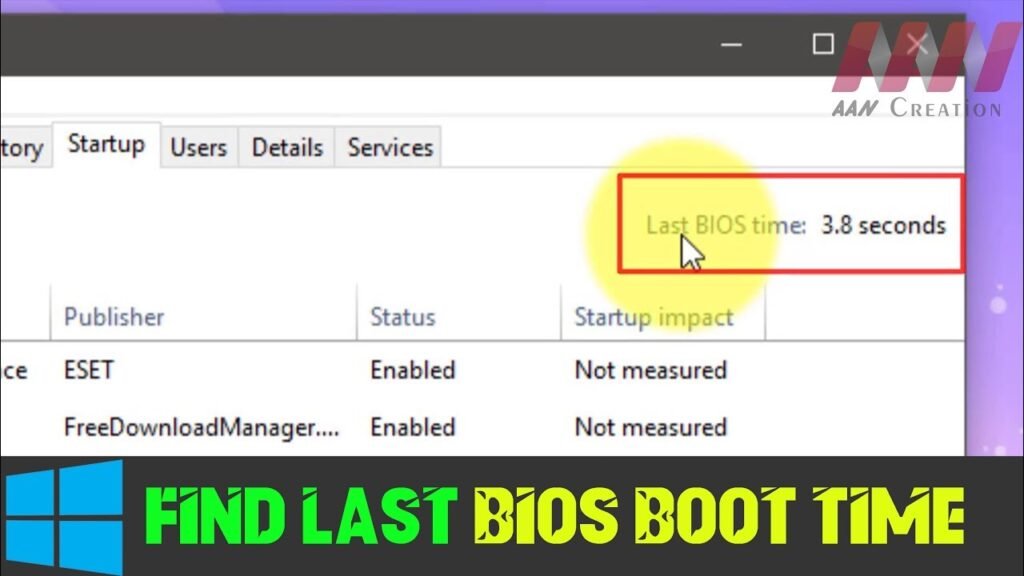

When you switch on your PC, the firmware (BIOS or UEFI) checks your hardware before Windows starts loading. This step is called the Last BIOS time. If it’s long, your PC boots slowly no matter how fast Windows is. Task Manager shows this number in seconds.
How to see Last BIOS time
- Press Ctrl + Shift + Esc to open Task Manager.
- If you see a small window, click More details.
- Click Startup apps in the left menu on Windows 11, or the Startup tab on Windows 10.
- Look at the top-right corner. You’ll see Last BIOS time followed by a number of seconds.
What’s a normal Last BIOS time?
- Around 2 to 10 seconds: normal for most modern PCs and laptops.
- 15 seconds or more: worth checking. Desktop boards with many drives, RGB controllers or RAM training can take longer.
If Last BIOS time doesn’t appear
Some PCs don’t report it. This is common on older computers using legacy BIOS mode instead of UEFI, and in some virtual machines. It doesn’t mean anything is wrong.
How to reduce BIOS time
These changes are made in your PC’s firmware settings. Write down any setting before you change it, so you can put it back.
- Enable fast boot in the firmware: many UEFI setups have a Fast Boot option that skips some hardware checks.
- Set the Windows drive as the first boot device: so the PC doesn’t search USB or network first.
- Disconnect unused USB drives and devices: the firmware checks each one.
- Update the BIOS/UEFI: only from your PC or motherboard maker’s official website, and never interrupt the update.
To open firmware settings from Windows 11, go to Settings > System > Recovery, click Restart now next to Advanced startup, then choose Troubleshoot > Advanced options > UEFI Firmware Settings.
Frequently asked questions
Does Last BIOS time include Windows loading?
No. It only measures the time before Windows starts. Startup apps and services affect the rest of the boot.
Why did my BIOS time get longer?
New hardware, a BIOS update that reset settings, or a USB device left plugged in can all add time. Check your boot settings again.