
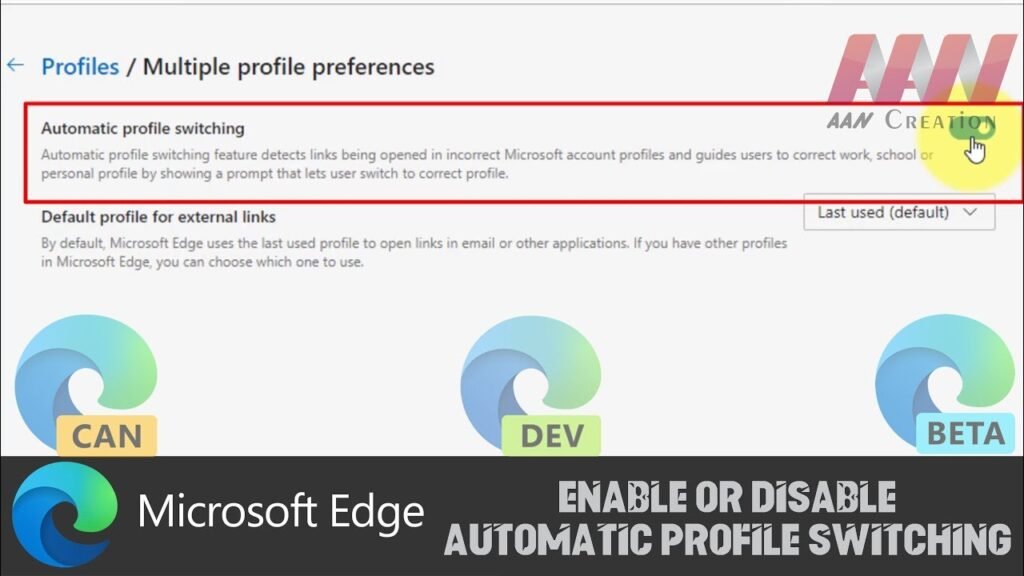

If you use Microsoft Edge with both a personal and a work or school account, links can open in the wrong profile. For example, a SharePoint link from your work email may open in your personal profile, where you’re not signed in. Automatic profile switching fixes this by detecting the right account and offering to switch to that profile.
What automatic profile switching does
- When you open a site that needs your work or school account while in your personal profile, Edge suggests or switches to your work profile.
- You can tell Edge to remember your choice, so the same site always opens in the right profile.
- It works best when you have at least one profile signed in with a work or school (Microsoft Entra ID) account.
Turn automatic profile switching on or off
- Open Edge and click the three-dot menu at the top-right.
- Click Settings.
- Click Profiles in the left menu.
- Click Profile preferences.
- Turn Automatic profile switching on or off.
Choose a default profile for external links
On the same Profile preferences page, look for the option that controls which profile opens external links, such as links clicked in Outlook, Teams or other apps. You can choose a specific profile or let Edge use the last one you used.
Manage sites you’ve already chosen
When Edge asks to switch and you choose to remember it, the site is saved. If a site keeps opening in the wrong profile, check Profile preferences for a list of saved profile switching choices and remove that site. Then open the link again and pick the correct profile.
Add a work profile if you don’t have one
- Click your profile picture at the top-left of Edge.
- Click Add profile or Set up new work profile.
- Sign in with your work or school account.
Useful tips
- Give each profile a different colour theme in Settings > Appearance, so you always know which one you’re in.
- On work PCs, your IT team may manage these settings, and the toggle may be locked.
Frequently asked questions
Does automatic profile switching work with personal accounts only?
It’s mainly designed for separating work or school accounts from personal Microsoft accounts. With only personal profiles, use the external links setting instead.
Will turning it off sign me out?
No. Turning it off only stops Edge from suggesting a switch. Your profiles and sign-ins stay the same.

