
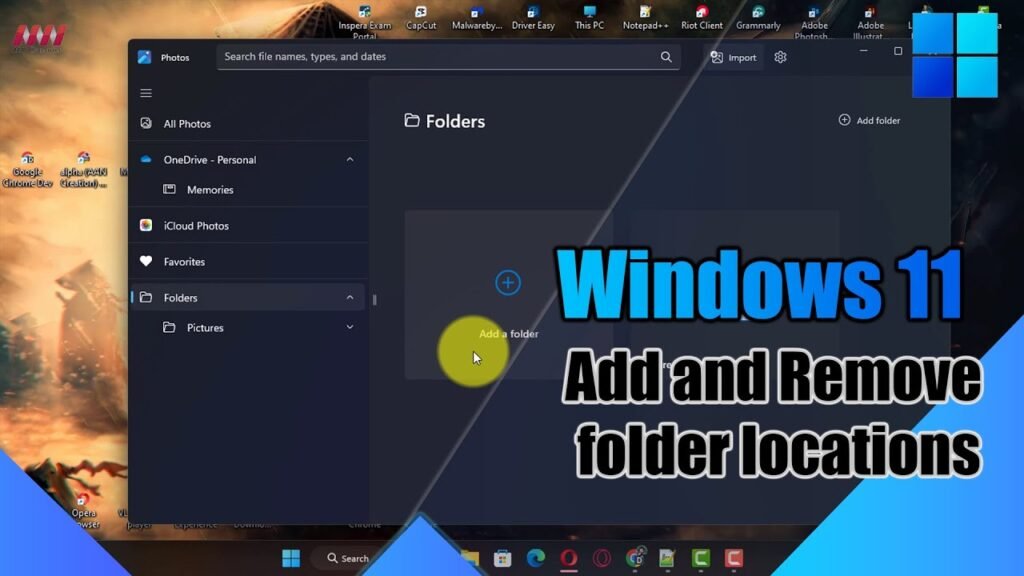

The Photos app in Windows 11 shows pictures and videos from your Pictures folder by default. If your photos are on another drive or in a different folder, they won’t appear until you add that folder. You can also remove folders so private or unwanted pictures don’t show in the gallery.
How to add a folder to Photos
- Open the Photos app from the Start menu.
- In the left pane, click Folders.
- Click Add a folder (or the plus/folder button at the top).
- Browse to the folder that holds your photos, select it and click Select Folder.
Photos scans the folder and adds its pictures and videos to the gallery. Large folders can take a few minutes.
How to remove a folder from Photos
- In the Photos app, open Folders in the left pane.
- Right-click the folder you want to remove.
- Choose Remove folder and confirm.
Removing a folder only hides it from the Photos app. The folder and the files stay on your PC.
The exact buttons can move between Photos app updates. If you can’t find them in the Folders view, open Photos Settings (the gear icon) and look for the folder options there.
Other sources in Photos
- OneDrive: your OneDrive photos can appear as their own section in the left pane. Sign in with your Microsoft account to see them.
- iCloud Photos: install the iCloud app for Windows to show iPhone photos in Photos.
- Import from phone: use the Import button in Photos to copy pictures from a phone or camera.
Useful tips
- Keep the Photos app updated from the Microsoft Store to get the newest folder features.
- Avoid adding huge folders like a whole drive. Add only folders that contain photos for faster scanning.
Frequently asked questions
Why don’t new photos show up in a folder I added?
Give Photos a moment to rescan, or close and reopen the app. Make sure the files are a supported format such as JPG, PNG, HEIC or MP4.
Can I add a network or external drive folder?
Yes, but the photos only appear while that drive is connected.

