
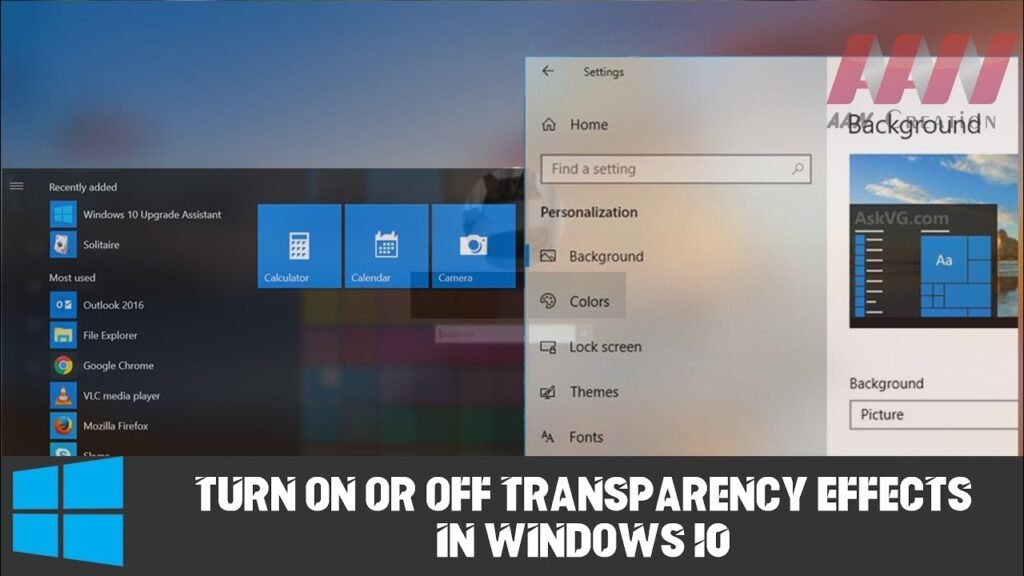

Windows uses transparency effects to make the taskbar, Start menu, Settings and some windows slightly see-through with a soft blur. Some people love the look. Others find it distracting or harder to read, and turning it off can help a little on older PCs. Here’s how to switch it either way.
Windows 11: Personalization settings
- Right-click the desktop and choose Personalize, or open Settings > Personalization.
- Click Colors.
- Turn Transparency effects on or off.
The same switch is also in Settings > Accessibility > Visual effects.
Windows 10 steps
- Open Settings > Personalization > Colors.
- Under More options, turn Transparency effects on or off.
You can also find it under Settings > Ease of Access > Display > Show transparency in Windows.
The switch is greyed out or does nothing?
- Battery saver: Windows turns off transparency while battery saver or energy saver is on. Plug in or turn the saver off.
- Performance options: press Windows + R, type
sysdm.cpl, open Advanced > Performance Settings and choose Let Windows choose what’s best for my computer or tick the visual effects you want. - Graphics driver: update your graphics driver through Windows Update or the maker’s site.
- Not activated: personalization settings are locked if Windows isn’t activated.
Useful tips
- Pair transparency off with a solid accent color under Colors for a clean, high-contrast look.
- If text is hard to read, also try Settings > Accessibility > Contrast themes.
Frequently asked questions
Does turning off transparency speed up my PC?
The effect on modern PCs is small. On older or low-power laptops it can make the interface feel a bit smoother and save some battery.
Does it change app windows too?
It affects Windows parts such as the taskbar, Start and Settings, and apps that use the Windows Mica or Acrylic materials.
Can I make only the taskbar transparent?
Windows has no built-in setting for that. It applies transparency to the taskbar, Start and other parts together.

