
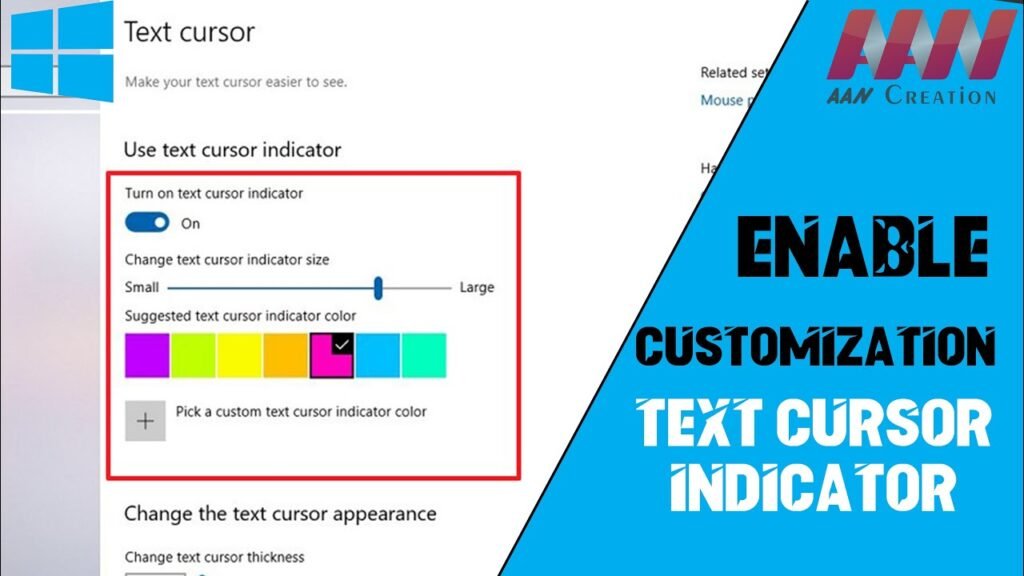

The thin blinking line that shows where you are typing is easy to lose, especially on a large or high-resolution screen. Windows has a built-in Text cursor indicator that adds a coloured marker to the cursor so you can always find it.
This guide shows how to turn it on, change its colour and size, and make the cursor itself thicker. The steps work on Windows 11 and recent versions of Windows 10.
Turn on the text cursor indicator on Windows 11
- Press Windows + I to open Settings.
- Go to Accessibility > Text cursor.
- Turn on Text cursor indicator.
- Use the Size slider to make the indicator bigger or smaller. The preview box shows the result.
- Pick one of the suggested colours, or click Choose another colour to select your own.
The indicator appears as small coloured bubbles at the top and bottom of the cursor in apps such as Notepad, Word and your browser’s text boxes.
Turn it on in Windows 10
- Open Settings > Ease of Access > Text cursor.
- Turn on Use text cursor indicator.
- Set the size and colour in the same way.
If you don’t see this page, install the latest Windows updates. The feature arrived in Windows 10 version 2004.
Make the cursor thicker
On the same Text cursor page, look for Text cursor thickness. Drag the slider to the right to make the blinking line wider. A thicker line plus a bright indicator colour is the easiest combination to spot.
Tips for better visibility
- Choose a colour that stands out from your usual background, such as bright pink or green on a white page.
- Combine it with a larger mouse pointer in Accessibility > Mouse pointer and touch if you also lose the mouse.
- If the indicator doesn’t show in one app, that app may draw its own cursor. It works in most standard Windows text fields.
Frequently asked questions
Does the text cursor indicator slow down my PC?
No. It is a lightweight accessibility feature and has no noticeable effect on performance.
How do I turn it off again?
Go back to Settings > Accessibility > Text cursor and switch off Text cursor indicator. Your colour and size choices are remembered if you turn it on later.

