
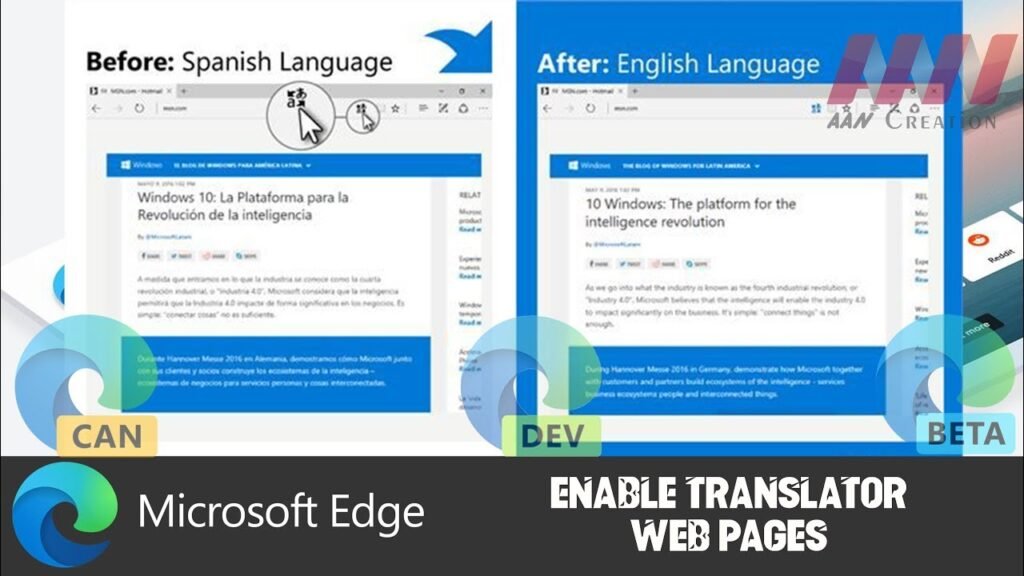

Landing on a page in a language you can’t read is frustrating. Microsoft Edge has Microsoft Translator built in, so you can turn a whole web page into your language in one click, with no extension needed.
If Edge never offers to translate, the setting may be switched off. Here’s how to turn it on and use it.
Turn on page translation in Edge
- Click the three dots (Settings and more) in the top-right corner and choose Settings.
- Click Languages in the left menu.
- Turn on Offer to translate pages that aren’t in a language I read.
From now on, when you open a page in another language, a translate pop-up appears under the address bar.
Translate a page
- Open the foreign-language website.
- In the pop-up, check the target language and click Translate.
- If the pop-up doesn’t appear, click the translate icon in the address bar, or right-click anywhere on the page and choose Translate to followed by your language.
- To return to the original text, click the translate icon again and choose Show original.
Always translate a language
In the translate pop-up, tick Always translate from the page’s language. Edge will then translate those pages automatically. You can manage which languages are always or never translated on the Languages settings page.
Translate only part of a page
Select a sentence or paragraph, right-click it and choose Translate selection. This is handy for comments or short quotes without translating the whole page.
Tips
- Add the languages you understand under Settings > Languages > Preferred languages, so Edge doesn’t offer to translate them.
- Machine translation is good for understanding a page, but double-check important details such as prices, legal text or medical information.
Frequently asked questions
Is Edge translation free?
Yes. Translation is included in Edge at no cost and works on almost any website.
Why doesn’t the translate icon appear?
Check that the translation offer is on in Settings > Languages, and that the page’s language isn’t in your preferred list. Some pages, such as internal browser pages, can’t be translated.

