
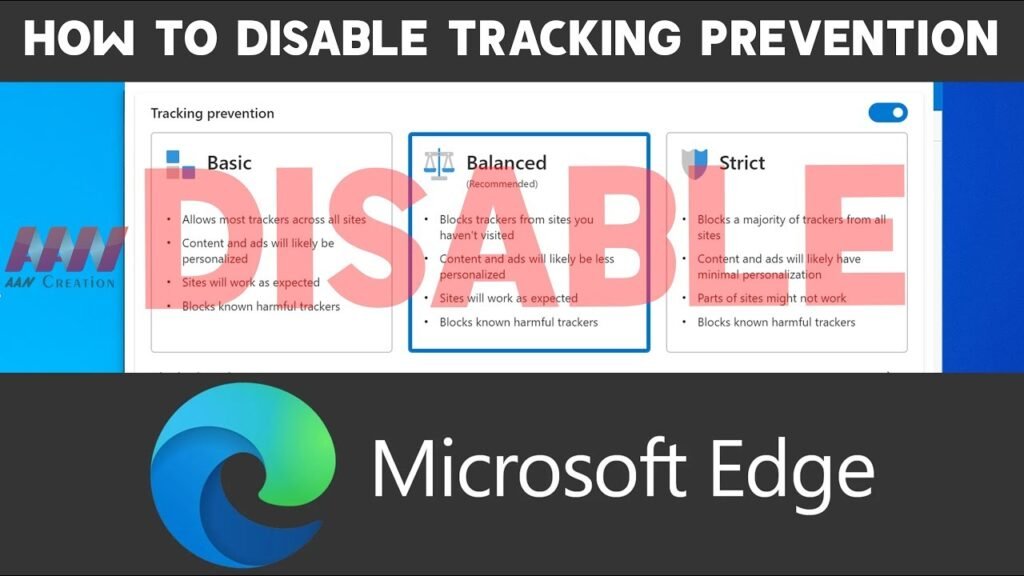

Microsoft Edge blocks trackers that follow you from site to site. This is good for privacy, but sometimes it breaks things: a login button does nothing, a video won’t play or a payment page keeps loading.
Instead of switching protection off for everything, you can lower the level or add an exception for one website. Here’s how.
Change the tracking prevention level
- Click the three dots in the top-right corner and open Settings.
- Go to Privacy, search, and services.
- Find the Tracking prevention section.
- Choose a level:
- Basic blocks only harmful trackers. Most sites work normally.
- Balanced (recommended) blocks trackers from sites you haven’t visited.
- Strict blocks most trackers, but some sites may not work.
- To turn it off completely, switch off the Tracking prevention toggle.
Turn it off for one website only
This is the safer option if only one site misbehaves.
- Open the website that isn’t working.
- Click the lock icon (View site information) to the left of the address.
- Under the tracking prevention entry, switch the toggle to off for this site.
- Reload the page.
You can review and remove these exceptions later under Privacy, search, and services > Tracking prevention > Exceptions.
See what Edge has blocked
On the Tracking prevention section, click Blocked trackers to see which tracking domains Edge has stopped. This helps you understand why a site may not load fully.
Tips
- Keep the level on Balanced for everyday use. It offers good privacy with few broken sites.
- InPrivate windows can use Strict protection automatically if you turn on Always use “Strict” tracking prevention when browsing InPrivate.
Frequently asked questions
Is it safe to turn off tracking prevention?
It won’t infect your PC, but advertisers can track you more easily. Adding an exception for one trusted site is a better choice than turning it off everywhere.
Does tracking prevention block ads?
Not directly. It blocks tracking scripts, which removes some ads as a side effect, but it isn’t a full ad blocker.

