
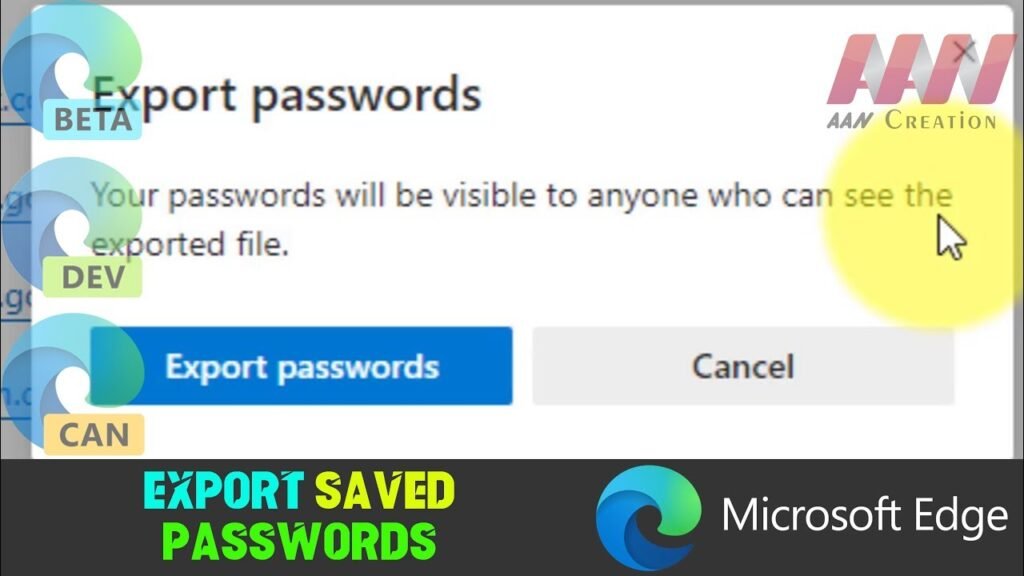

Moving to another browser or a password manager? Microsoft Edge can export every saved password to a CSV file, which almost every browser and password manager can import. It only takes a minute, but the file needs careful handling afterwards.
How to export passwords from Edge
- Open Edge and click the three-dot menu in the top-right corner.
- Choose Settings, then go to Profiles > Passwords. In recent versions this opens the passwords page in Microsoft Wallet.
- Near the top of the saved passwords list, click the More actions button (three dots).
- Choose Export passwords, then confirm.
- Windows asks for your PIN, password or Windows Hello to prove it’s you.
- Choose a folder and click Save. The file is named something like Microsoft Edge Passwords.csv.
If you can’t find the option, type passwords into the search box at the top of Edge Settings.
Import the file somewhere else
- Google Chrome: open Google Password Manager from Chrome’s menu, go to Settings and choose Import passwords, then select the CSV file.
- Firefox: open Passwords from the menu, click the three-dot menu and choose Import from a File.
- Password managers: most have an import option for CSV files or specifically for Edge.
Keep the CSV file safe
The exported file is not encrypted. Anyone who opens it can read every username and password in plain text.
- Save it to your own PC, not a shared or cloud folder.
- Import it straight away, then delete it and empty the Recycle Bin.
- Never email it or send it in a chat app.
If Export is greyed out
- No saved passwords: make sure passwords are listed on the page.
- Work or school device: your organisation may block password export with a policy.
- Old Edge version: update in Settings > About Microsoft Edge.
Frequently asked questions
Does exporting remove passwords from Edge?
No. Exporting only makes a copy. Your passwords stay saved in Edge.
Can I export just one password?
Edge exports all passwords at once. To move a single one, open it in the passwords list, reveal it, and copy it manually.

