
Windows installs drivers for your hardware automatically. Usually that’s helpful, but sometimes Windows Update replaces a working graphics, audio or printer driver with a version that causes problems. You can tell Windows to stop doing this and manage drivers yourself.
Before you start: create a restore point. Search for Create a restore point in Start, select your system drive and click Create. Also remember that without automatic drivers, new devices may not work until you install their drivers manually.
Method 1: Device installation settings (all editions)
- Press Windows + R, type
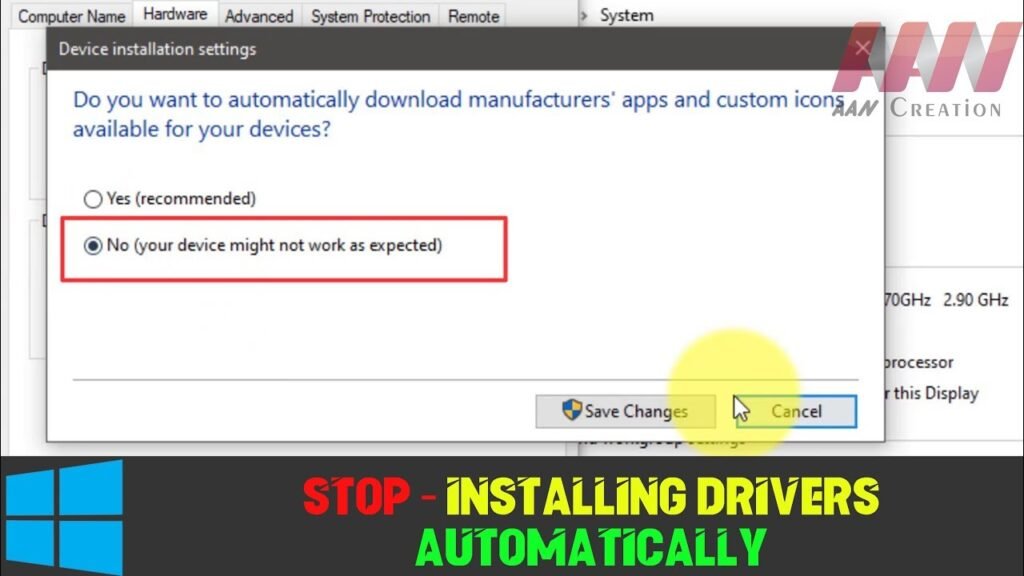
sysdm.cpland press Enter. - Open the Hardware tab and click Device Installation Settings.
- Choose No (your device might not work as expected).
- Click Save Changes, then OK.
This stops Windows from automatically downloading manufacturer apps and custom icons for your devices. Windows Update can still offer some drivers, so Pro users may also want Method 2.
Method 2: Group Policy (Pro, Enterprise, Education)
- Press Windows + R, type
gpedit.mscand press Enter. - Go to Computer Configuration > Administrative Templates > Windows Components > Windows Update. On Windows 11, open the Manage updates offered from Windows Update folder inside it.
- Double-click Do not include drivers with Windows Updates.
- Select Enabled and click OK.
- Restart the PC.
Fix a bad driver that was already installed
- Right-click Start and choose Device Manager.
- Right-click the device and choose Properties.
- On the Driver tab, click Roll Back Driver if it’s available.
- If not, download the right driver from your PC or device maker’s website and install it.
Tips
- Check optional updates: Windows 11 lists many drivers under Settings > Windows Update > Advanced options > Optional updates, where you choose what to install.
- Keep security updates on: these settings only affect drivers, not security fixes.
- Undo later: set the options back to their defaults if you change your mind.
Frequently asked questions
Is it safe to stop automatic driver updates?
Yes, as long as you update important drivers, especially graphics and network drivers, yourself from the manufacturer.
Does Windows Home have Group Policy?
No. On Home, use Method 1 and manage drivers through Device Manager and Optional updates.