
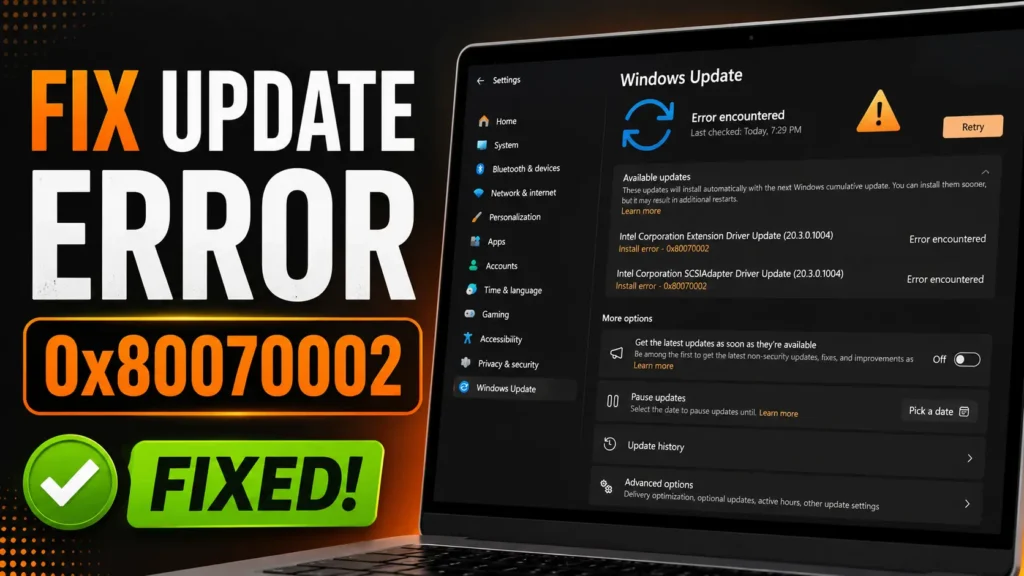
Windows Update error 0x80070002 is a common problem on Windows 11, especially when your PC is trying to install system updates, Intel driver updates, security patches, or optional updates. This error usually means Windows Update cannot find or use some required update files properly. In many cases, it happens because system files are missing, damaged, or corrupted.
If you see this error while updating Windows 11, you do not need to reset your PC immediately. Windows includes built-in repair tools that can scan your system and fix corrupted components without deleting your personal files. In this guide, you will learn how to fix Windows Update error 0x80070002 using two important commands: DISM and SFC.
The first command is DISM /Online /Cleanup-Image /RestoreHealth. DISM stands for Deployment Image Servicing and Management. This tool checks the Windows system image and repairs damaged Windows components. If Windows Update is failing because of corrupted update files or broken system components, DISM can help repair them.
To start, click the Start button on your Windows 11 computer and search for Command Prompt. When Command Prompt appears, right-click it and choose Run as administrator. This is important because these repair commands need administrator permission to make system-level repairs.
Once the Command Prompt window opens, type this command and press Enter:
DISM /Online /Cleanup-Image /RestoreHealth
After running the command, Windows will begin checking the system image. This process can take several minutes, depending on your computer speed and system condition. Do not close Command Prompt while it is running. Wait until the progress reaches 100% and the command finishes completely.
After DISM is finished, the next step is to run the System File Checker command. This tool scans protected Windows system files and replaces corrupted or missing files with the correct versions. It is another safe built-in Windows repair tool and does not delete your personal files.
In the same administrator Command Prompt window, type this command and press Enter:
sfc /scannow
Now Windows will scan your system files. This process may also take some time, so let it finish fully. When the scan is complete, you may see a message saying that Windows found and repaired corrupted files, or that no integrity violations were found. Either result is okay. The important thing is to let the scan complete before closing the window.
Once both commands are finished, close Command Prompt and restart your computer. Restarting is important because Windows may need to apply the repaired system components properly.
After the restart, open Settings, go to Windows Update, and click Retry or Check for updates. If the error was caused by corrupted or missing system files, the update should now install properly.
This method is useful because it repairs Windows without deleting your documents, photos, videos, apps, or personal files. It is one of the safest first steps to try when Windows Update fails with error code 0x80070002.
So, if your Windows 11 PC is showing update error 0x80070002, open Command Prompt as administrator, run the DISM command first, then run the SFC command, restart your PC, and try Windows Update again. These two built-in repair tools can fix many Windows Update problems without needing extra software.