
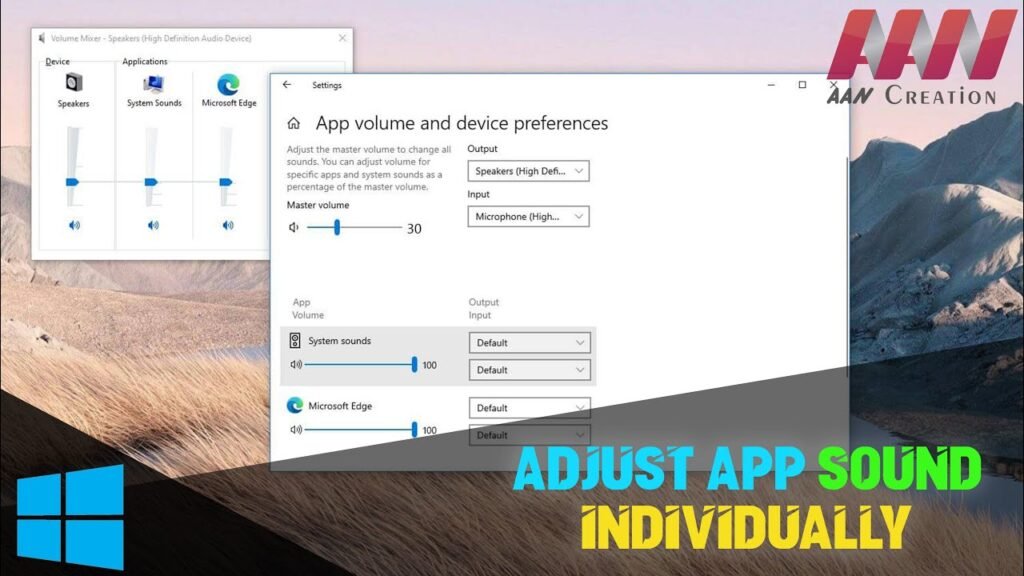

Windows has one main volume slider, but you don’t have to use it for everything. With the volume mixer you can make your browser quieter, keep Discord loud and mute system sounds, all at the same time. You can even send each app to a different speaker or headset.
Open the volume mixer on Windows 11
- Right-click the speaker icon on the taskbar.
- Choose Open volume mixer. This opens Settings > System > Sound > Volume mixer.
- Under Apps, move the slider for each app up or down.
Only apps that are currently playing or have played sound recently appear in the list. If an app is missing, start playing something in it first.
Quick method from Quick Settings
- Click the speaker icon on the taskbar (or press Windows + A).
- Click the small arrow or mixer icon next to the volume slider.
- Recent Windows 11 versions show per-app sliders right there.
Send an app to a different speaker
- In Volume mixer, click the arrow next to an app to expand it.
- Choose an Output device, for example headphones for a game and speakers for music.
- You can also set the Input device (microphone) for that app.
Windows 10 steps
- Right-click the speaker icon and choose Open Volume mixer for simple per-app sliders.
- For output devices per app, go to Settings > System > Sound > App volume and device preferences.
Tips
- App volume is a percentage of the main volume: if the master volume is 50 and an app is 50, that app plays at about a quarter of full loudness.
- Reset all: at the bottom of the Volume mixer page, use Reset to return every app to the default level and device.
- Mute system sounds: lower System sounds in the list to stop notification beeps without muting media.
Frequently asked questions
Does Windows remember the volume I set for each app?
Yes. Windows usually remembers the level and output device for each app the next time it plays sound.
Why can’t I see my browser in the list?
The app has to be playing audio for Windows to show it. Play a video in the browser and the slider will appear.

