nakvy88@gmail.com

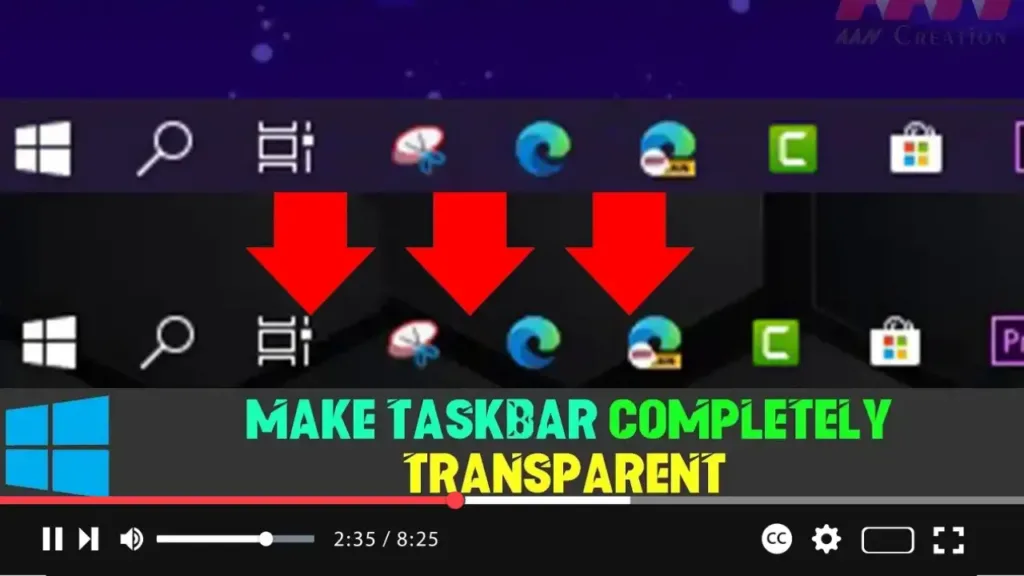
How to Make Your Taskbar Transparent on Windows 10

Windows 10 offers many ways to personalize your experience, including options to customize the taskbar. You can control which icons appear in the notification area, set the taskbar to auto-hide, or even enable basic transparency. However, one limitation is that you cannot make the taskbar fully transparent or apply advanced visual effects like frosted glass

How to Make Your Taskbar Transparent on Windows 10 Read More »
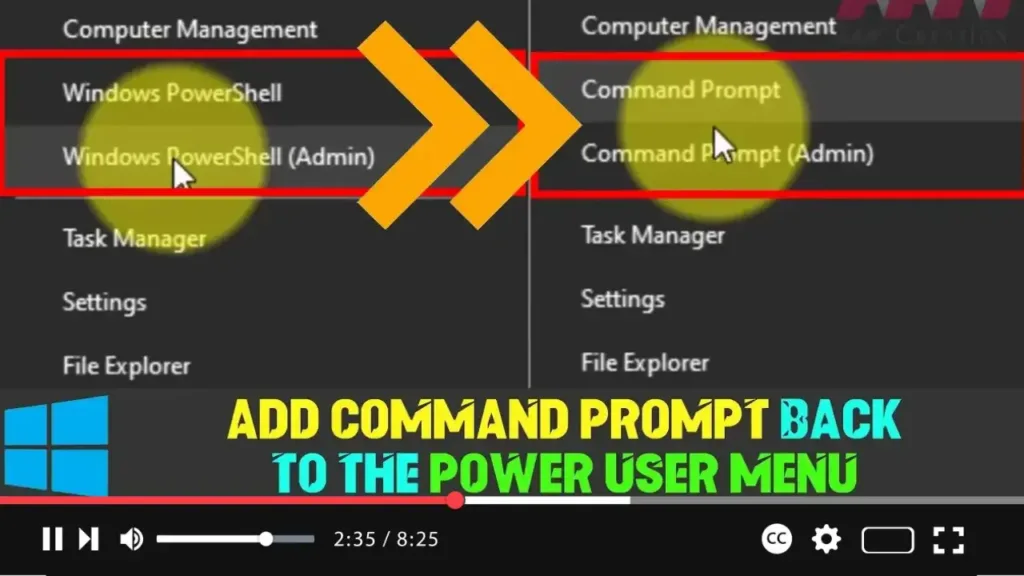
How to Add Command Prompt Back to the Power User Menu on Windows 10

In the earlier versions of Windows 10, users were accustomed to accessing Command Prompt through the Power User menu by pressing Windows key + X. However, with the introduction of the Creators Update, Microsoft replaced the Command Prompt options with PowerShell by default. While PowerShell is a powerful tool with advanced scripting capabilities, it might

How to Add Command Prompt Back to the Power User Menu on Windows 10 Read More »

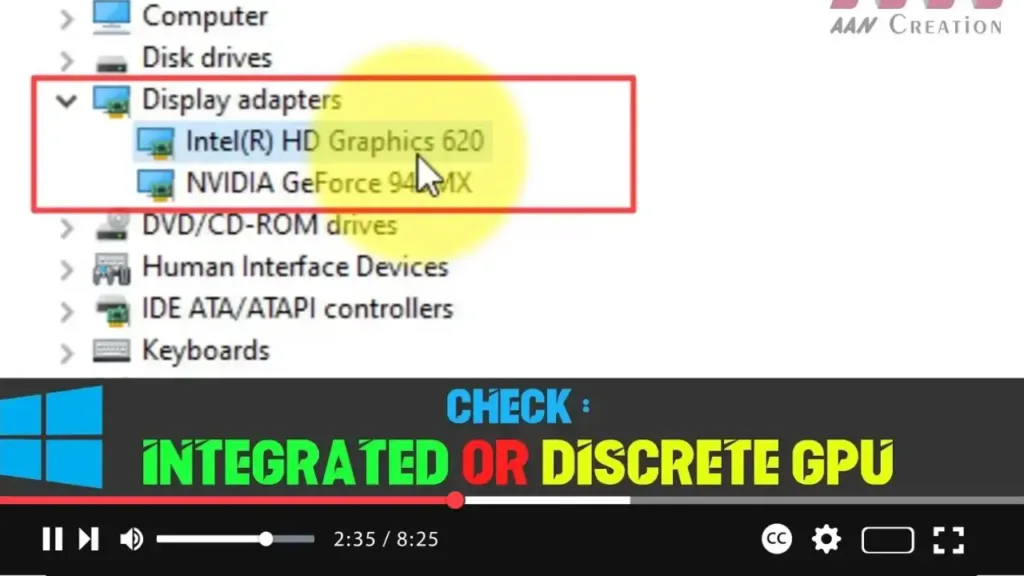
How to Check if You’re Using an Integrated or Discrete GPU on Windows 10

Computers generally use one of two types of graphics processing units (GPUs): integrated or discrete. Understanding which GPU your system uses is essential for knowing how well it can handle graphics-intensive tasks, such as gaming or video editing. Discrete GPU: A dedicated graphics card separate from the main processor, designed specifically for handling graphics processing.

How to Check if You’re Using an Integrated or Discrete GPU on Windows 10 Read More »

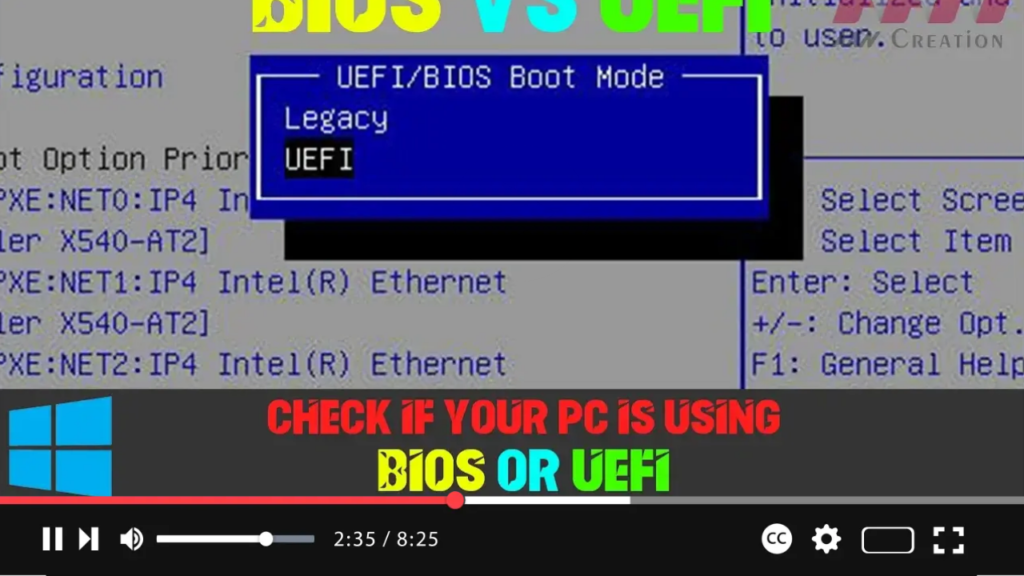
How to Check if Your PC is Using BIOS or UEFI on Windows 10

BIOS (Basic Input/Output System) has been a traditional firmware interface used by operating systems to interact with hardware components. However, BIOS comes with certain limitations, such as slow startup times, lack of advanced security features, and limited support for large drive partitions. On the other hand, UEFI (Unified Extensible Firmware Interface) is a more modern

How to Check if Your PC is Using BIOS or UEFI on Windows 10 Read More »

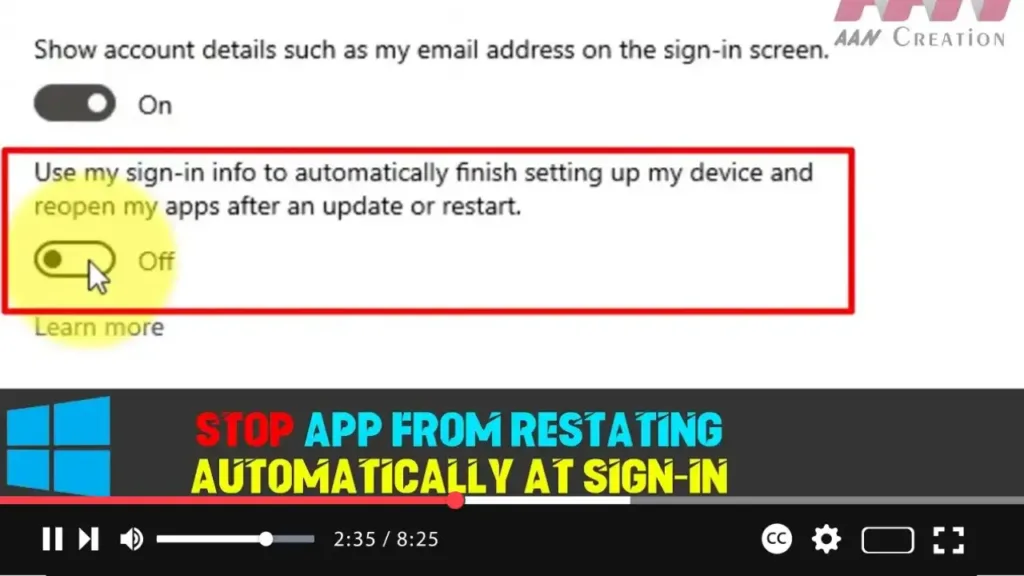
How to Stop Apps From Restarting Automatically at Sign-in on Windows 10

Windows 10 includes a feature that enhances the sign-in process by using your sign-in credentials to complete the setup of your device after certain updates. Initially introduced for quality or feature updates, this functionality expanded with the Windows 10 Fall Creators Update to regular reboots and shutdowns, optimizing the speed at which you can get

How to Stop Apps From Restarting Automatically at Sign-in on Windows 10 Read More »

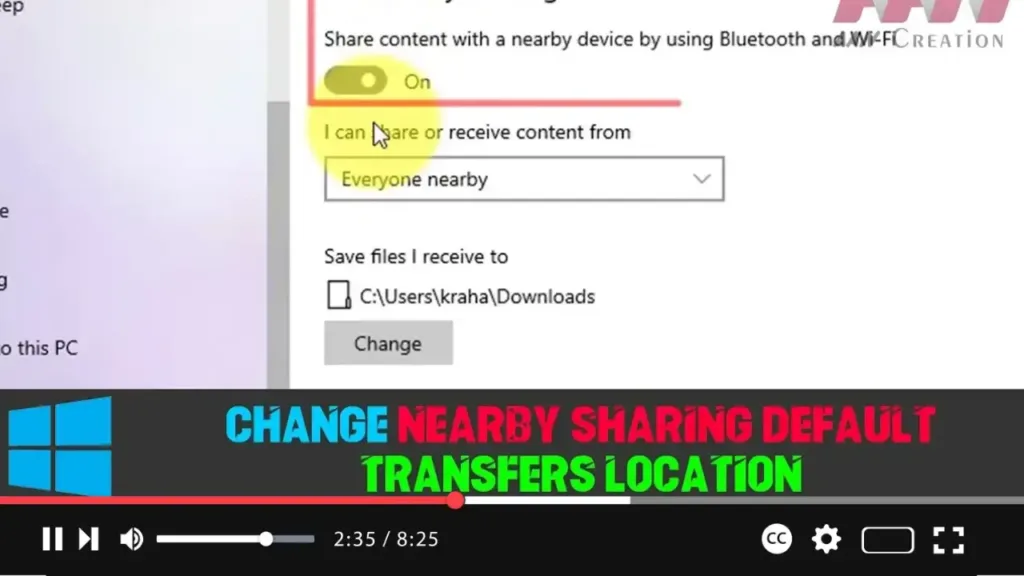
How to Change Nearby Sharing Default Transfers Location on Windows 10

Nearby sharing is a useful feature in Windows 10 that allows you to quickly transfer files and links between devices using Bluetooth or Wi-Fi. By default, files received through Nearby sharing are saved to the Downloads folder. However, if you prefer to organize your files differently or want them stored in a different folder or

How to Change Nearby Sharing Default Transfers Location on Windows 10 Read More »

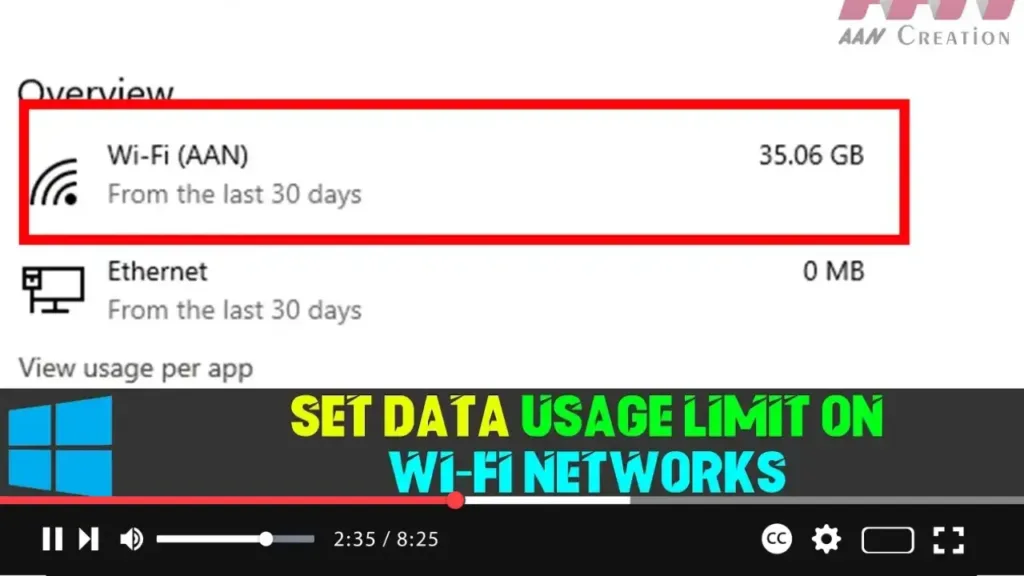
How to Set Data Usage Limit on Wi-Fi Networks on Windows 10

Windows 10 offers several features to help manage data usage, and with version 1803, it introduced the ability to set data usage limits for Wi-Fi and Ethernet connections. This is particularly useful for those on metered connections to avoid extra charges by monitoring their data consumption. If you’re connected to a Wi-Fi network with a

How to Set Data Usage Limit on Wi-Fi Networks on Windows 10 Read More »

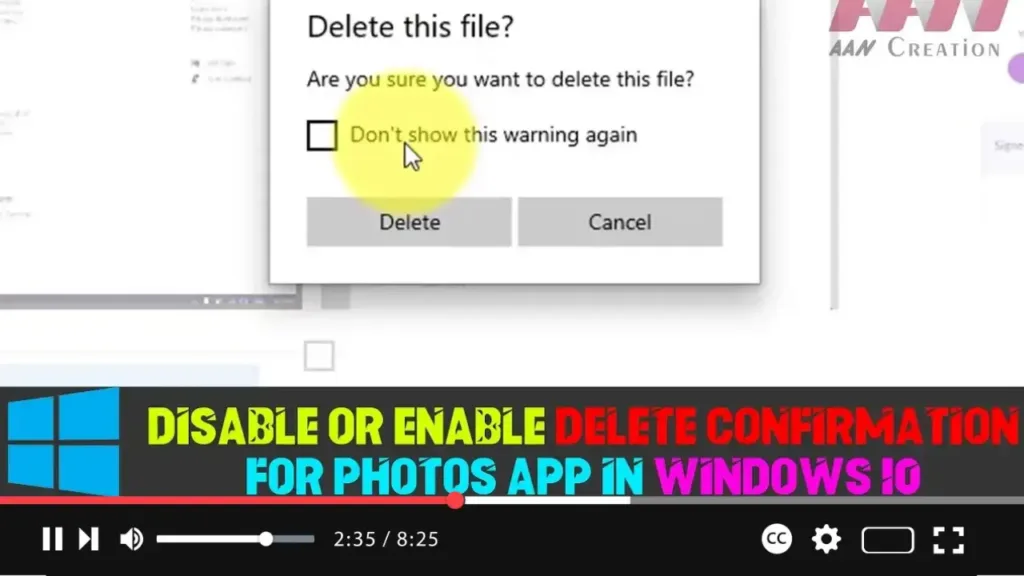
How to Disable or Enable Delete Confirmation For Photos App in Windows 10

The Photos app in Windows 10 is the default application for viewing and managing photos. While it comes with many features, one of its options is to show a delete confirmation dialog when you try to delete a photo. This can be useful to prevent accidental deletions, but some users may prefer to disable this

How to Disable or Enable Delete Confirmation For Photos App in Windows 10 Read More »

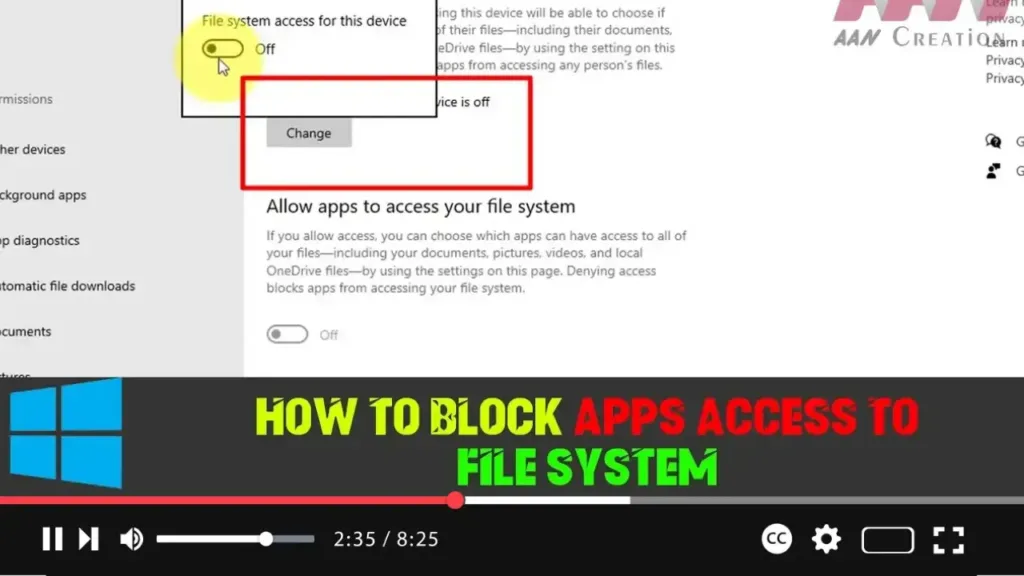
How to Block Apps Access to the File System on Windows 10

Windows 10 gives you more control over which apps can access your documents, pictures, videos, and OneDrive files stored on your device. With the release of version 1803 (Redstone 4), Microsoft introduced a new feature allowing users to manage file system access for apps globally or on an app-by-app basis to protect privacy. If you

How to Block Apps Access to the File System on Windows 10 Read More »

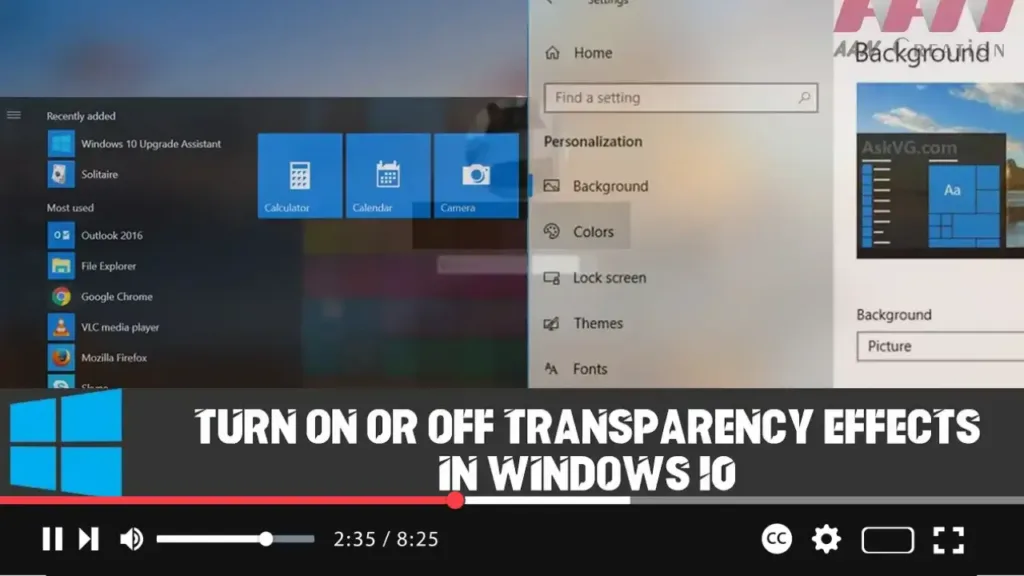
How to Turn On or Off Transparency Effects in Windows 10

Windows 10 includes transparency effects that can be applied to the taskbar, Start menu, Action Center, and other elements of the interface. These effects add a stylish, frosted-glass look but can be disabled for better performance or personal preference. Steps to Turn On or Off Transparency Effects in Windows 10: Step 01:Open Settings by pressing

How to Turn On or Off Transparency Effects in Windows 10 Read More »