How-to

How to Enable or Disable De-Elevates Itself in Chromium Version of Microsoft Edge

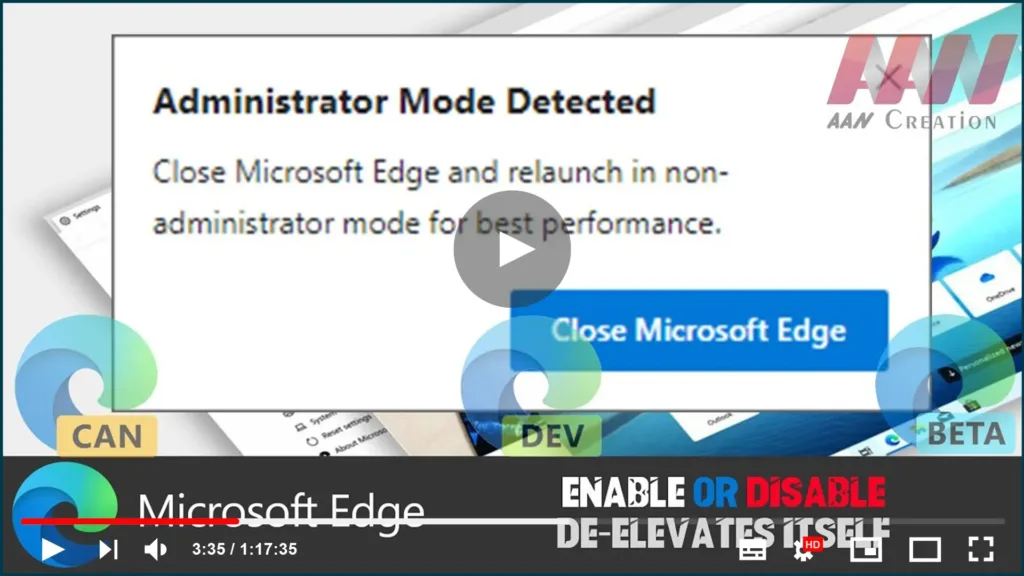
A new feature has been added to the latest version of Microsoft Edge Chromium. When launched as Administrator, the browser automatically de-elevates itself. As you may remember, Edge comes with a warning when started as an Administrator. A message will be displayed with the following text: “Administrator Mode Detected” “For best performance, close Microsoft Edge […]

How to Enable or Disable De-Elevates Itself in Chromium Version of Microsoft Edge Read More »
How to Enable the Extensions Menu Button in Chromium Version of Microsoft Edge

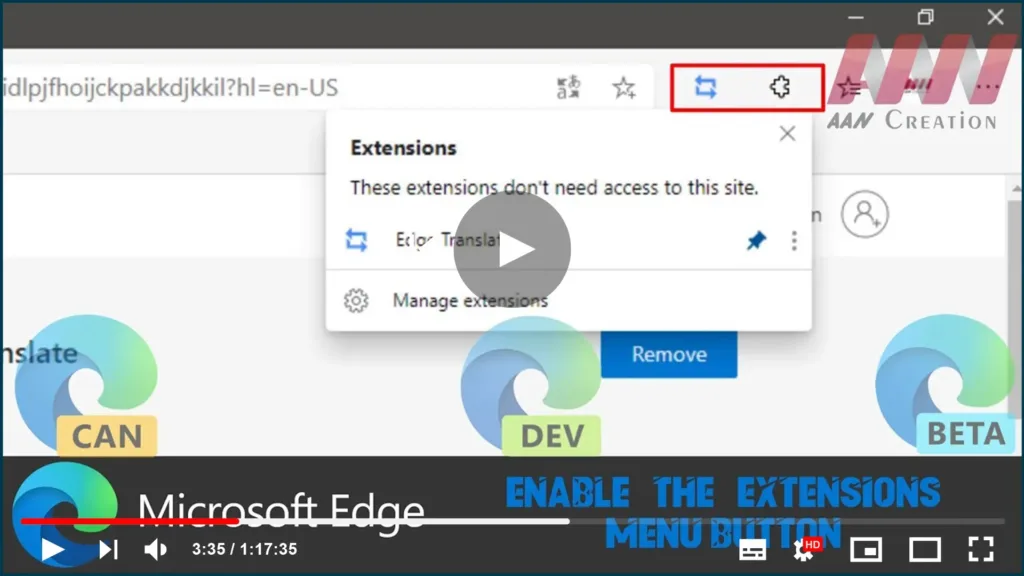
In the latest Microsoft Edge, you can now enable the brand new ‘Extensions’ menu which adds a button to the toolbar. For easier access, the menu contains all of the installed browser extensions. Also, it allows having a clean toolbar, which is a long-awaited feature for many users. Once the menu is enabled, you can

How to Enable the Extensions Menu Button in Chromium Version of Microsoft Edge Read More »
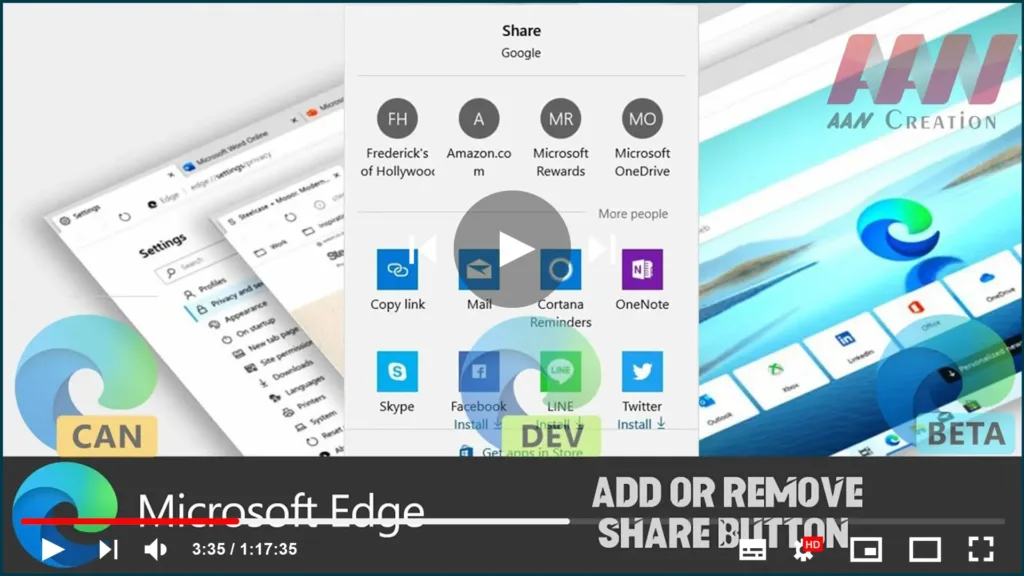
How to Add or Remove Share Button in Chromium Version of Microsoft Edge

Microsoft Edge has received a long-awaited change – now you can enable the Share button in the toolbar. The change has landed in the latest Canary build of the browser and soon will reach over app branches, including Dev, Beta, and Stable. In this guide, you’ll learn the steps to Add or Remove the Share

How to Add or Remove Share Button in Chromium Version of Microsoft Edge Read More »
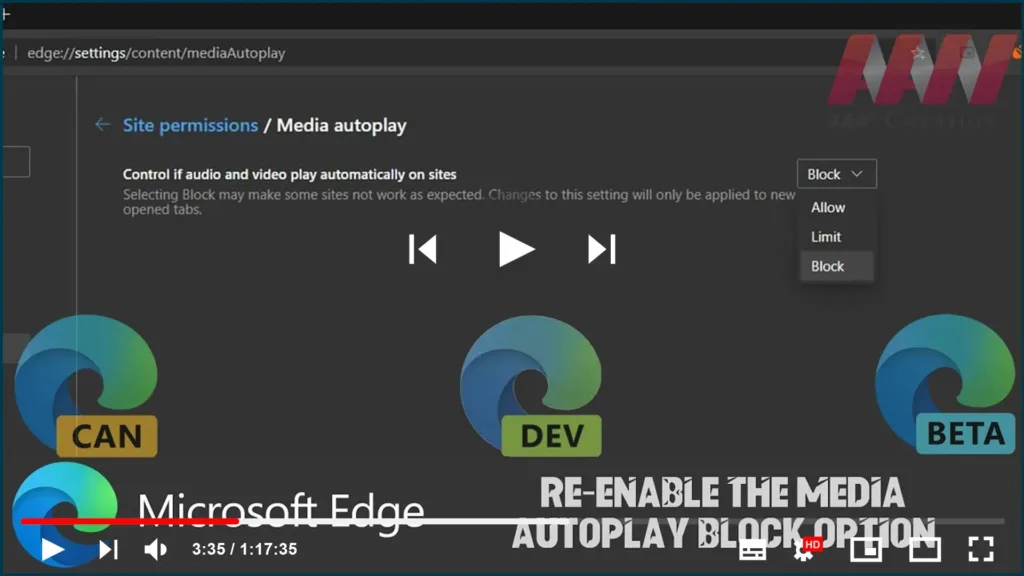
How To Re-enable the Media AutoPlay Block Option in Chromium Version of Microsft Edge

The latest update of the Chromium-based Microsoft Edge browser brought a change to the Media AutoPlay Blocking feature. Previously, the user could choose between Allow, Limit, and Block. Now the Block option is removed from the GUI and is hidden behind a flag. In this guide, you’ll learn the steps to To re-enable the Media

How To Re-enable the Media AutoPlay Block Option in Chromium Version of Microsft Edge Read More »

How to Enable Dark Mode for All Sites in Chromium Version of Microsoft Edge

As you may already know, Microsoft is now using Chromium and its Blink engine as the core technology for its Edge browser. With this change, Edge has got a new option to force enable dark mode on any web page. In this guide, you’ll learn the steps to Enable Dark Mode for All Sites in

How to Enable Dark Mode for All Sites in Chromium Version of Microsoft Edge Read More »

How to Export Favorites to HTML File in Chromium Version of Microsoft Edge

If you have a bunch of bookmarks in the Microsoft Edge Chromium browser, you might be interested in exporting them to an HTML file. This is extremely useful because it allows you to keep a backup of your bookmarks. Also, you can open that file later on some other PC or mobile device where Google

How to Export Favorites to HTML File in Chromium Version of Microsoft Edge Read More »
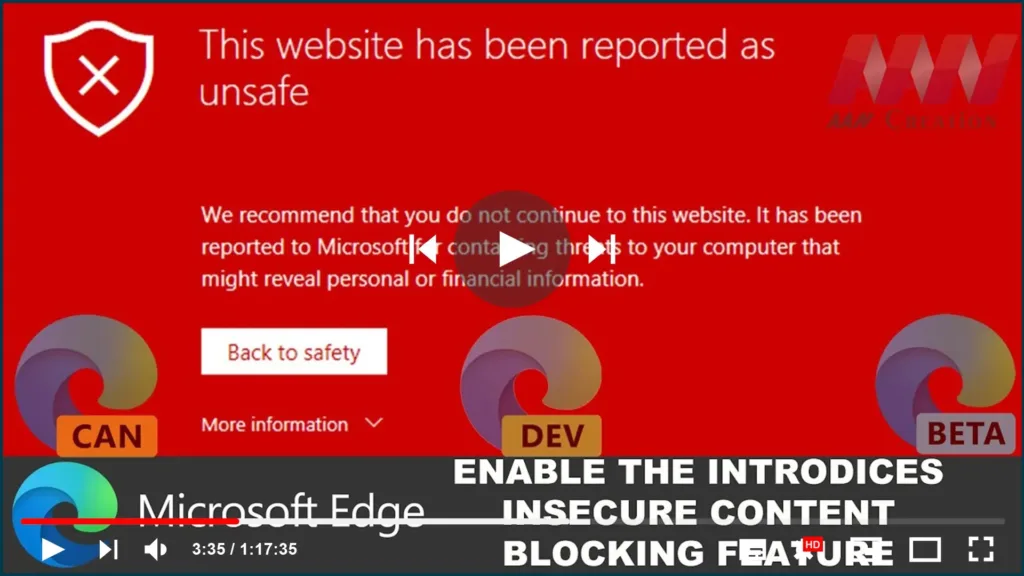
How to Enable the Introduces Insecure Content Blocking Feature on Chromium Version of Microsoft Edge

Microsoft Edge Chromium has received a new feature. A new site’s permission can be enabled to block mixed (typically insecure HTTP) content on a website you browse. The feature can also be globally enabled for all websites in Settings. the new flag that enables the “Insecure content” site permission option in Settings. When enabled, it

How to Enable the Introduces Insecure Content Blocking Feature on Chromium Version of Microsoft Edge Read More »
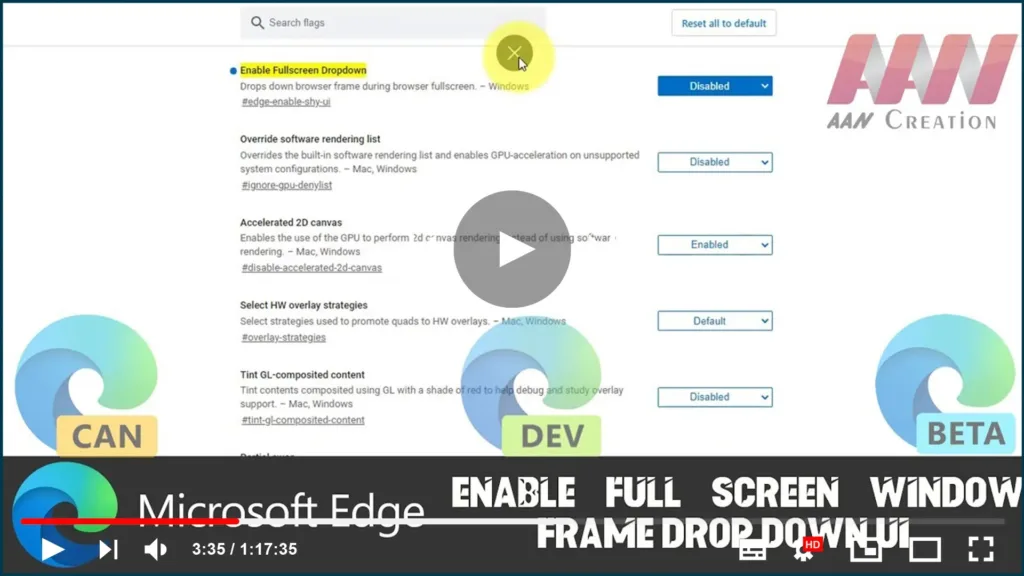
How To Enable Full Screen Window Frame Drop Down UI on Chromium Version of Microsoft Edge

Microsoft has silently added a new feature to the modern Chromium-based Microsoft Edge app. When enabled, it adds a drop-down window frame when in full-screen mode. One of the new flags adds a drop-down window frame to the browser when in full screen. Currently, if you move your mouse pointer to the top of the

How To Enable Full Screen Window Frame Drop Down UI on Chromium Version of Microsoft Edge Read More »
How to Make the Edge Chromium Browser Always Ask Where to Save Each File Before Downloading

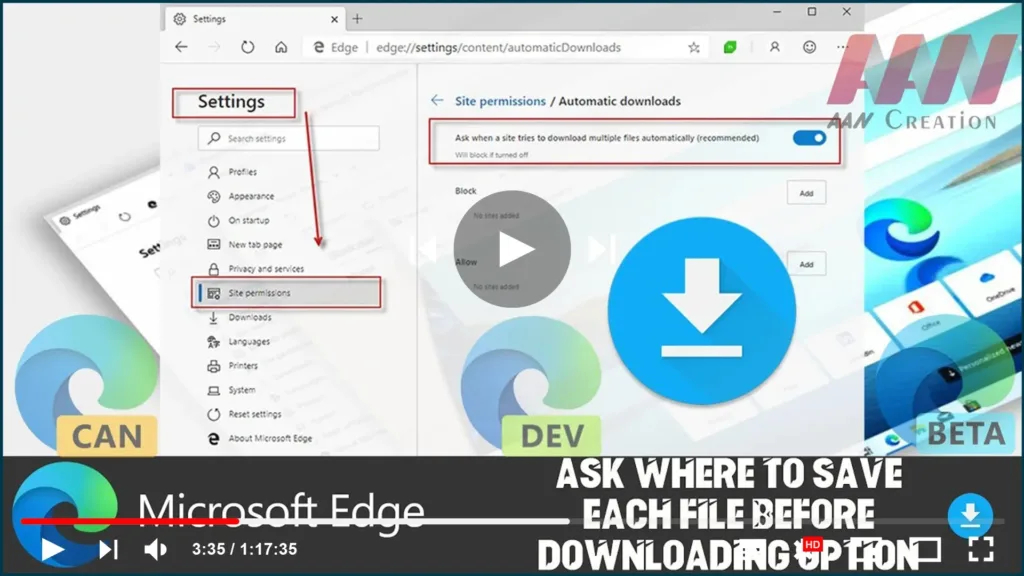
Microsoft Edge saves the files you download by default to your downloads folder, which is usually set to C:Usersyou user nameDownloads. You might want to change its behavior so that it prompts you for a location to save each file you download. In this guide, you’ll learn the steps to how to make the Edge

How to Make the Edge Chromium Browser Always Ask Where to Save Each File Before Downloading Read More »

How to Enable & Use Reading View for Selection on Chromium Version of Microsoft Edge

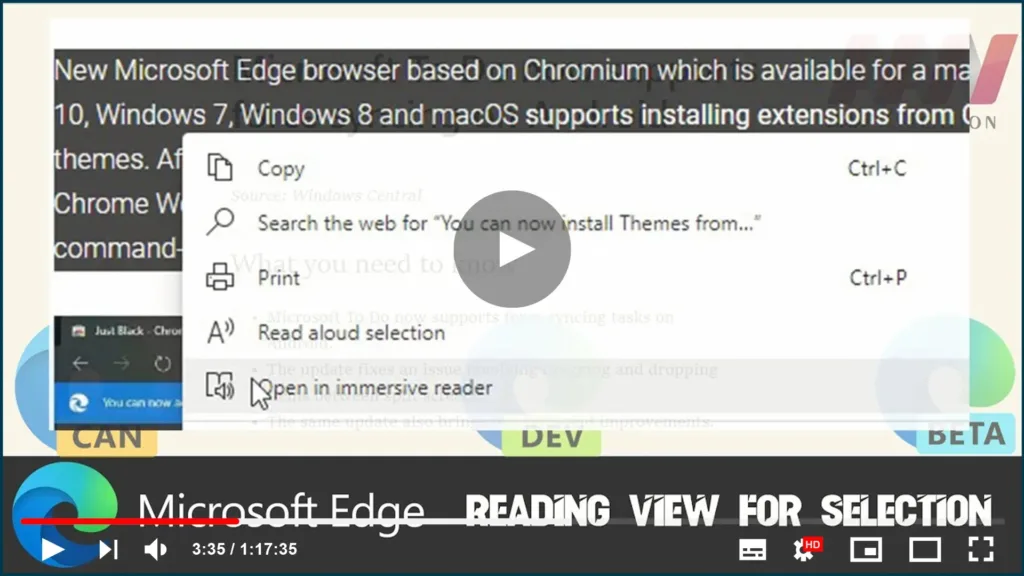
Yet another interesting option made its appearance in the Dev and Canary version of Microsoft Edge Chromium. With the latest build, you can now select a text and send it to an ‘immersive reader’. This feature is quite useful when you are reading a paragraph on a website with a design that makes it hard

How to Enable & Use Reading View for Selection on Chromium Version of Microsoft Edge Read More »