
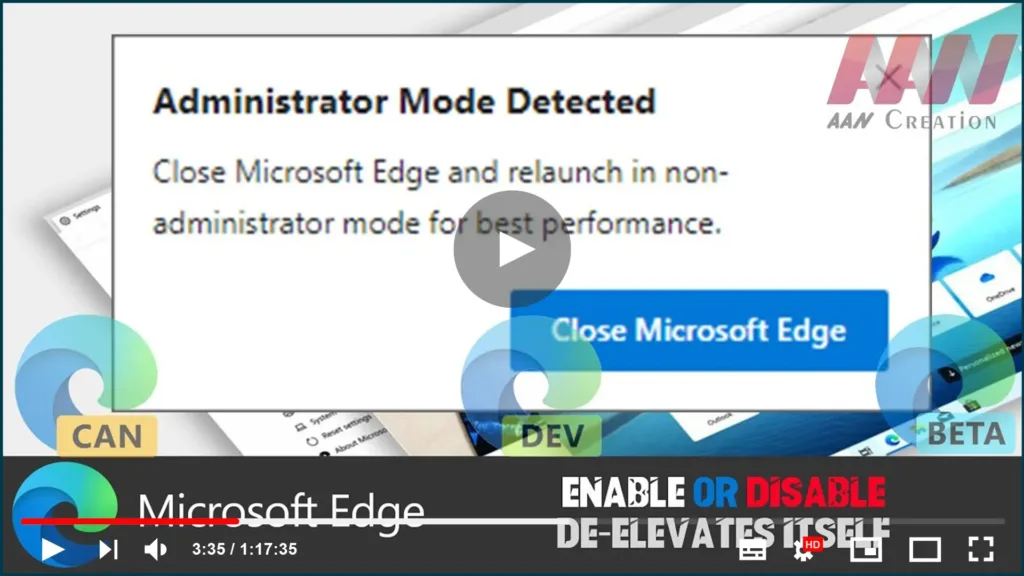

A new feature has been added to the latest version of Microsoft Edge Chromium. When launched as Administrator, the browser automatically de-elevates itself.
As you may remember, Edge comes with a warning when started as an Administrator. A message will be displayed with the following text:
“Administrator Mode Detected” “For best performance, close Microsoft Edge and relaunch in non-administrator mode.”
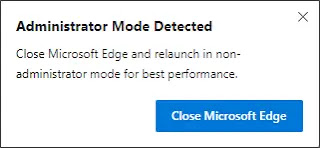
The Close Microsoft Edge button can be used to close the browser immediately. Clicking on the tiny close (x) button on the right will dismiss the warning and will allow using Edge elevated.
By allowing the browser to access system-protected areas and files, running Edge elevated poses an additional security risk. As an added safeguard, the browser detects elevated mode and relaunches itself with regular limited credentials. This change is enabled by default starting in the latest build.
This behavior can be controlled with a hidden flag. The change was mentioned in the Roadmap for the browser, which, however, doesn’t mention the existence of the flag option.
In this guide, you’ll learn the steps to enable or disable De-Elevates Itself in the Chromium Version of Microsoft Edge.
Use these steps to enable.
01. Open Microsoft Edge Chromium Version.
02. Type the following path into the address bar and hit the Enter key.
edge://flags#edge-de-elevate-on-launch
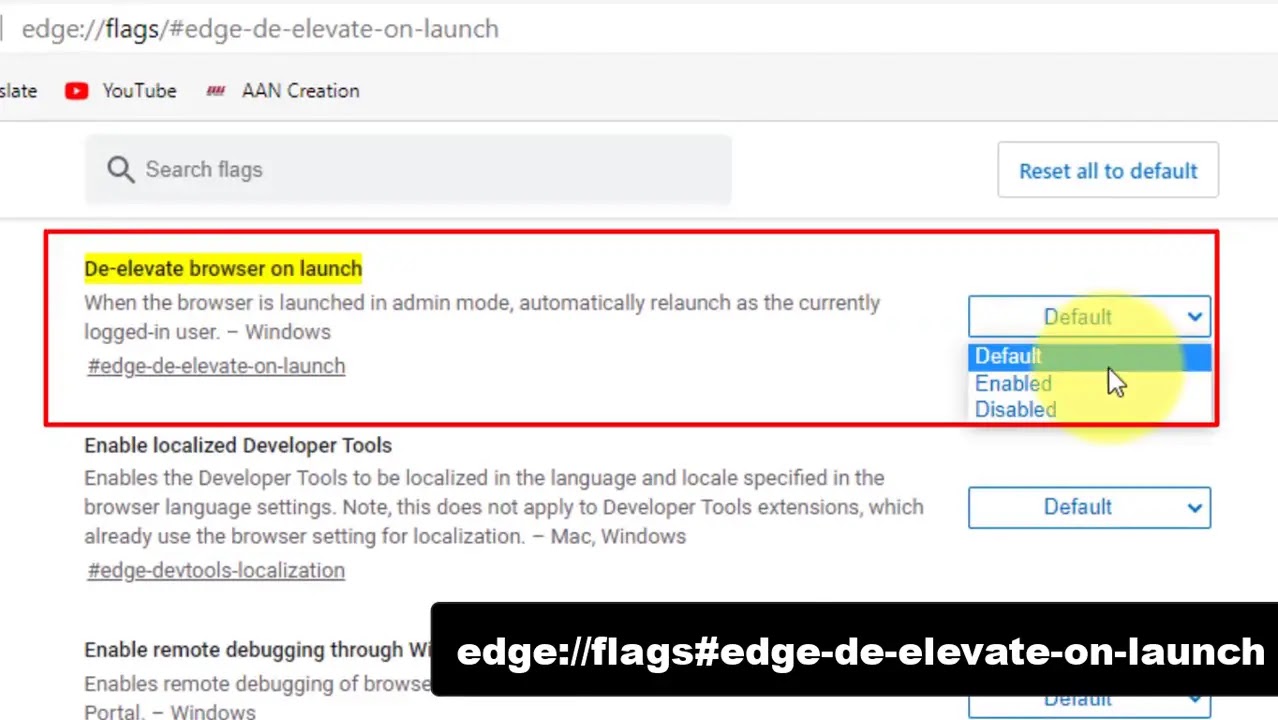
03. Select Default or enabled from the drop-down menu next to the flag name.
04. Restart the browser.
To Disable, Select Disabled from the drop-down menu next to the flag name. and Restart the browser.
You are done, The steps above will allow you to run Edge elevated again. Don’t forget to set the flag back to Default after you use this feature.

