
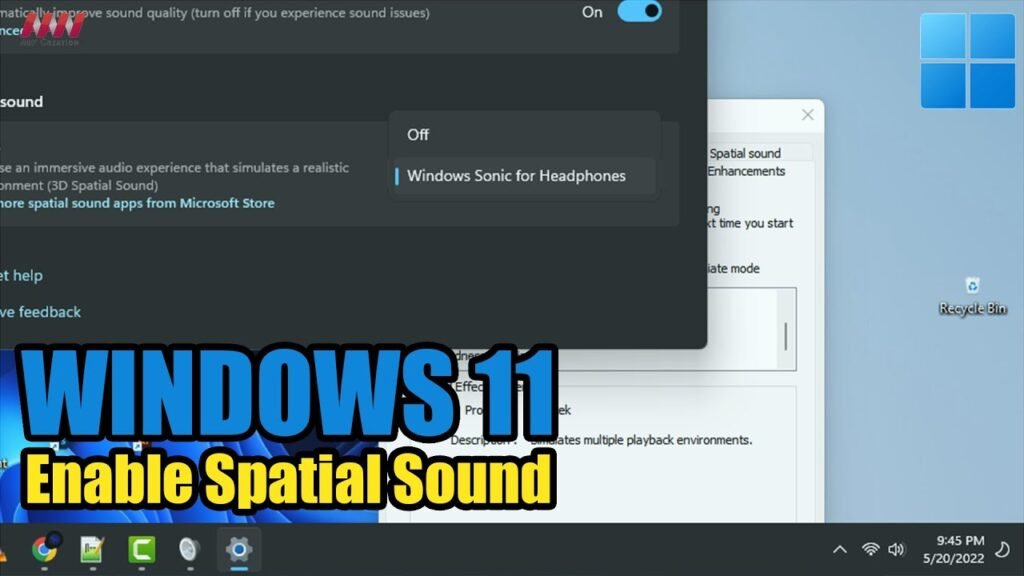

Spatial sound makes audio feel like it comes from around you, not just from the left and right. In games you can hear where footsteps come from, and movies feel more immersive. Windows 11 includes a free option called Windows Sonic for Headphones, and it works with almost any pair of headphones.
Turn on spatial sound
- Press Windows + I to open Settings.
- Go to System > Sound.
- Under Output, click your headphones or speakers to open their properties.
- Find Spatial sound and open the Type drop-down.
- Choose Windows Sonic for Headphones.
The effect starts right away. Play a game or a movie with surround sound to hear the difference.
Use Dolby Atmos or DTS instead
The same drop-down may also show Dolby Atmos for Headphones, Dolby Atmos for home theater or DTS Sound Unbound. These need extra apps from the Microsoft Store:
- Dolby Access for Dolby Atmos.
- DTS Sound Unbound for DTS:X.
Both usually offer a trial and then a paid licence. Some headsets and laptops include a licence, so check before buying.
Turn spatial sound off
Go back to Settings > System > Sound, open your device and set Spatial sound to Off.
Useful tips
- Headphones vs speakers: Windows Sonic is designed for headphones. With normal stereo speakers it may sound odd.
- Games: some games have their own 3D audio setting. Turning both on can make sound worse, so try each and keep the one you like.
- Music: plain stereo music can sound less natural with spatial sound. Many people turn it off when listening to music.
If the option is missing or greyed out
- Make sure the right output device is selected.
- Update your audio driver from Settings > Windows Update > Advanced options > Optional updates or your PC maker’s site.
- Bluetooth headsets in hands-free mode (when the microphone is active) may not support spatial sound.
Frequently asked questions
Is Windows Sonic free?
Yes. It’s built into Windows 11 and Windows 10 with no extra download.
Do I need special headphones?
No. Windows Sonic works with any stereo headphones, wired or wireless.

