
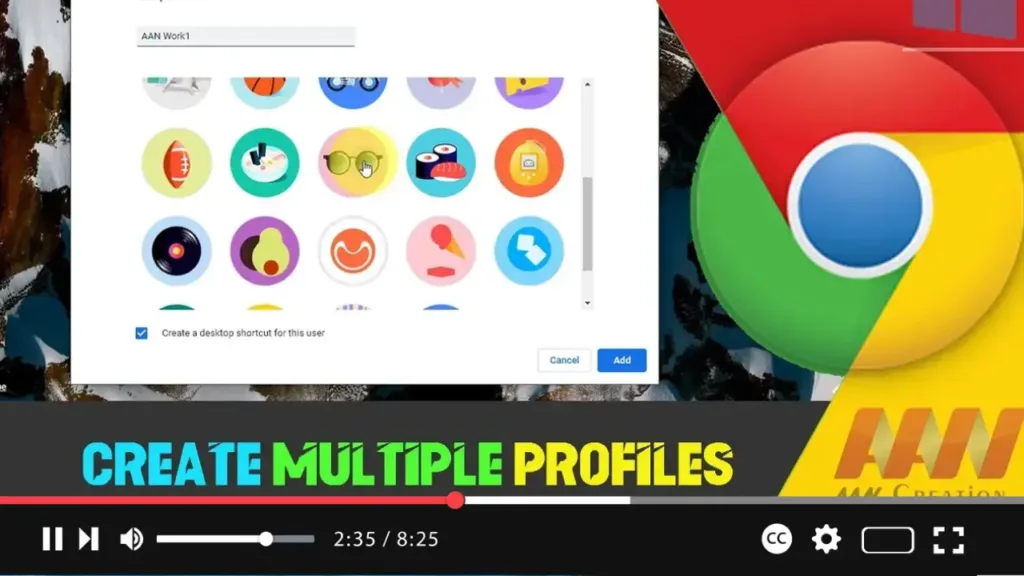

Creating multiple profiles on Google Chrome allows you to separate your browsing data, extensions, and settings. This is particularly useful if you share your computer with others or want to keep your work and personal browsing activities separate. This guide will walk you through the steps to create and manage multiple profiles on the Chrome browser.
Introduction
Multiple profiles in Google Chrome help you manage different sets of bookmarks, history, passwords, and other settings. Each profile operates independently, so you can maintain different browsing environments without interference.
Steps to Create Multiple Profiles on Google Chrome Browser
Step 01: Open Chrome Menu
Open Google Chrome. Click the profile icon (a circle with your avatar or initials) in the top-right corner of the browser window. This will open a dropdown menu.
Step 02: Manage People
In the dropdown menu, click on “Manage people.” This will open a new window showing all the existing profiles.
.webp)
Step 03: Add a New Profile
In the “Manage people” window, click on “Add person” in the bottom-right corner. A new dialog box will appear.
Step 04: Customize Your Profile
In the dialog box, you can choose a name and an avatar for the new profile. These settings help you easily identify and switch between profiles.
Step 05: Create the Profile
After customizing your profile, click the “Add” button. A new Chrome window will open with the new profile, and you can start personalizing it with bookmarks, extensions, and other settings.
.webp)
Additional Information
Sync Your Profile
To keep your browsing data consistent across devices, sign in to your Google account within each profile. This will sync bookmarks, history, passwords, and other settings to your Google account.
Switching Between Profiles
To switch between profiles, click the profile icon in the top-right corner and select the profile you want to switch to. A new window will open with the selected profile.
Managing Profiles
You can manage your profiles by going back to “Manage people.” Here, you can edit profile names and avatars, or remove profiles you no longer need.
Privacy and Separation
Each profile operates independently, ensuring that your browsing data, extensions, and settings are kept separate. This helps maintain privacy and organization, especially if multiple users share the same computer.
Using Profiles for Different Purposes
- Work and Personal Profiles: Keep work-related bookmarks, extensions, and browsing history separate from personal activities.
- Testing and Development: Use different profiles to test websites or extensions in a clean environment without interference from personal browsing data.
- Family Members: Create profiles for different family members to keep everyone’s browsing data and settings separate.
Conclusion
Creating and managing multiple profiles on Google Chrome is a straightforward process that can greatly enhance your browsing experience. By following these steps, you can easily set up and switch between different profiles, ensuring that your data is organized and separated according to your needs. Whether for work, personal use, or sharing your computer with others, Chrome profiles offer a flexible solution to manage multiple browsing environments efficiently.

