
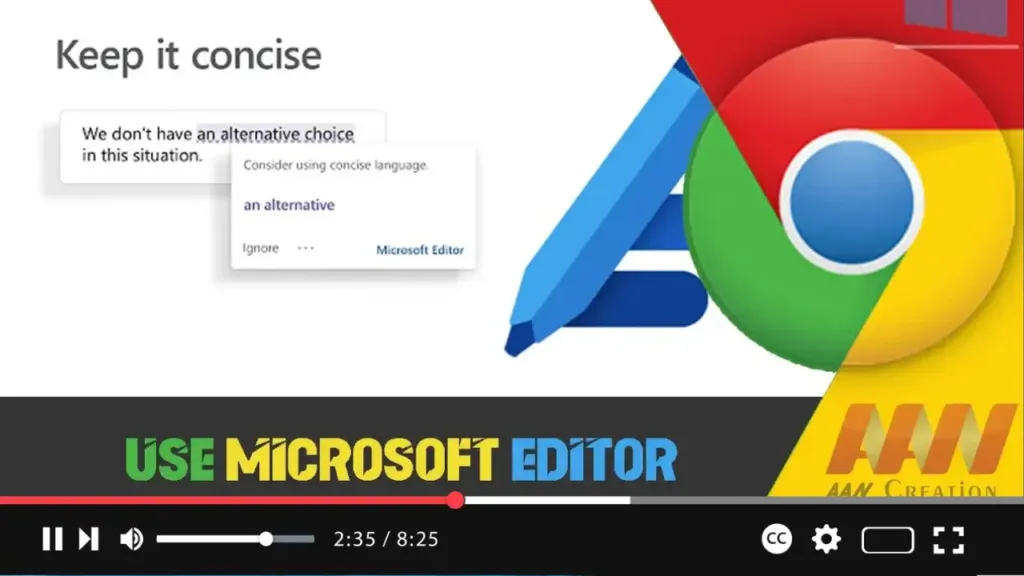

nullMicrosoft Editor is a powerful tool that enhances your writing by offering spelling, grammar, and style suggestions. Available as an extension for Google Chrome, it helps you write clearly and concisely across the web. This guide will walk you through the steps to install and use Microsoft Editor in the Chrome browser.
Introduction
Microsoft Editor is designed to improve your writing by providing real-time suggestions and corrections. Whether you’re writing emails, social media posts, or blog articles, this tool ensures your writing is polished and professional.
Steps to Use Microsoft Editor in Google Chrome Browser
Step 01: Open Chrome Web Store
Open Google Chrome and navigate to the Chrome Web Store. You can do this by typing chrome.google.com/webstore in the address bar and pressing Enter.
.webp)
Step 02: Search for Microsoft Editor
In the Chrome Web Store, type “Microsoft Editor” in the search bar and press Enter. Look for the extension named “Microsoft Editor: Spelling & Grammar Checker” by Microsoft.
Step 03: Add Extension to Chrome
Click on the “Microsoft Editor: Spelling & Grammar Checker” extension from the search results. On the extension page, click the “Add to Chrome” button. A confirmation dialog will appear; click “Add extension” to confirm.
Step 04: Sign In to Your Microsoft Account
After the extension is added, you will see the Microsoft Editor icon in the top-right corner of the browser. Click the icon, and you will be prompted to sign in to your Microsoft account. Sign in with your credentials to activate the Editor.
.webp)
Step 05: Customize Settings
Once signed in, you can customize the settings of Microsoft Editor to suit your preferences. Click on the Microsoft Editor icon again, and navigate to the settings menu. Here, you can toggle on or off the suggestions for spelling, grammar, and style.
Additional Information
Real-Time Suggestions
Microsoft Editor provides real-time suggestions as you type. It underlines spelling errors in red, grammar issues in blue, and style improvements in purple.
Multilingual Support
The Editor supports multiple languages, allowing you to receive suggestions in the language you’re writing in. You can change the language settings in the extension’s settings menu.
.webp)
Advanced Features
For more advanced features, you can subscribe to Microsoft 365. This subscription provides access to additional style and clarity suggestions, plagiarism checks, and more comprehensive writing tools.
Using Editor Across Platforms
Microsoft Editor can be used across different platforms and applications, including Microsoft Word, Outlook, and online services. This consistency helps maintain high writing standards regardless of where you’re working.
Conclusion
Microsoft Editor is a valuable tool for enhancing your writing on the web. By following these steps, you can easily install and use the extension in Google Chrome, benefiting from real-time spelling, grammar, and style suggestions. Whether you’re drafting an email, posting on social media, or writing a blog, Microsoft Editor helps ensure your writing is clear, concise, and professional.

