

The IE Mode feature first appeared in Edge’s most recent build. It launched a new tab that simply redirected the URL to the Internet Explorer browser. Starting in the latest Dev build, the ability to open websites in Internet Explorer mode was finally working properly in a new tab inside the Edge browser.
By setting the ‘Enable IE Integration’ flag to IE Mode, the proper IE Mode could be activated. When enabled, it allows opening a website in a new tab that will use Internet Explorer as the rendering engine. A new menu entry is enabled by the flag. Only a few weeks later, the “Show this page in Internet Explorer” option has vanished, even if the flag is still enabled.
Finally, the browser’s development team listened to user feedback and added a new command-line option for activating IE Mode and the appropriate option in the menu. This means you can create a shortcut to start Microsoft Edge Chromium in IE Mode.
In this guide, you’ll learn the steps to Enable Internet Explorer Mode in Chromium Edge.
01. Open Microsoft Edge Canary or Dav.
02. Type the following path into the address bar of Edge.
edge://flags/#edge-internet-explorer-integration
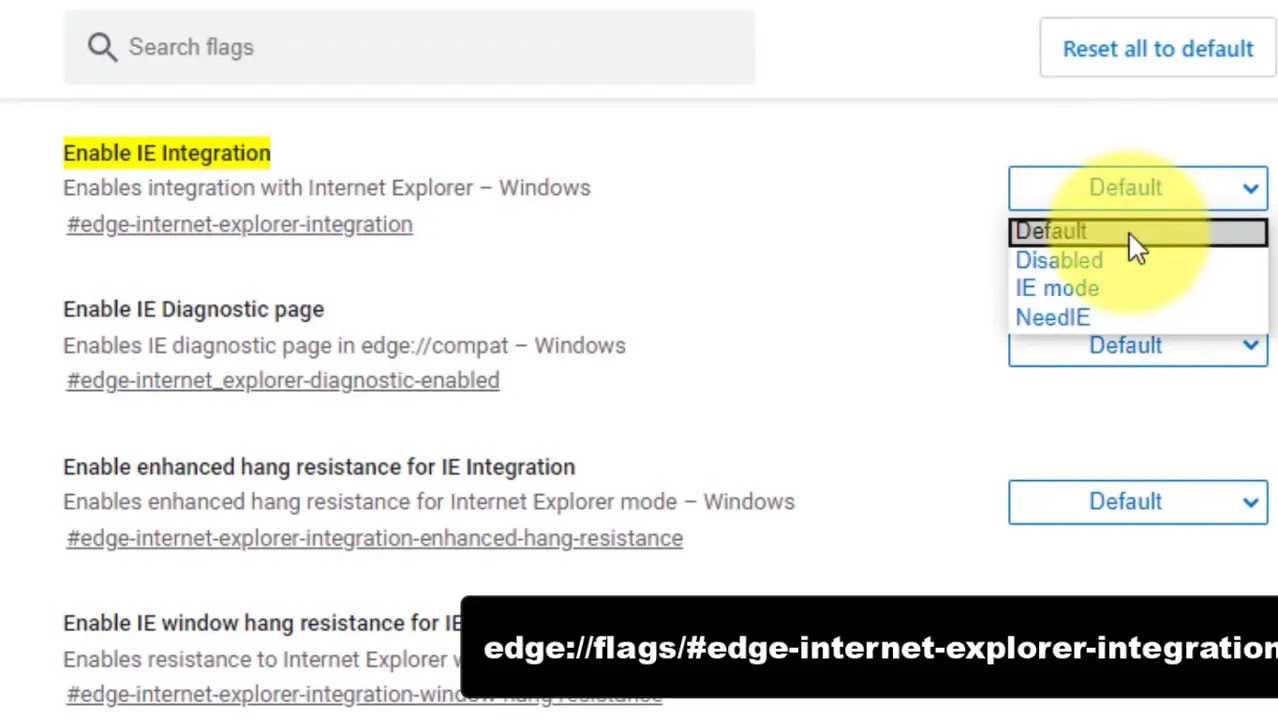
03. Enable the flag to Enable IE Integration by selecting IE Mode from the drop-down list next to the flag’s name.
04. Restart the Edge.
05. Right-click on the Edge icon on the desktop and Modify the Target text box value by adding the following command option after msedge.exe.
--ie-mode-test
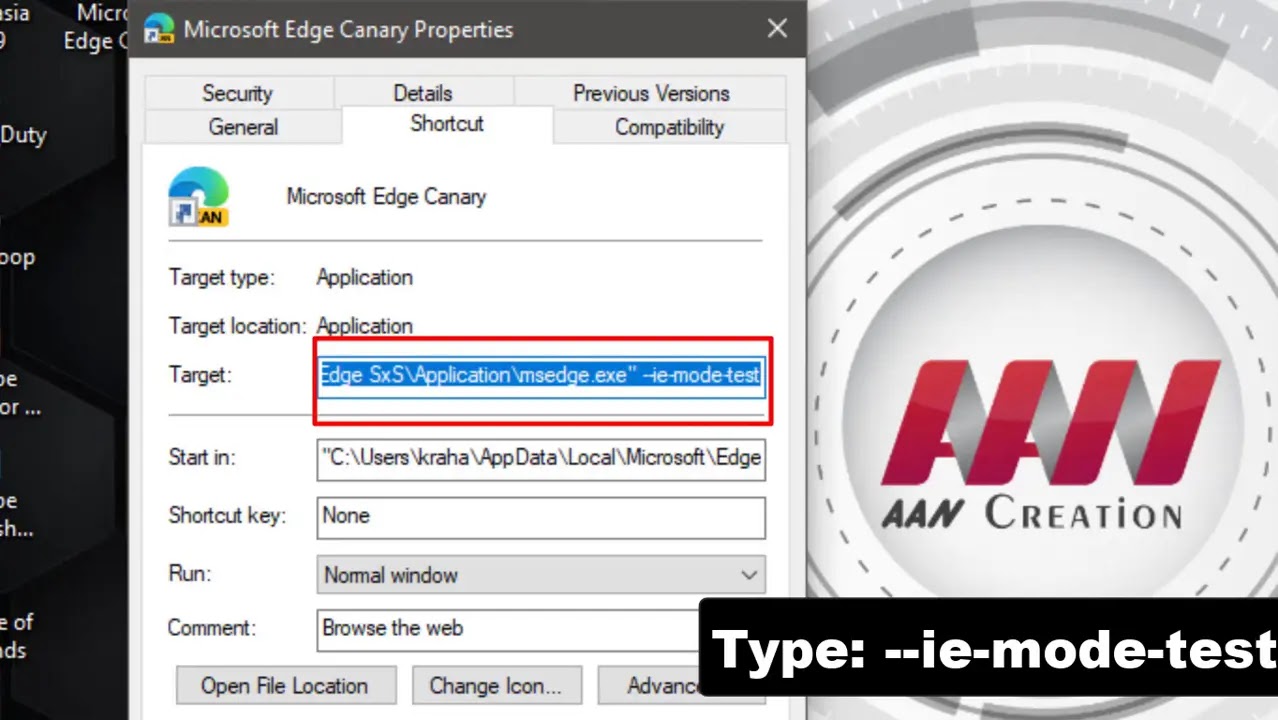
Now, launch Edge Chromium using the modified shortcut. You’ll find the menu and More tools Open sites in the Internet Explorer mode option
The browser now displays an info bar with the following text for the IE Mode tab. Once you complete the steps, you can use the old internet explorer.

