
Microsoft Edge now allows users to stop notification requests from websites to reduce distractions while browsing the web. While some notifications, such as meeting alerts or updates from media subscriptions, can be valuable, constant requests can be distracting. To address this, the Chromium version of Microsoft Edge includes the quiet notification requests feature, which reduces interruptions.
Introduction
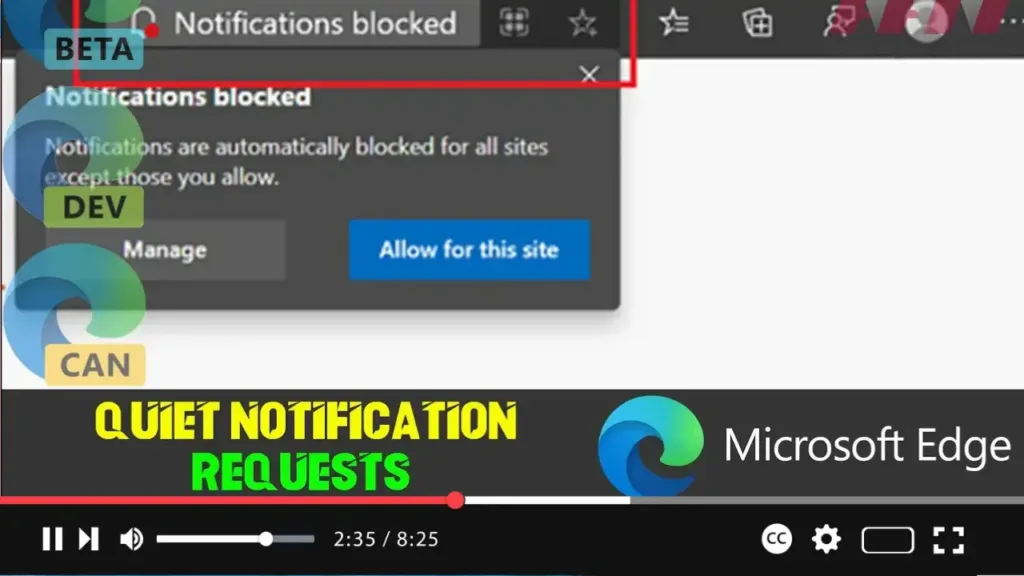
When browsing the internet, many websites request to enable notifications or access the microphone or camera. Quiet notification requests allow you to browse without seeing these prompts, and all requests will appear as a bell labeled “Notifications blocked” in the address bar. This guide will show you how to enable or disable this feature on the Chromium version of Microsoft Edge for Windows 10.
Steps to Enable or Disable Quiet Notification Requests
Step 01: Open Microsoft Edge
Launch Microsoft Edge on your Windows 10 device.
Step 02: Access Settings
Click the “Settings and more” button (three-dotted icon) in the top-right corner of the browser window.
.webp)
Step 03: Select Settings
From the dropdown menu, select the “Settings” option.
Step 04: Navigate to Site Permissions
In the Settings menu, click on “Site permissions” from the left sidebar.
Step 05: Access Notifications
Click on the “Notifications” item within the Site permissions section.
Step 06: Enable or Disable Quiet Notification Requests
Turn on or off the “Quiet notification requests” toggle switch. When enabled, you will no longer see flyout prompts to enable notifications for websites you visit. Instead, requests will appear as a bell labeled “Notifications blocked” in the address bar.
.webp)
Conclusion
By following these steps, you can manage how notification requests are handled in Microsoft Edge, reducing distractions while browsing. This feature helps maintain focus by minimizing interruptions from websites requesting permission for notifications or other access.
Additional Information
- Manage Notifications: Even with quiet notification requests enabled, you can still manage notifications for specific websites by clicking the bell icon in the address bar.
- Customize Permissions: The Site permissions section in Microsoft Edge allows you to customize various permissions for websites, including camera and microphone access.
Enabling quiet notification requests in Microsoft Edge provides a more streamlined and less interrupted browsing experience, allowing you to stay focused on what matters most.