
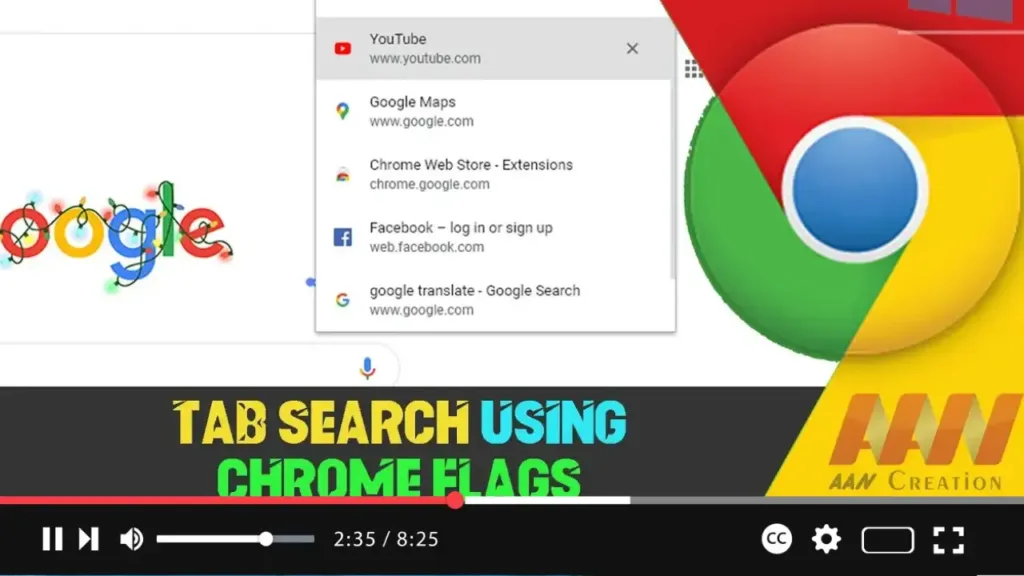

null Google Chrome’s Tab Search feature is a powerful tool that helps you manage and navigate through numerous open tabs efficiently. This guide will show you how to enable Tab Search using the Chrome Beta browser’s flags settings.
Introduction
Tab Search allows users to quickly locate and switch between open tabs, making it easier to handle multiple tabs without getting lost. Enabling this feature through Chrome Beta’s flags settings provides early access to this functionality, even before it becomes a standard feature in stable releases.
Steps to Enable Tab Search Using Chrome Beta Browser Flags Settings
Step 01: Download and Install Chrome Beta
If you haven’t already, download and install the Chrome Beta browser to access experimental features.
- Visit the Chrome Beta download page and follow the instructions to download and install the browser.
Step 02: Open Chrome Beta
Launch the Chrome Beta browser.
Step 03: Access Chrome Flags
In the address bar, type chrome://flags and press Enter. This will take you to the experimental features page, where you can enable or disable various features.
.webp)
Step 04: Search for Tab Search Flag
Use the search bar at the top of the flags page to find the Tab Search flag. Type “Tab Search” into the search bar.
Step 05: Enable Tab Search
Locate the flag named “Enable Tab Search.” From the dropdown menu next to it, select “Enabled.”
- Click the “Relaunch” button at the bottom of the page to restart Chrome Beta and apply the changes.
.webp)
Step 06: Use the Tab Search Feature
After relaunching Chrome Beta, you can use the Tab Search feature. The default shortcut for Tab Search is Ctrl + Shift + A on Windows/Linux and Cmd + Shift + A on Mac.
Step 07: Search for Tabs
Press the Tab Search shortcut (Ctrl + Shift + A or Cmd + Shift + A). A search box will appear at the top of the browser window. Type keywords related to the tab you are looking for, and the matching tabs will be displayed. Select the desired tab from the list to switch to it.
Additional Information
Customization and Usage Tips
- Pinning Tabs: Pin frequently used tabs to keep them easily accessible and prevent them from being closed accidentally.
- Organizing Tabs: Use Chrome’s tab grouping feature to organize related tabs together, making them easier to manage.
- Extensions: Consider using tab management extensions from the Chrome Web Store for additional functionality and features.
.webp)
Troubleshooting
- Feature Not Available: If you don’t see the Tab Search option in the flags, ensure your Chrome Beta browser is up to date.
- Performance Issues: If enabling Tab Search causes performance issues, you can disable it by returning to
chrome://flags, finding the “Enable Tab Search” flag, and setting it to “Disabled.”
Conclusion
Enabling Tab Search in Google Chrome Beta via the flags settings provides a more organized and efficient browsing experience by allowing you to quickly locate and switch between tabs. By following these steps, you can take advantage of this feature early on and enhance your tab management capabilities.

