
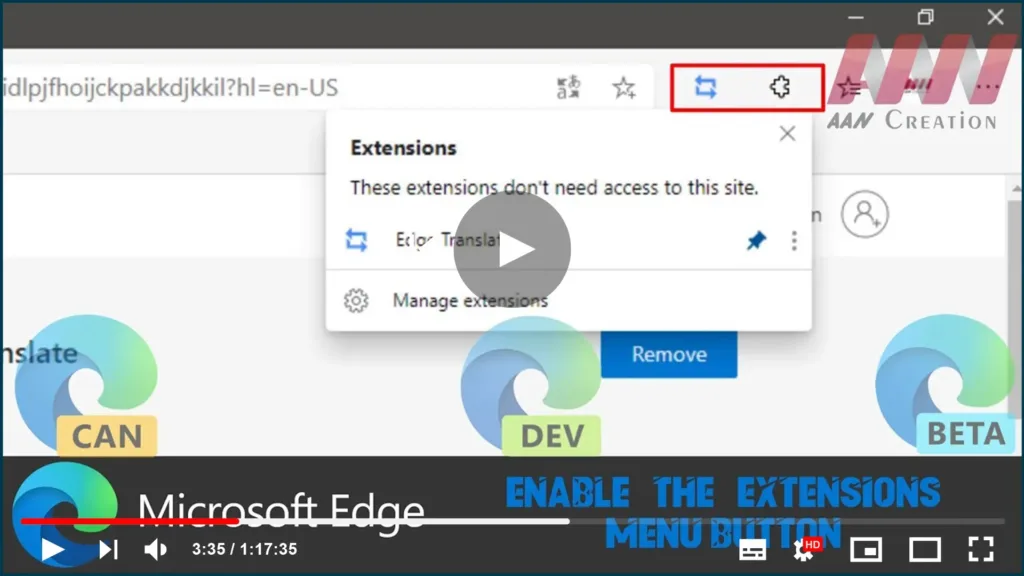

In the latest Microsoft Edge, you can now enable the brand new ‘Extensions’ menu which adds a button to the toolbar. For easier access, the menu contains all of the installed browser extensions. Also, it allows having a clean toolbar, which is a long-awaited feature for many users.
Once the menu is enabled, you can show or hide extension buttons from the toolbar,

The menu has a pin icon that appears when you hover over with the mouse pointer the extension item in the menu. To pin the extension to the toolbar, click on it.
Click on it once again to unpin it. Also, you can right-click on the extension button in the toolbar to unpin it.
In this guide, you’ll learn the steps To Enable the Extensions Menu Button in Microsoft Edge Chromium.
01. Close Microsoft Edge.
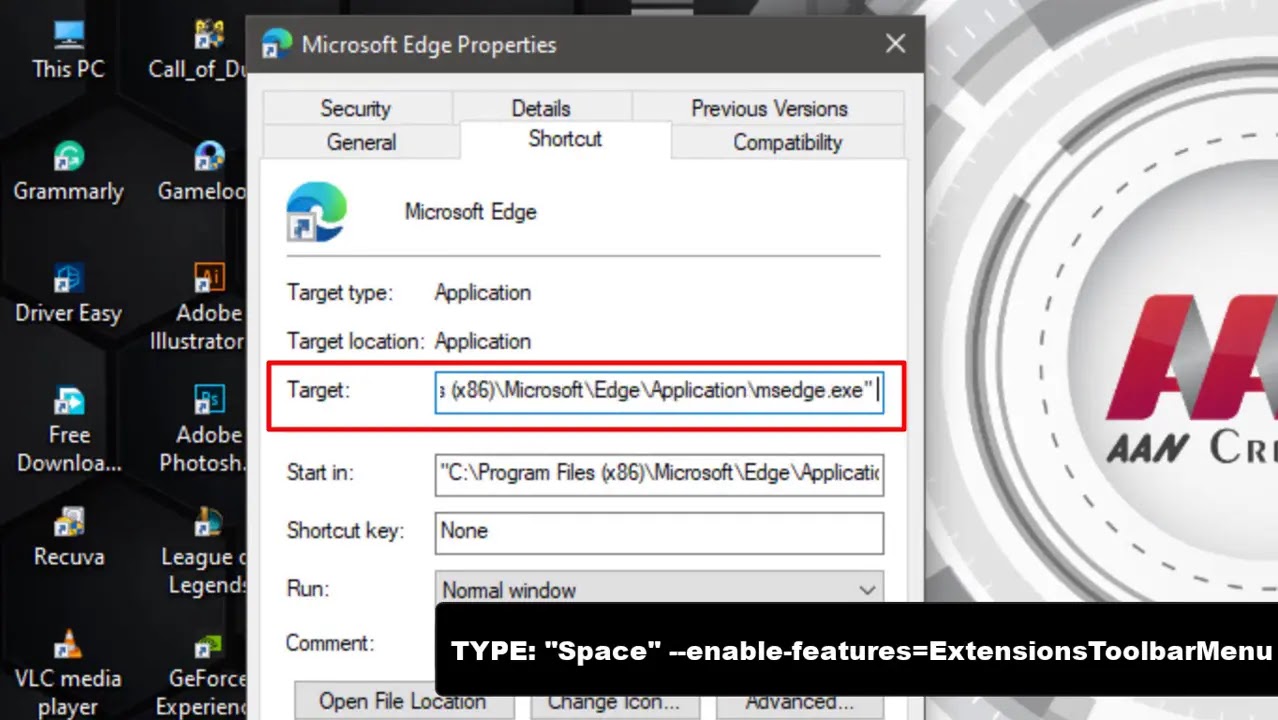
02. Right-click the Edge shortcut and select Properties from the context menu.
03 Type the following path after the msedge.exe portion in the shortcut target box. and click on apply.
--enable-features=ExtensionsToolbarMenu
04. Launch Edge using the modified shortcut.
Once you complete the steps, you can show or hide extension buttons from the toolbar.

