

Follow these tips, you can make Windows startup & shutdown
faster as well as boost Windows 10 Performance.
Note: I recommend you create a system restore point first before change your
system. I also recommend you don’t make too many changes at one time or in a
day.
(adsbygoogle = window.adsbygoogle || []).push({});
Restrict the number of start-ups
Why have programs starting up when you do not use them. Even those you need
can every time be started manually by clicking on the app’s icon. I prefer not
to have Any startups except the antivirus software running. So choose for
yourself whichever you need to start-up Windows boots. You may use msconfig in
Windows 7/8 or Task Manager in Windows 10 to charge startup programs. You can
also slowdown Startup Programs or manage the order in which they load when
Windows boots.
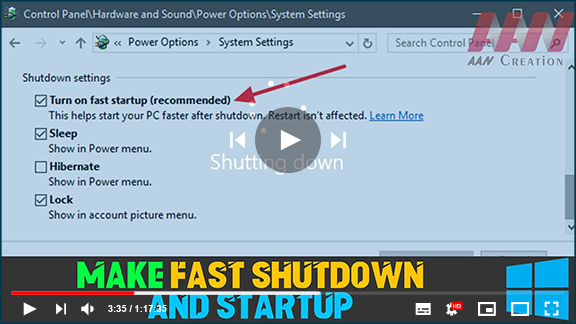
Turn on Fast Startup
In Windows, you can cjhoose the Turn on Fast Startup option.
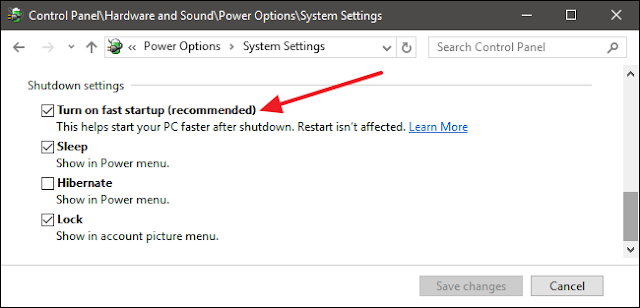
01. Go to Control Panel
02. Select the Power Options
03. Choose what the power buttons do – Shutdown settings.
Reduce Visual Effects
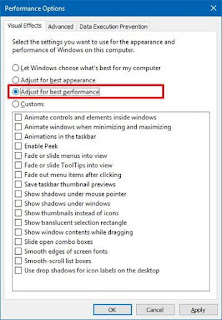
Open Control Panel and search for Visual Effects. Under Performance Options,
you can modify for the best improve or select or unselect the options
manually. This will improve visual effects & remove a lot of eye-candy.
You may, although, want to check the Smooth edges of screen fonts, &
therefore go in for a Custom selection.
Make Windows 10 Faster
Disabling all can actually undo the purpose of attractive Windows 10, &
make it look & feel ‘bland’, so use your discretion & choose your
options wisely.
Defragment Drives
Defragment your Drives regularly. Of course, nowadays, you do not really need
to do it manually as the built-in Windows defragmenter does a good job at
defragmenting files in the background whenever your system is idle. However,
if you like, you may use a third-party free defragmentation program.
Delete Junk Files, Clean Registry & improve Windows performance.
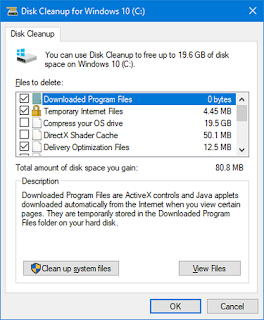
While eliminating garbage and temporary files may not make your Windows run
quicker, it is a good housekeeping practice. You can accomplish the same thing
using the built-in Disk Cleanup Utility or freeware like CCleaner or Quick
Clean. whatever one should use a free Registry Cleaner to clean up the Windows
Registry occasionally is a matter of debate, so you may take a call on it.
although, I do use it once a month to remove left-over registry keys.
(adsbygoogle = window.adsbygoogle || []).push({});
Fix-It for slow Windows computers
Microsoft has released a solve It for slow Windows computers. It will
automatically diagnose & solve causes of poor system performance, such as
the power saver setting, multiple anti-virus programs running, multiple
startup programs running, and too many users logged on to the computer.
Use High-Performance Power Plan
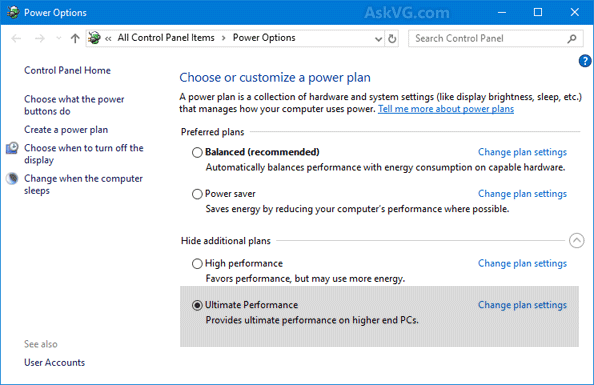
The default Power Setting in the “Power Saver” plan limits the CPU to 50
percent in Windows Operating System. To give your CPU full throttle, open the
Power Options Control Panel and modify it to “High Performance.”

