

Device drivers play a critical role in the functionality of computers. They serve as the communication bridge between the operating system and hardware components, ensuring everything operates seamlessly. It’s crucial to keep these drivers updated and functioning properly to maintain system stability and performance.
Understanding the Importance of Device Drivers
Drivers are essential for your computer’s hardware components to communicate effectively with the operating system. Outdated or malfunctioning drivers can lead to performance issues, system crashes, and various errors. Regular maintenance of your device drivers helps prevent these problems and enhances your overall computing experience.
Common Driver Issues
Device drivers can wear out over time due to software updates, system changes, or even hardware upgrades. Here are a few common issues that may arise:
- Compatibility Problems: New operating system versions may not be compatible with older drivers.
- Corrupted Drivers: Drivers can become corrupted due to software conflicts or improper installations.
- Missing Drivers: Occasionally, essential drivers may be accidentally uninstalled.
Troubleshooting Driver Issues
If you encounter driver-related problems, here’s how to troubleshoot them effectively:

(adsbygoogle = window.adsbygoogle || []).push({});
Step 01: Update Your Drivers
-
Windows 10:
- Select the Start button and then click on Settings.
- Go to Update & Security, then click on Windows Update.
- Check for updates, and Windows will automatically download and install the latest drivers.
-
Windows 8.1:
- Swipe in from the right edge of the screen and select Settings.
- Tap or click on Change PC settings and go to Update and recovery.
- Click on Check now to find and install updates.
-
Windows 7:
- Click on the Start button, then select Control Panel.
- Choose System and Security, and then click on Windows Update.
- Follow the prompts to check for and install updates.

Step 02: Run the Windows Troubleshooter
-
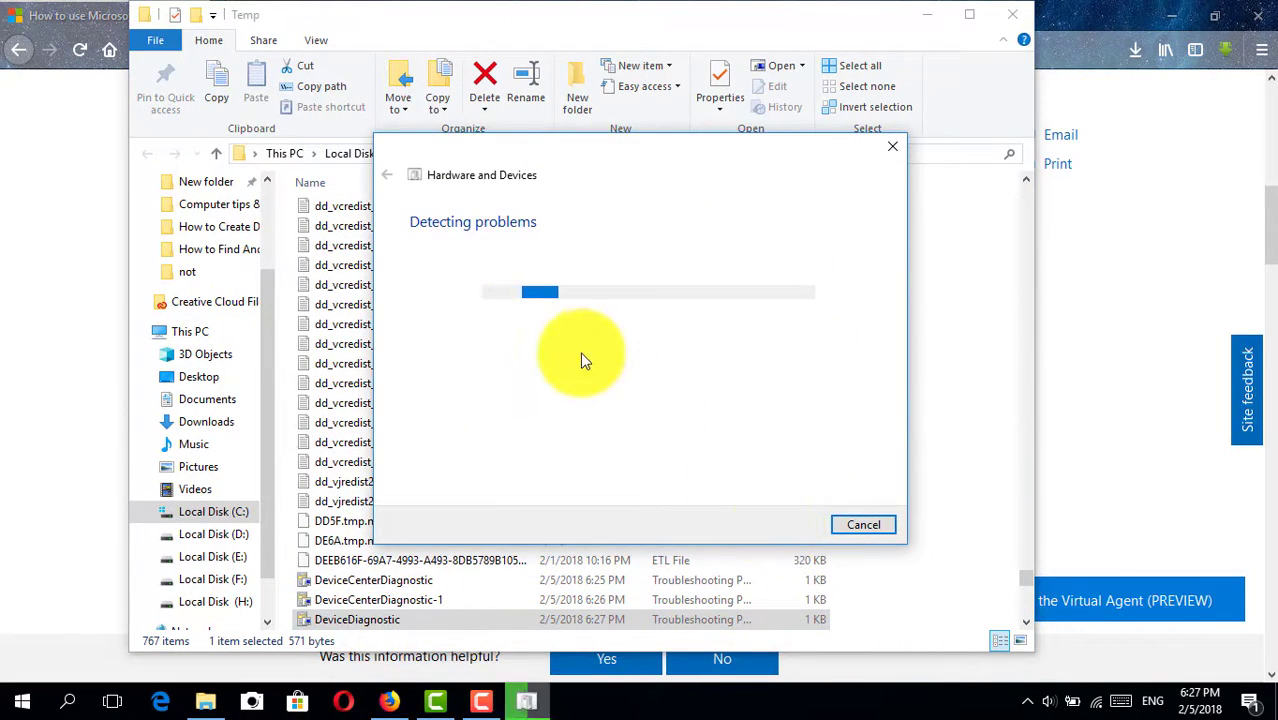
Windows 10:
- Open the Settings app.
- Navigate to Update & Security, then select Troubleshoot.
- Choose the relevant troubleshooter from the list and follow the on-screen instructions.
-
Windows 8.1:
- From the Start screen, search for Settings.
- In the search results, select Troubleshooting and choose the appropriate option.
-
Windows 7:
- Click on the Start button, then select Control Panel.
- Click on Troubleshooting and follow the steps to resolve your driver issues.
Conclusion
Regularly updating and maintaining your device drivers is essential for ensuring that your computer runs smoothly and efficiently. By keeping your drivers up-to-date, you can prevent many common issues and enhance the performance of your system. If you encounter persistent problems, running the built-in Windows troubleshooters can provide additional support and solutions.
(adsbygoogle = window.adsbygoogle || []).push({});

