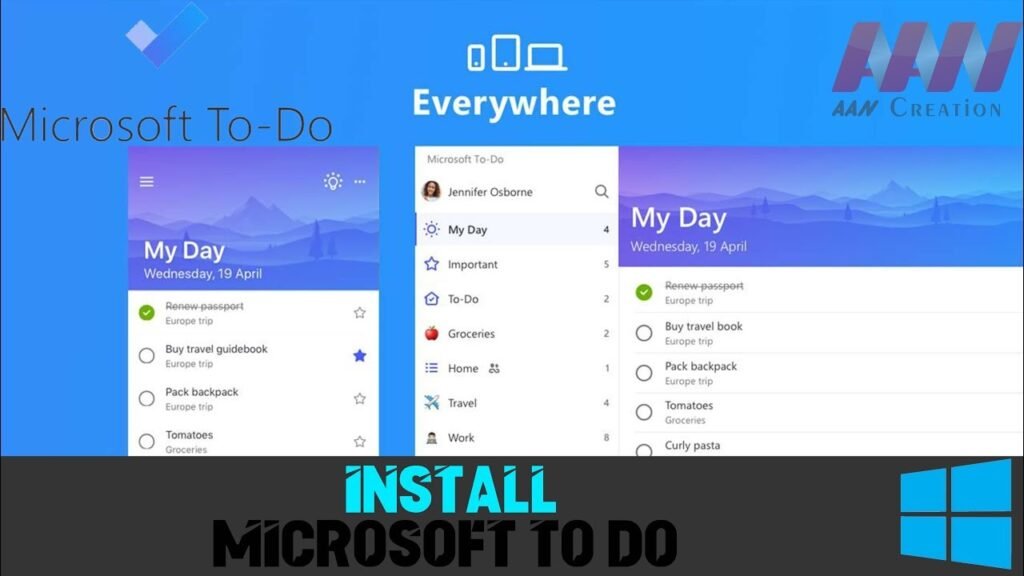

Microsoft To Do is a free, simple app for to-do lists, reminders and daily planning. It syncs with your Microsoft account, so tasks you add on your PC also appear on your phone and in Outlook. It’s a good replacement for sticky notes and scattered lists.
How to install Microsoft To Do
- Open the Microsoft Store from the Start menu.
- Search for Microsoft To Do.
- Click Get or Install. If it shows Open, it’s already installed.
- Open the app and sign in with your Microsoft account (Outlook, Hotmail or a work account).
Prefer the command line? Open Terminal and run:
winget search "Microsoft To Do"Then install the result with winget install followed by the ID shown in the list.
Set up your first tasks
- Click My Day to plan today. Type a task in Add a task and press Enter.
- Click a task to open its details. Add a due date, a reminder or steps (small sub-tasks).
- Click New list at the bottom left to create lists such as Work, Shopping or Home.
- Tick the circle next to a task to mark it complete.
Useful features
- Important: click the star on a task to add it to the Important list.
- Planned: shows all tasks with a due date in one place.
- Repeat: set tasks such as “pay rent” to repeat every month.
- Share a list: invite family or teammates to a list so everyone can add and tick off items.
- Flagged email: with a Microsoft account, emails you flag in Outlook can appear as tasks.
Get it on your phone
Install Microsoft To Do from the Google Play Store or Apple App Store and sign in with the same account. Your lists sync automatically.
Pin it for quick access
Right-click Microsoft To Do in the Start menu and choose Pin to Start, or pin it to the taskbar, so your list is always one click away. You can also turn on reminders as Windows notifications in the app’s settings.
Frequently asked questions
Is Microsoft To Do free?
Yes. It’s free with any Microsoft account and has no ads.
What happened to Wunderlist?
Microsoft bought Wunderlist and shut it down in 2020. Microsoft To Do is its replacement, and it could import Wunderlist data during the changeover.