
Settings shows your installed apps, but you can’t easily copy or save that list. PowerShell can list every program in seconds and export it to a file. This is useful before reinstalling Windows, when moving to a new PC, or when checking what’s on a computer.
Open PowerShell first: right-click the Start button and choose Terminal (Windows 11) or Windows PowerShell (Windows 10). Administrator rights are not needed to list apps.
Method 1: Use winget (easiest)
- Type the command below and press Enter:
winget list - The first time, you may be asked to accept the source agreements. Type Y and press Enter.
winget shows desktop programs and Store apps together, with their names, IDs and versions. To save the list:
winget list > "$env:USERPROFILE\Desktop\apps.txt"Method 2: List desktop programs from the registry
Installed desktop programs register themselves in the Uninstall keys. This command only reads them, it changes nothing:
Get-ItemProperty HKLM:\Software\Microsoft\Windows\CurrentVersion\Uninstall\*, HKLM:\Software\WOW6432Node\Microsoft\Windows\CurrentVersion\Uninstall\* |
  Where-Object DisplayName |
  Select-Object DisplayName, DisplayVersion, Publisher |
  Sort-Object DisplayName
To export it as a spreadsheet, add | Export-Csv "$env:USERPROFILE\Desktop\programs.csv" -NoTypeInformation to the end.
Method 3: List Microsoft Store apps
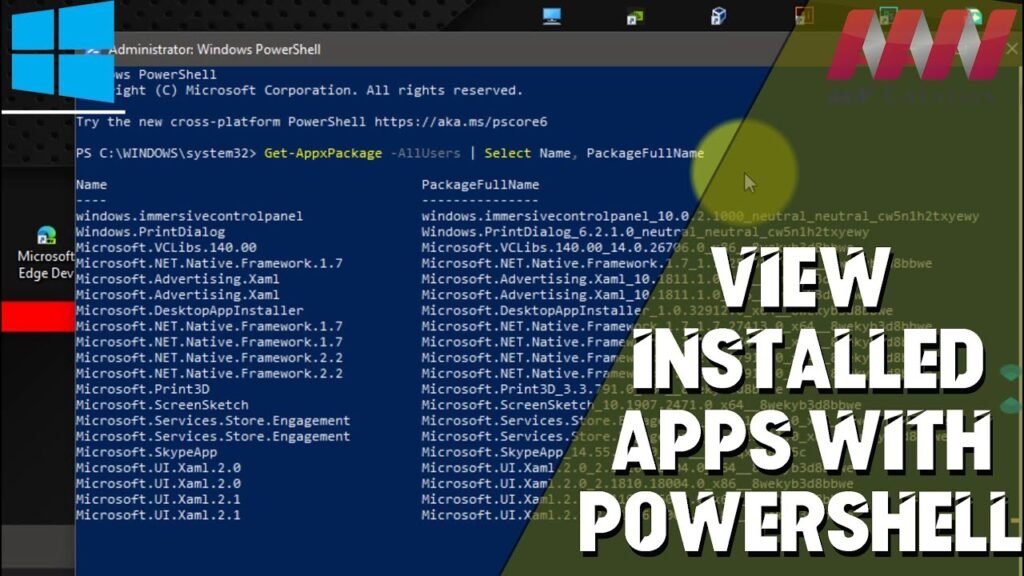
Get-AppxPackage | Select-Object Name, Version | Sort-Object NameThis shows Store and built-in apps for your user account, such as Photos, Calculator and Windows Terminal.
Tips
- Add
| Out-GridViewto the end of a command to see the results in a searchable window. - To find one app, use winget with a name:
winget list chrome. - Programs installed only for your user account appear under the HKCU Uninstall key, so the registry method may miss a few. winget usually catches them.
Frequently asked questions
Why doesn’t Get-WmiObject Win32_Product show everything?
Win32_Product only lists MSI-installed programs, is slow, and can trigger repair checks on those programs. The methods above are faster and safer.
Can I reinstall apps from the winget list?
Yes. winget export -o apps.json saves your apps, and winget import -i apps.json installs them on another PC, for apps available in winget sources.