
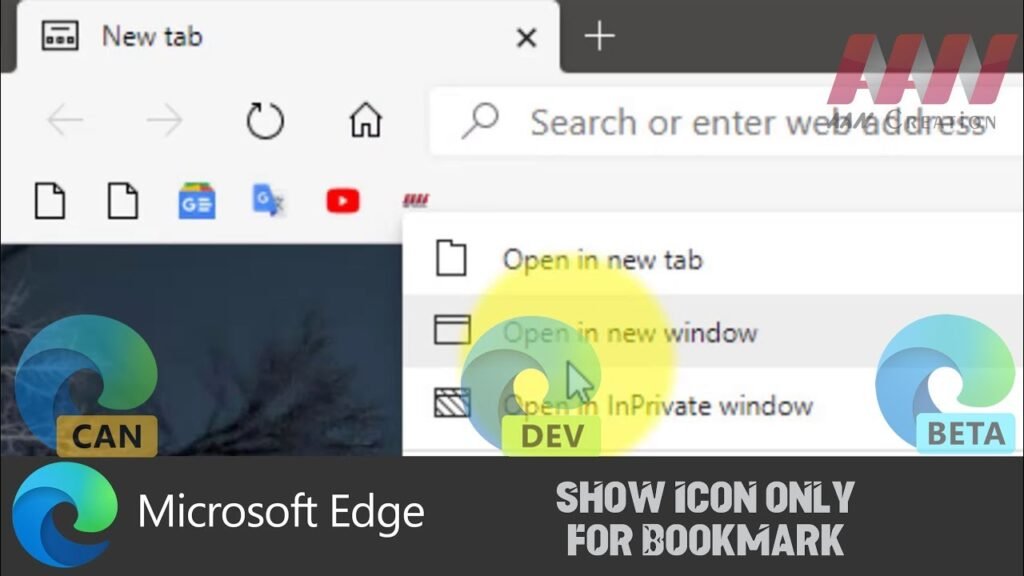

The favorites bar in Microsoft Edge fills up quickly because every bookmark shows its full name. If you remove the names and keep only the site icons, you can fit many more sites in the same space, and most icons are easy to recognise.
Remove the name from a favorite
- Make sure the favorites bar is visible. Press Ctrl + Shift + B if it isn’t.
- Right-click a favorite on the bar.
- Choose Edit.
- Delete all the text in the Name box, leaving it empty.
- Click Save.
The bookmark now shows only its icon. Repeat for each favorite you want to shrink. The link still works exactly as before.
Check for a built-in icons-only option
Some Edge versions include a Show icons only option when you right-click an empty part of the favorites bar. If you see it, it hides all names at once without editing each favorite. If it isn’t there, use the method above.
Organise the bar further
- Use folders: right-click the bar, choose Add folder, and drag less-used sites into it.
- Reorder: drag icons left or right to put your most-used sites first.
- Keep names for similar icons: if two sites use the same icon, such as two Google services, give them a short name like "Mail" instead of none.
Bring the names back
Right-click the favorite, choose Edit and type a new name. You can also open the Favorites manager with Ctrl + Shift + O to rename several bookmarks.
Frequently asked questions
Why does a favorite show a blank or generic icon?
Edge downloads the site’s icon when you visit it. Open the site once and the icon usually appears. If it doesn’t, the site may not provide one, so keep a short name for that bookmark.
Will this change sync to my other devices?
Yes, if favorites sync is on in Settings > Profiles > Sync, the new names (or empty names) sync too.

