
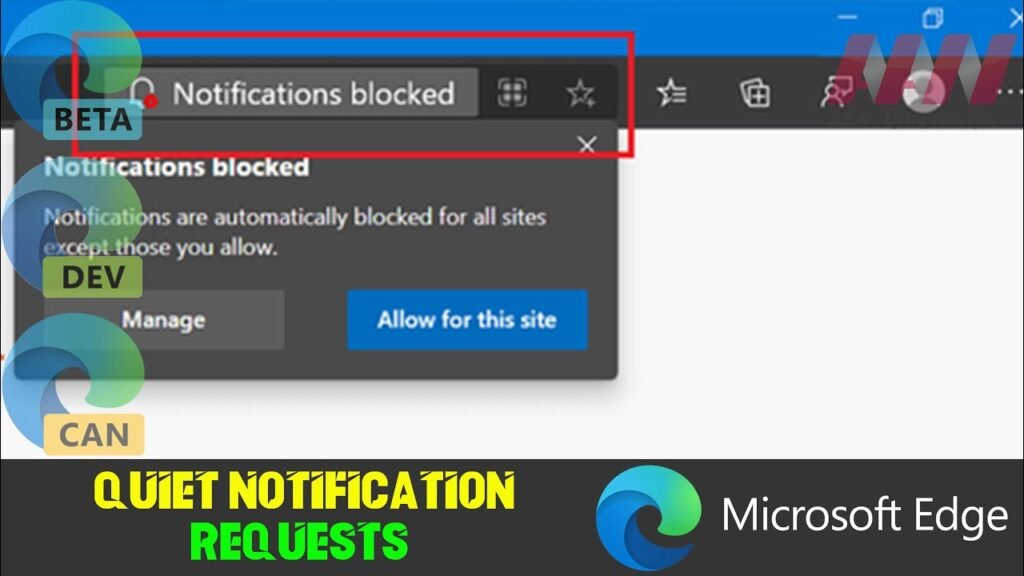

Many websites ask "Allow notifications?" as soon as you open them. Microsoft Edge can make these requests quiet: instead of a pop-up, a small bell icon appears in the address bar, and you can ignore it.
Here’s how to switch quiet requests on or off, block all requests, and clean up sites that already send you notifications.
Turn on quiet notification requests
- Click the three dots in the top-right corner and open Settings.
- Click Cookies and site permissions (in some versions it is called Privacy, search, and services > Site permissions).
- Click Notifications.
- Turn on Quiet notification requests.
To go back to normal pop-up requests, turn the same toggle off.
Block all notification requests
On the same Notifications page, switch off Ask before sending (recommended). Edge then blocks all new notification requests automatically and websites can no longer ask.
Remove sites you already allowed
- On the Notifications page, look at the Allow list.
- Click the three dots next to a website.
- Choose Block to stop its notifications, or Remove to reset the permission.
This is the fix for spammy pop-ups in the corner of the screen that appear even when the site isn’t open.
Allow a site you trust
If you want notifications from one site, such as your email, click Add next to the Allow list and enter the site’s address. Or click the lock icon in the address bar while on that site and set Notifications to Allow.
Tips
- Edge may turn quiet requests on automatically for sites that many users block.
- Notifications from Edge also appear in Windows. You can turn them off there under Settings > System > Notifications > Microsoft Edge.
Frequently asked questions
Are notification requests dangerous?
The request itself isn’t, but allowing spammy sites lets them send fake virus warnings and adverts. Only allow sites you know and use.
What does the bell icon in the address bar mean?
It means a site asked to send notifications and Edge kept the request quiet. Click it only if you want to allow that site.

