
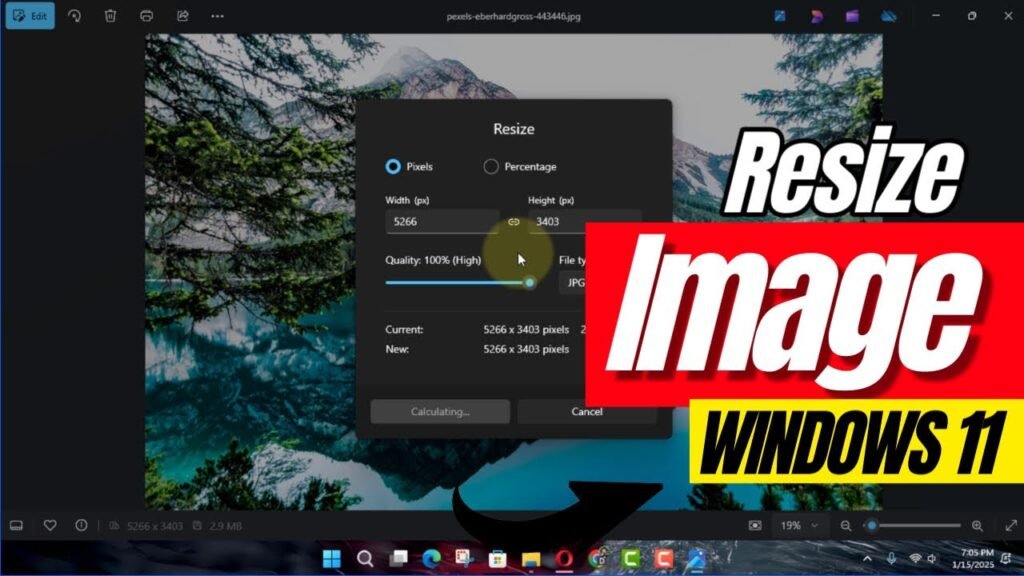

Phone photos are often several megabytes and thousands of pixels wide. That’s too big for many email attachments, forms and websites. You don’t need Photoshop to make them smaller. Windows 11 has two built-in tools that resize images in seconds.
Method 1: Resize with the Photos app
- Right-click the image and choose Open with > Photos.
- Click the three-dot menu (See more) at the top of the window.
- Choose Resize image.
- Set the new size in pixels or as a percentage. Keep Maintain aspect ratio turned on so the picture doesn’t stretch.
- Optionally lower the Quality slider to make the file even smaller.
- Click Save and choose a name. Use a new name to keep the original.
Method 2: Resize with Paint
- Right-click the image and choose Open with > Paint.
- Press Ctrl + W, or click the Resize and skew button in the Image section of the toolbar.
- Choose Percentage or Pixels.
- Keep Maintain aspect ratio checked and type the new width. The height updates automatically.
- Click OK, then go to File > Save as and save it with a new name.
Method 3: Resize many images at once
For a whole folder of photos, install Microsoft’s free PowerToys from the Microsoft Store and turn on Image Resizer.
- Select all the images in File Explorer.
- Right-click and choose Resize with Image Resizer. On Windows 11, you may need to click Show more options first.
- Pick a preset size such as Small or Medium, or enter a custom size, then click Resize.
By default, it creates resized copies and leaves the originals untouched.
Which size should you choose?
- Email or chat: 1280 to 1600 pixels wide is plenty.
- Website or blog: 1200 to 2000 pixels wide.
- Profile picture: often 400 to 800 pixels square.
Frequently asked questions
Will resizing reduce image quality?
Making an image smaller is usually fine. Making a small image larger makes it look blurry, because Windows can’t add detail that isn’t there.
How do I reduce file size without changing dimensions?
In the Photos app’s Resize dialog, keep the size the same and lower the Quality slider. Saving as JPG instead of PNG also makes photos much smaller.

