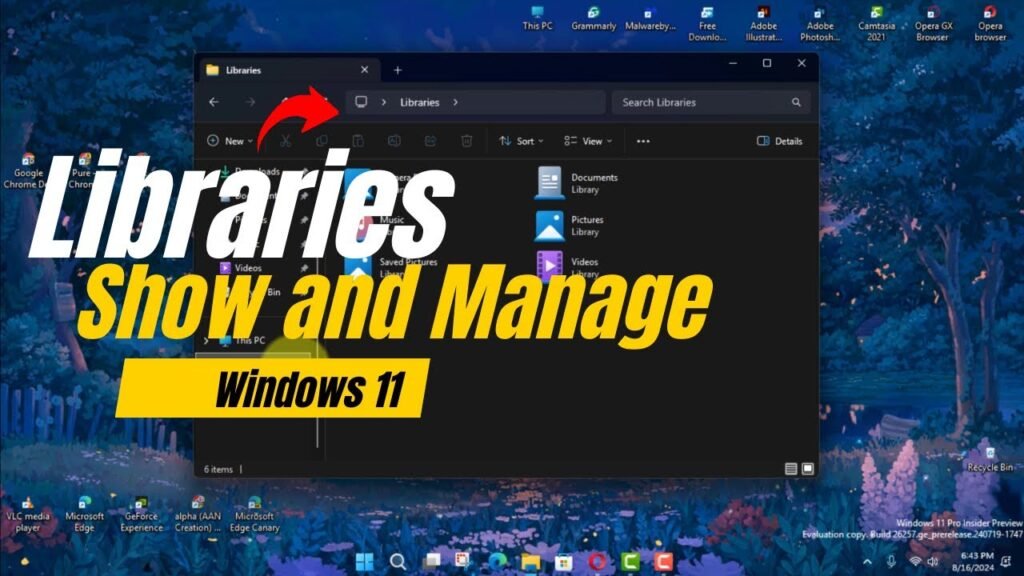

Libraries group folders from different places into one view. For example, your Pictures library can show photos from your user folder, a second drive and an external disk, all in one place. Windows 11 still has libraries, but they are hidden from the File Explorer side panel by default.
How to show libraries in File Explorer
- Open File Explorer (Windows + E).
- Right-click an empty area of the left navigation pane.
- Choose Show libraries.
A Libraries section now appears in the left pane with Documents, Music, Pictures, Videos and others.
Another way: click the three dots (…) > Options, open the View tab, scroll to Navigation pane and tick Show libraries, then click OK.
Add a folder to a library
- In the left pane, right-click a library, for example Pictures, and choose Properties.
- Click Add…, pick the folder you want to include and click Include folder.
- Use Set save location to choose which folder new files go to by default.
- Click OK.
You can also right-click any folder, choose Show more options and then Include in library.
Create a new library
- Click Libraries in the left pane.
- Right-click an empty area on the right and choose New > Library.
- Give it a name, then open its properties to add folders.
Restore the default libraries
If a default library goes missing, right-click Libraries in the left pane and choose Restore default libraries.
Useful tips
- Removing a folder from a library does not delete the folder or its files.
- Network folders can only be added if they are indexed or made available offline.
Frequently asked questions
Are libraries the same as Quick Access?
No. Quick Access (Home) pins folders for fast access. Libraries combine the contents of several folders into one view.
How do I hide libraries again?
Right-click the navigation pane and click Show libraries again to remove the tick.