
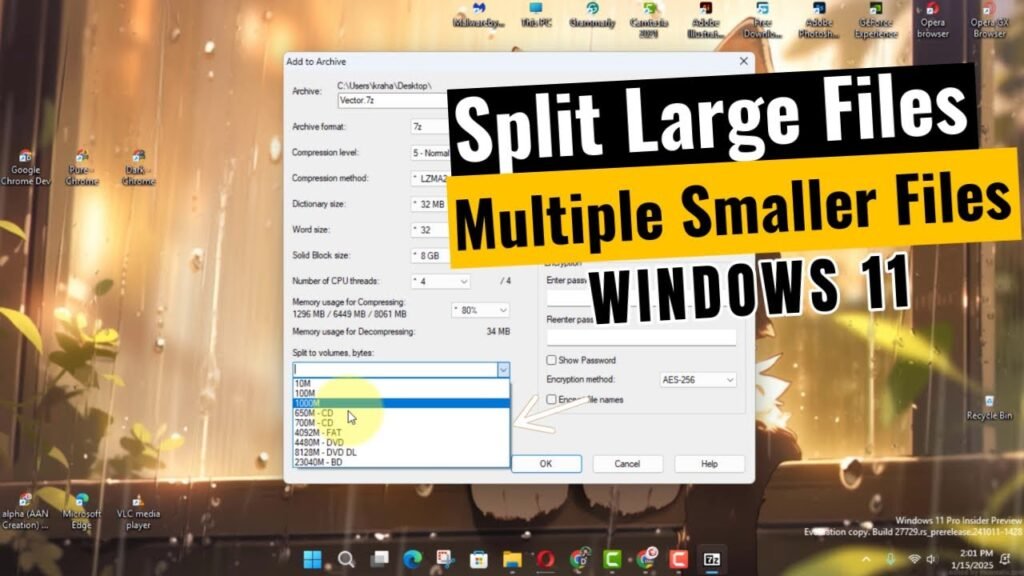

A video or backup file can be too large for email, a FAT32 USB stick (4 GB limit per file) or an upload form. The easy fix is to split it into several smaller parts, then join them back together later. Windows has no built-in split tool, but the free, open-source 7-Zip does it in a few clicks.
Install 7-Zip
- Download 7-Zip from its official website, 7-zip.org. Choose the 64-bit version for most PCs.
- Run the installer and click Install.
Split a file into parts
- Right-click the file in File Explorer. On Windows 11, click Show more options if you don’t see 7-Zip right away.
- Choose 7-Zip > Add to archive…
- Find the box called Split to volumes, bytes. Pick a preset from the list or type your own size, for example
500Mfor 500 MB parts or2Gfor 2 GB parts. - Leave Archive format as 7z (or choose zip). For large videos you can set Compression level to Store to make it much faster, because videos barely compress anyway.
- Click OK.
7-Zip creates numbered files next to the original, such as video.7z.001, video.7z.002 and so on. Your original file is not changed.
Join the parts back together
- Put all the parts in the same folder. None can be missing.
- Right-click the first part (ending in
.001). - Choose 7-Zip > Extract Here or Extract files…
7-Zip reads all the parts in order and rebuilds the original file. The person receiving the files also needs 7-Zip or another tool that supports split 7z archives.
Useful tips
- Add a password: in the Add to archive window, type a password under Encryption to protect the parts.
- Check free space: splitting needs about as much free space as the original file.
- Cloud links: for very large files, sharing a OneDrive or Google Drive link can be easier than sending many parts.
Frequently asked questions
Can I open just one part?
No. A split archive needs every part to extract. One part on its own is not a usable file.
Does splitting reduce quality?
No. 7-Zip is lossless, so the rebuilt file is an exact copy of the original.

