
Windows Terminal is the modern app for Command Prompt, PowerShell and WSL on Windows 11 and Windows 10. You can make the whole app dark, including tabs and the title bar, and choose a separate colour scheme for the text area of each shell. Everything is done from the Settings page, no file editing needed.
Set the app theme to dark
- Open Windows Terminal.
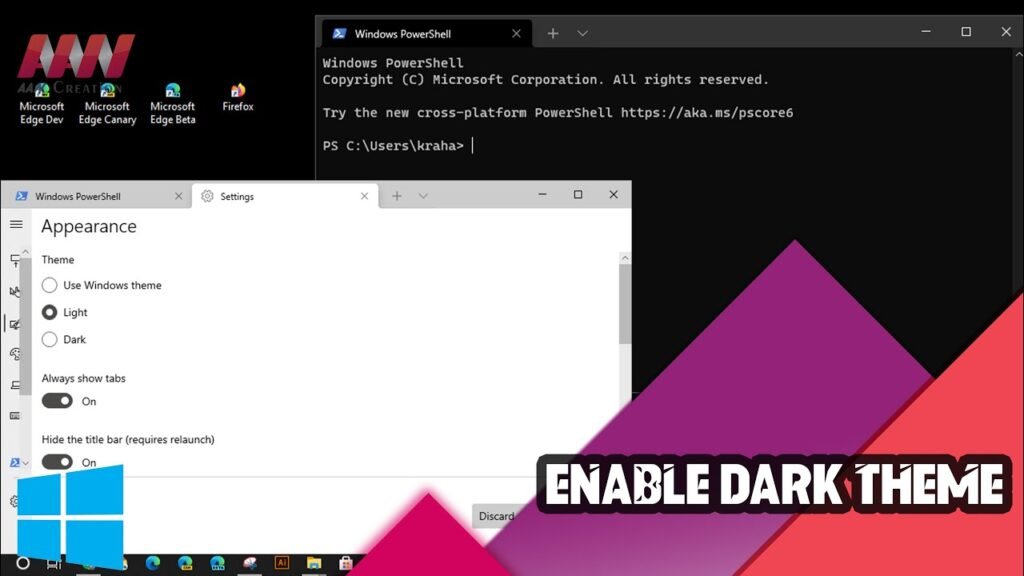
- Click the down arrow next to the tabs and choose Settings, or press Ctrl + , (comma).
- In the left menu, click Appearance.
- Under Application Theme, choose Dark. Choose Use Windows theme if you want it to follow your Windows light or dark mode.
- Click Save at the bottom right.
The tab bar and window frame turn dark right away.
Change the colour scheme of a shell
The text area colours are set per profile, so PowerShell and Command Prompt can look different.
- Open Settings in Windows Terminal.
- Under Profiles in the left menu, click the shell you want, for example Command Prompt. To change all shells at once, click Defaults instead.
- Click Appearance in that profile.
- Open the Color scheme drop-down and pick a dark scheme, such as Campbell, One Half Dark or Tango Dark. The preview updates as you choose.
- Click Save.
Fine-tune how it looks
In the same profile Appearance page you can also change:
- Font face and Font size, for example Cascadia Mono.
- Cursor shape, such as bar, underscore or filled box.
- Background image and Transparency (opacity) for a see-through window.
To edit or create colour schemes, click Color schemes in the left menu. You can duplicate an existing scheme and change individual colours.
Useful tips
- Set Windows Terminal as your default terminal app in Settings > Startup > Default terminal application.
- Press Ctrl + mouse wheel to zoom the text in and out quickly.
- Update Windows Terminal from the Microsoft Store to get the newest themes and settings.
Frequently asked questions
Why didn’t my changes apply?
Make sure you clicked Save. Also check that you changed the right profile; a setting in one profile overrides the one in Defaults.
Can I go back to the original look?
Yes. Choose the Campbell scheme and set Application Theme to Use Windows theme. You can also reset all settings by deleting the settings file.