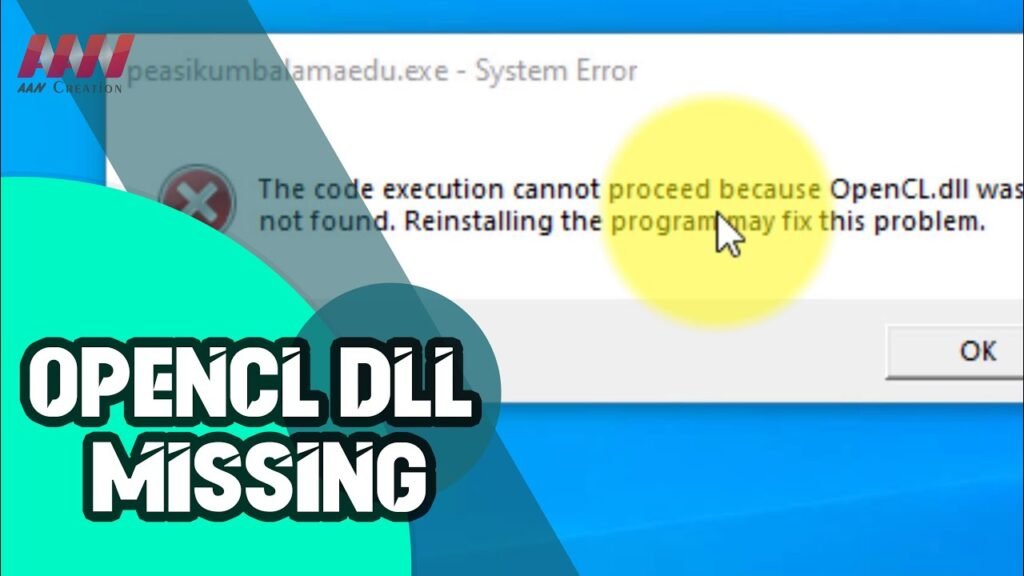

OpenCL.dll is a file that lets apps use your graphics card (GPU) for heavy work, such as video editing, 3D rendering, photo filters and some games. When it’s missing or broken, you may see messages like “OpenCL.dll was not found” or “The program can’t start because OpenCL.dll is missing”.
The file normally comes with your graphics driver, so that’s where the fix usually is. Don’t download the DLL from random websites. Those files can be the wrong version or contain malware.
1. Update or reinstall your graphics driver
- Find out which GPU you have: press Ctrl + Shift + Esc to open Task Manager, go to Performance and click GPU. The name appears at the top right.
- Download the latest driver from the official site: NVIDIA (or the NVIDIA app), AMD Software: Adrenalin Edition, or Intel Driver & Support Assistant.
- Run the installer. If it offers a Clean install or Factory reset option, choose it to replace damaged files.
- Restart your PC and open the app again.
Laptop users can also get drivers from the laptop maker’s support page.
2. Check Windows Update
Go to Settings > Windows Update and click Check for updates. Then open Advanced options > Optional updates to see if a newer display driver is offered.
3. Repair Windows system files
Right-click the Start button, choose Terminal (Admin) and run:
DISM /Online /Cleanup-Image /RestoreHealth
sfc /scannow
Wait until both finish, then restart.
4. Repair or reinstall the app
If only one program shows the error, it may be looking for its own copy of the file. Go to Settings > Apps > Installed apps, click the three dots next to the app and choose Modify or Advanced options > Repair if available. Otherwise, uninstall it and install the latest version from the developer’s website.
Tips
- Some older PCs with very basic graphics don’t support OpenCL at all. Check the app’s system requirements.
- Run a full scan in Windows Security if DLL errors appeared suddenly after installing unknown software.
Frequently asked questions
Can I just copy OpenCL.dll from another PC?
It’s not recommended. The file must match your driver and system, and a mismatched copy can cause crashes. Reinstalling the graphics driver puts the correct version in place.
Which folder should OpenCL.dll be in?
On 64-bit Windows, it’s normally in C:\Windows\System32, with a 32-bit copy in C:\Windows\SysWOW64. The driver installer handles this for you.