
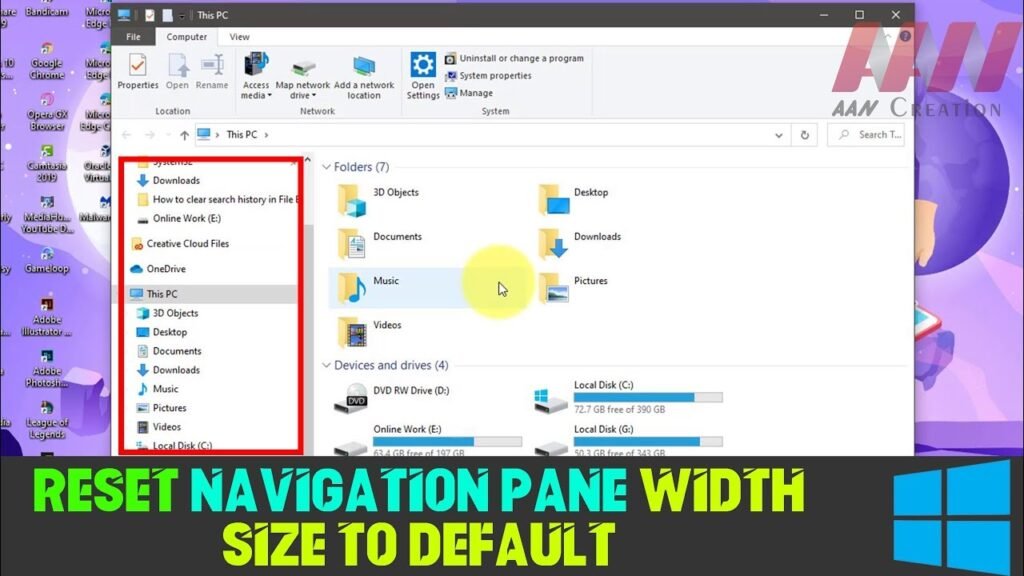

The navigation pane is the left side of File Explorer that shows Home, OneDrive, This PC and your drives. If you accidentally dragged it very wide, or so narrow you can barely read the folder names, you can fix it quickly. The steps work on Windows 11 and Windows 10.
Method 1: Drag the divider
- Open File Explorer with Windows + E.
- Move your mouse to the line between the navigation pane and the main folder area. The pointer changes to a double arrow.
- Hold the left mouse button and drag left or right until the width looks right.
File Explorer remembers the new width for all windows.
Method 2: Bring back a hidden navigation pane
If the pane has disappeared completely, it may be turned off.
- Windows 11: click View > Show > Navigation pane.
- Windows 10: click the View tab, then Navigation pane, and check Navigation pane.
Method 3: Reset the width to default in the registry
File Explorer stores the pane width in the registry. Deleting that value makes it return to the default size. Create a restore point first: search the Start menu for Create a restore point, select drive C: and click Create.
- Close all File Explorer windows.
- Press Windows + R, type
regeditand press Enter. - Go to:
HKEY_CURRENT_USER\Software\Microsoft\Windows\CurrentVersion\Explorer\Modules\GlobalSettings\Sizer - In the right pane, right-click PageSpaceControlSizer and choose Delete, then confirm.
- Restart File Explorer: open Task Manager with Ctrl + Shift + Esc, right-click Windows Explorer and choose Restart. Or simply sign out and back in.
Open File Explorer again. The navigation pane is back at its default width. If you don’t see the value, the width is already at the default.
Tips
- To make all folder text larger instead, change scaling in Settings > System > Display > Scale.
- Use View > Compact view in Windows 11 to fit more items in the navigation pane.
Frequently asked questions
Will deleting the registry value reset my other folder settings?
No. It only resets the navigation pane width. Your folder views, sort order and Quick access items stay the same.
Can I set an exact width in pixels?
There’s no simple setting for that. Dragging the divider is the easiest way to get the width you want.
