When the Desktop and Downloads folders fill up, finding one file can take minutes. Windows 11 already has the tools to fix this. You don’t need extra software. These eight habits keep your files in order and make them easy to find.
1. Use a simple folder structure
Create a few main folders inside Documents, such as Work, Personal, Finance and Projects. Keep it to two or three levels deep. Too many nested folders makes things harder to find, not easier.
2. Name files clearly
Use names like 2026-03-invoice-client-name.pdf. Starting with the date (year-month-day) makes files sort in the right order automatically.
3. Rename many files at once
- In File Explorer, select several files.
- Press F2, type a new name and press Enter.
- Windows adds numbers to each file, for example
Holiday (1),Holiday (2).
4. Pin your most-used folders
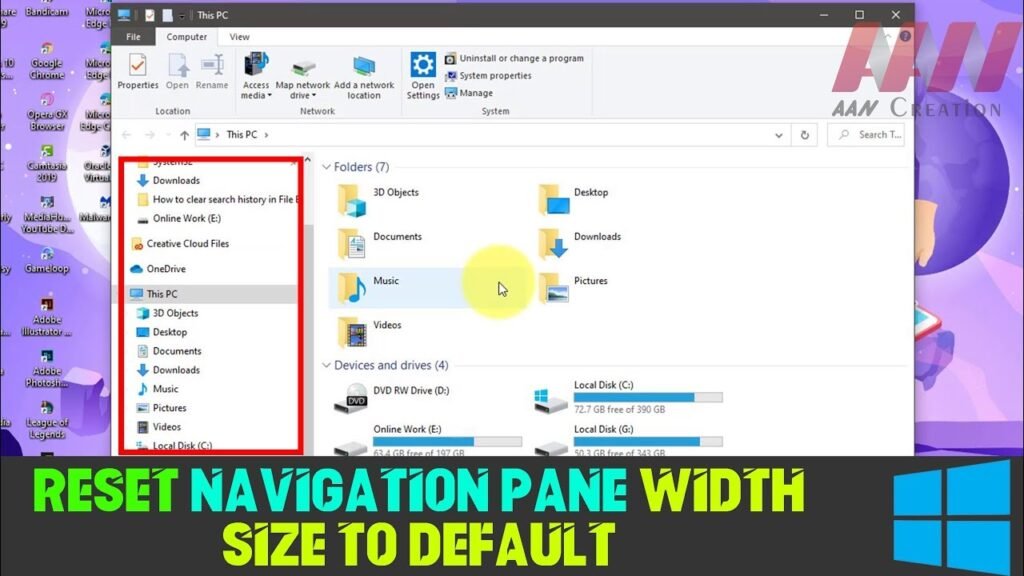
Right-click a folder and choose Pin to Quick access (on newer builds it may say Pin to Home). It now appears in the left pane of File Explorer, one click away.
5. Use tabs in File Explorer
Press Ctrl + T to open a new tab. You can drag files between tabs instead of opening several windows.
6. Sort and group by type or date
- Open a busy folder, such as Downloads.
- Click Sort in the toolbar and choose Date modified or Type.
- For extra order, right-click an empty area and choose Group by > Type.
7. Let Storage Sense clean old files
Go to Settings > System > Storage > Storage Sense. Turn it on and set it to empty the Recycle Bin and, if you like, remove files in Downloads that you haven’t opened for a set number of days. Check the Downloads option carefully so you don’t lose files you still need.
8. Back up important folders with OneDrive
Open OneDrive settings and use Sync and backup > Manage backup to back up Desktop, Documents and Pictures. Your files stay organised and safe if the PC fails.
Quick tips
- Empty your Desktop once a week. Move files into their proper folder.
- Use the File Explorer search box with filters like
kind:documentordatemodified:this week. - Give key folders a custom icon: right-click > Properties > Customize > Change Icon.
Frequently asked questions
Is it better to use folders or search?
Both. A simple folder structure keeps related files together, and search finds a file quickly when you remember its name or type.
Will Storage Sense delete my personal files?
Only from the places you choose. By default it focuses on temporary files and the Recycle Bin. The Downloads cleanup stays off unless you set it.