
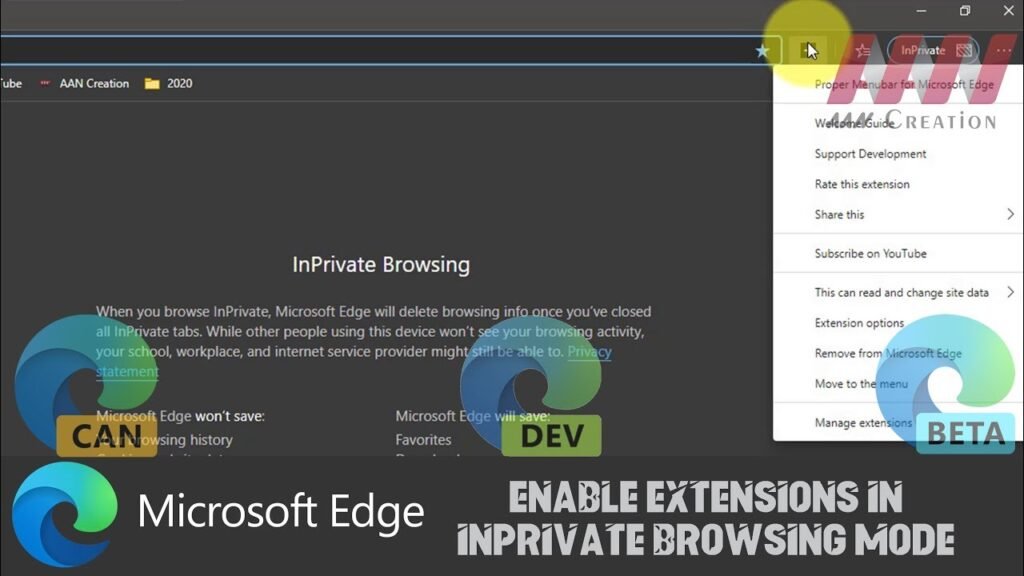

When you open an InPrivate window in Microsoft Edge, your extensions disappear. That’s on purpose: Edge can’t stop an extension from recording what you do, so it blocks them in private mode by default. If you trust an extension, such as your password manager or ad blocker, you can allow it one by one.
How to allow an extension in InPrivate
- Open Microsoft Edge.
- Type
edge://extensionsin the address bar and press Enter. You can also click the three-dot menu > Extensions > Manage extensions. - Find the extension you want and click Details under its name.
- Turn on Allow in InPrivate.
- Open a new InPrivate window with Ctrl + Shift + N. The extension now works there.
How to turn it off again
Go back to edge://extensions, click Details for the extension and turn off Allow in InPrivate. The change applies to new InPrivate windows.
Which extensions are worth allowing?
- Password managers: so you can sign in to sites without typing passwords.
- Ad and tracker blockers: they add extra privacy on top of InPrivate.
- Accessibility tools: such as dark mode or reading helpers.
Avoid allowing extensions you don’t know well. An extension with access to all sites can see the pages you visit, even in InPrivate.
Good to know
- InPrivate doesn’t keep history, cookies or form data after you close all InPrivate windows.
- Downloads and favourites you create in InPrivate are still kept.
- InPrivate doesn’t hide your activity from your employer, school or internet provider.
Frequently asked questions
Why don’t I see the “Allow in InPrivate” option?
If your PC is managed by work or school, a policy may block extensions in InPrivate. Also make sure Edge is up to date from Settings > About Microsoft Edge.
Does this work the same in Google Chrome?
Yes. Open chrome://extensions, click Details and turn on Allow in Incognito.
Do I need to repeat this after an extension updates?
No. The setting stays on after normal updates. If you remove and reinstall the extension, you’ll need to allow it in InPrivate again.
Can I allow all extensions at once?
No. Edge asks you to allow each extension separately. This is a safety feature, so you only give private-mode access to tools you trust.

