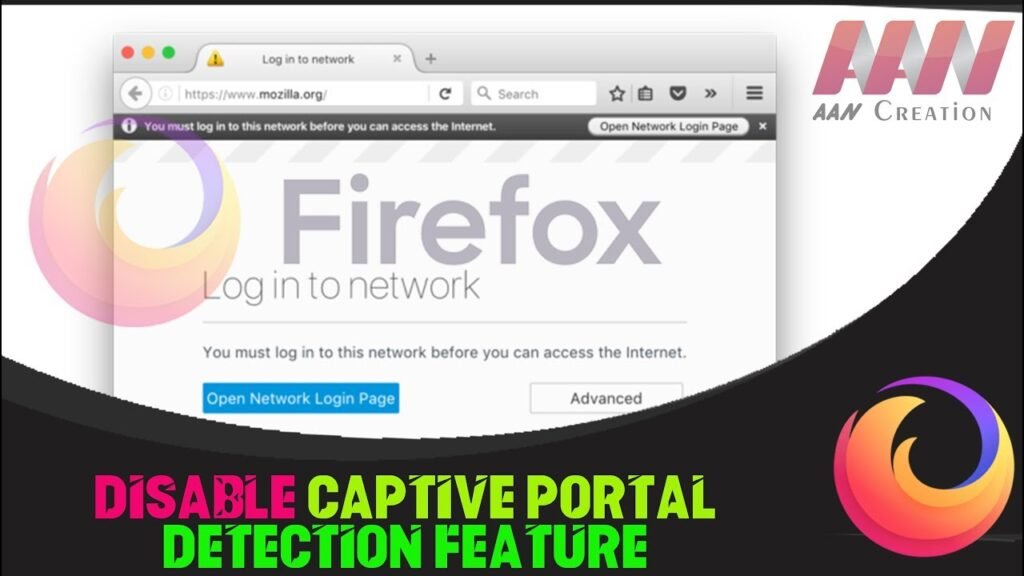

Firefox regularly connects to a Mozilla test address to see if you’re on a network that needs a login page, like hotel or airport Wi-Fi. This is called captive portal detection. Some people turn it off for privacy, to stop these background connections, or because the “log in to network” bar appears when it shouldn’t.
How to disable captive portal detection
- Open Firefox, type
about:configin the address bar and press Enter. - Click Accept the Risk and Continue. Only change the settings described here.
- In the search box, type
network.captive-portal-service.enabled. - Click the toggle button next to it (or double-click it) to set it to false.
- Restart Firefox.
Optional: stop the connectivity check too
Firefox also runs a separate network connectivity check. To turn it off:
- In
about:config, search fornetwork.connectivity-service.enabled. - Set it to false and restart Firefox.
What changes after you turn it off
- Firefox no longer contacts the detection address in the background.
- On public Wi-Fi, Firefox won’t show the bar that opens the login page for you.
- To log in to public Wi-Fi, open any simple website and the network’s login page should appear instead.
How to turn it back on
Go back to about:config, search for the same setting and click the reset arrow to restore the default (true). Restart Firefox.
Frequently asked questions
Is it safe to disable captive portal detection?
Yes. It doesn’t weaken your security. It only means Firefox won’t detect Wi-Fi login pages automatically, which is mainly a convenience feature.
Why does Firefox ask me to log in to the network at home?
This can happen when your router, a VPN or a DNS filter blocks the test address. Disabling captive portal detection stops the message. Checking your router or VPN settings may fix the cause.
Does this setting sync to my other devices?
No. Changes in about:config only apply to the Firefox profile on this computer. Repeat the steps on each PC where you want it off.
Will Firefox updates turn it back on?
Normally no. A changed preference stays changed after updates. If you refresh Firefox from about:support, custom preferences are reset and you’ll need to change it again.