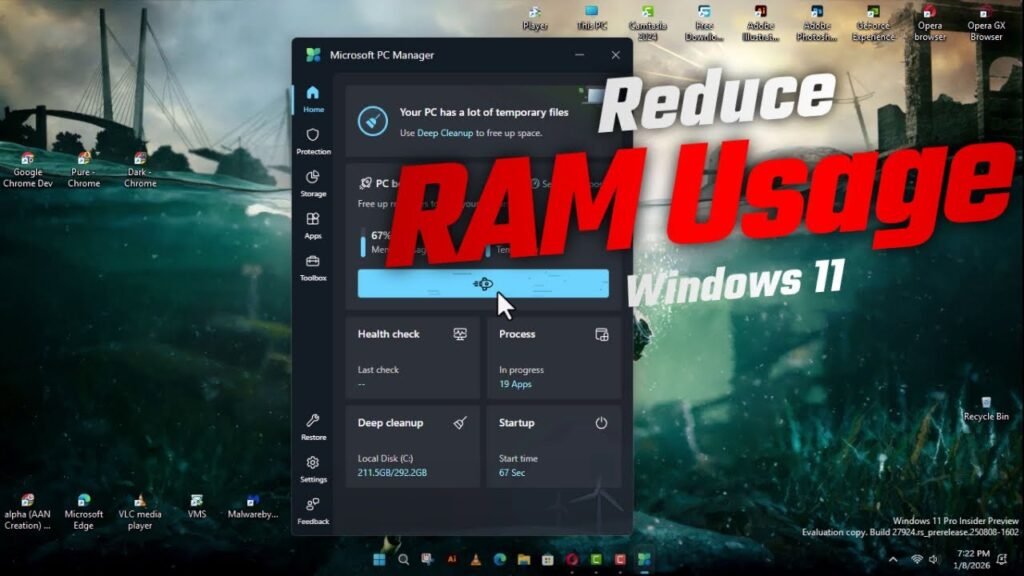

When your RAM is nearly full, Windows has to move data to the much slower disk, and everything starts to lag. The good news is you can free up memory in minutes with tools already in Windows 11. You don’t need a “RAM cleaner” app, which often does more harm than good.
1. See what’s using your memory
- Press Ctrl + Shift + Esc to open Task Manager.
- On the Processes page, click the Memory column header to sort by memory use.
- The apps at the top use the most RAM.
2. Close apps you don’t need
- In Task Manager, select an app you’re not using.
- Click End task.
Only end apps you recognise. Don’t end Windows processes such as Windows Explorer or System. Save your work before closing an app.
3. Tame your web browser
Browsers with many tabs are often the biggest RAM users.
- Edge: go to Settings > System and performance and turn on Efficiency mode and Save resources with sleeping tabs.
- Chrome: go to Settings > Performance and turn on Memory Saver.
- Close tabs you don’t need, and remove extensions you no longer use.
4. Stop apps from running in the background
- In Task Manager, open Startup apps.
- Right-click apps you don’t need at startup and choose Disable.
- In Settings > Apps > Installed apps, click the three dots next to a Store app, open Advanced options and set Background apps permissions to Never (where the option appears).
5. Restart your PC
A restart clears memory used by apps that leak RAM over time. If you only use Sleep, try a full restart a few times a week.
6. Check your total RAM
Open Task Manager > Performance > Memory. If you use more than 85 to 90% during normal work, you may need more RAM. For Windows 11 with a browser and office apps, 16 GB is comfortable.
Tips
- Run a full scan with Microsoft Defender if an unknown process uses lots of memory.
- Don’t turn off the page file. Windows needs it, even with plenty of RAM.
Frequently asked questions
Is high RAM use always bad?
No. Windows uses spare memory as a cache to speed things up and gives it back when apps need it. It’s only a problem when your PC slows down and memory stays near 100%.
Do RAM cleaner apps work?
They free memory briefly, but Windows then has to load the data again, which can make things slower. The built-in steps above are more effective.